Back Up Your RSS Feed

Every day, I skim through a long list of blog posts, in Google Reader. I’ve accumulated the items in my list over a few years, and would hate to lose it.

Now I’m sure that the fine people at Google take very good care of my feed, and I don’t have to worry about it. However, just to be on the safe side, I make a backup copy of the feed every couple of weeks or so.

Then, it’s on my computer, and gets backed up onto the external drive too. Belts and suspenders might not be fashionable, but they can prevent embarrassing situations.

Here are the steps for exporting a backup file from Google Reader. Other RSS readers should have something similar. This technique is also useful if you decide to change to a different RSS reader.

You can export from the old one, and import in the new one. If Google ever disappears in the middle of the night, and I have to go back to Bloglines, I’ll be ready.

Export an RSS Feed

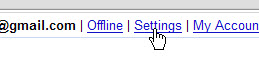
  • Log in to Google Reader, and click the Settings link.
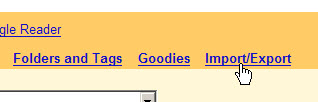
  • Click on the Import/Export link

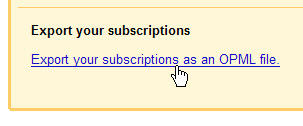
  • Click the Export button

  • Select a folder, and save the file. That’s it!

Technogeek Dream Coat

Why have I been making do with three pockets, when I could have 19? Or 39? Who knew there were special clothes for technology lovers?

Here’s the rodeo coat, which has 39 pockets. Might come in handy, even if you don’t plan to attend a rodeo.

As you can see, it’s a final close out, so act fast! Remember, this blog is dedicated to helping you save time and money.


The SCOTTEVEST people realize that women are technology lovers too. I need this vest, with its 21 handy pockets.

I’ll pass on the Hidden Cargo Pants though, thanks anyway.

Find WiFi While Travelling

When you’re travelling, you probably bring your laptop, so you can do some work and keep up with your email. Some of the ritziest hotels that I’ve stayed in charge for daily access to their wireless network, or you can trudge down to the lobby for free access.

At other, mid-priced hotels, the access is sometimes free. If you’re paying an exorbitant rate for the room, can’t they throw in a couple of dollars worth of wifi?

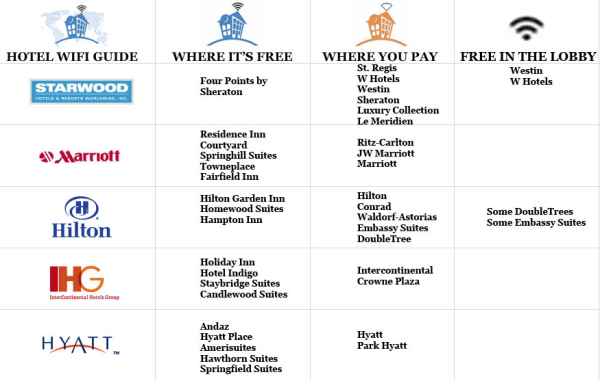
If you’re planning a trip, the following chart, from Book of Joe, shows which hotel chains have free access, and which chains charge for it, or make you balance your laptop on your knees in the lobby.


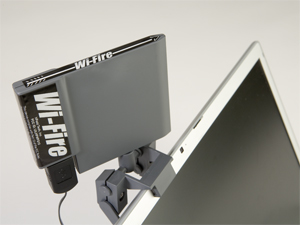
If you have trouble finding a nearby wireless network, the Wi-Fire might help you find something a bit further away.

I haven’t tried it, but there have been many times that it would have been very useful.

Are You Ready for Metered Internet?

If you had asked me a few days ago, how much I download and upload each day, I’d have had no idea. Apparently some cable companies in the USA are testing metered internet service.

I haven’t seen this mentioned for Canadian companies, but if it works in Texas, it will probably arrive here soon enough. If you know your current usage, you’ll be able to select the best plan for your needs.

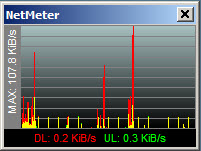
To measure your daily transfer rates, you can download the free utility, NetMeter. I installed it last week, which went very smoothly. The icon sits in the system tray, and you can click on it to see a graph of your current usage.


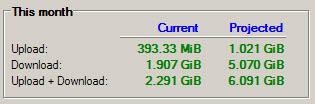
Right-click on the system tray icon, to change the options, or to view your totals and projected totals.


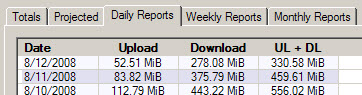
You can also view Daily, Weekly and Monthly reports, and export them as csv files. Open the exported files in Excel, and you can create your own chart, reports and pivot tables from the data.

Send Google Search Results to Your Newsreader

If you’re trying to stay on top of the news in Excel or another area of interest, you can create Google Alerts to update you automatically.

After you create an Alert, you can add it to your newsreader, and read it with the rest of your feeds every day. I prefer this, instead of getting Alerts by email.

Create a Google Alert

  • Log in to your Google account, and click on Google Alerts
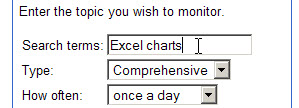
  • Enter your search topic, and set the other options for the alert.

  • Click Create Alert, to open the list of Alerts

Add the Alert to a Newsreader

These steps will vary, depending on your browser and newsreader. In this example, I used Firefox and Google Reader.

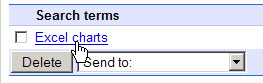
  • In the list, click on the search term link


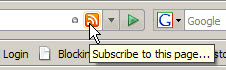
  • In the toolbar of your browser, click the RSS Feed icon.


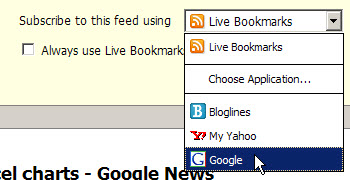
  • On the Feed page, select a newsreader from the drop down list

  • Click the Subscribe Now button
  • Click the Add to Google Reader button, or complete the steps in your newsreader.

Delete the Google Alert

  1. Go back to the list of Google Alerts
  2. Add a check mark to your Alert, then click the Delete button.

Excel Users Inspired the Mouse Scroll Wheel

Do you use the mouse wheel to save time while scrolling through a web page, Word document or Excel sheet? If so, you can thank the Excel users from the early 1990s.

The scroll wheel is one of many features created by Eric Michelman, who was an Excel Program Manager at Microsoft, where he worked from 1991 to 2002.

Eric also designed other time-savers, including Pivot Tables (thanks!), database features, multi-user worksheets, and Page Break Preview.

“Back in 1993, as I was watching many Excel users do their work, I noticed the difficulty they had moving around large spreadsheets. Finding and jumping to different sections was often difficult. I had the idea that perhaps a richer input device would help.”

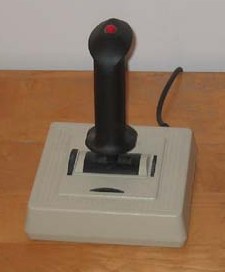
You can read Eric’s full account of the development of the scroll wheel, to learn how it evolved from a joystick designed for zooming in Excel (shown at the end of this article), to a scrolling wheel.

Scroll Wheel Development

There’s also a brief reference to the scroll wheel development on the Microsoft site, that confirms Eric’s description of the events.

“Eric Michelman wired a joystick to the zoom setting in Excel to make it easier to navigate large spreadsheets. He called it the ZoomLever. He demoed it at one of our team meetings and asked if anyone had any ideas for what we could use instead of the joystick. I had just bought a new VCR that had a remote with a wheel on it, and I brought it in the next day to show him. Eric asked if he could borrow it, showed it to the hardware guys, and soon we were playing with IntelliMouse prototypes with wheels on them.”

Joystick controller
Joystick controller

Straight Talk from IT

Whether you’re the CIO of a large company, or working in a small IT department, or a self-employed consultant, do you hide behind words like “anomoly”, “specifications” and “process”?

I’ve been guilty of a few of those, when a user has a problem with a spreadsheet or database that I’ve created.

In The Naked CIO: Tech’s Weasel Words, the article’s author says, “We need to keep reducing the technical jargon that is so divisive and replace it with meaningful communication.”

My favourite point in the article is a communication tip that I learned long ago — avoiding the use of “but”.

“In my team I have outlawed people saying ‘but’. As in, “I understand what you are saying but…” or “That is a great idea but…”. It has no value and only harms attempts to build consensus.”

I try to replace “but” with “and”. It makes me think a bit harder before I reply, and the results are worth the effort.

Simplify Your Writing With Thsrs

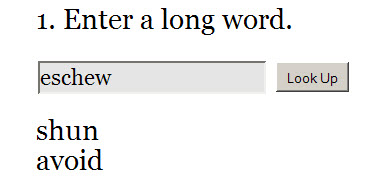
If you’re writing an article or presentation, in many cases it’s better to use smaller words, that more readers will easily understand, than to fill your articles with five syllable tongue-twisters. Eschew obfuscation, as they say.

Now there’s Thsrs, an online thesaurus to help you simplify your writing.

Enter a long word in the input box, and Thsrs will return a list of suggested replacements.

One of the words in the list might be a good replacement for your longer word, and will spare your readers from confusion.

Free Online Calculators

If you’re trying to solve those IBM problems from yesterday’s post, you might need the help of a calculator. Luckily, there are free online calculators that you can use.

The first one is a scientific calculator, Calculator Tab, with long-term memory that allows you describe and retrieve saved numbers.

Click the tabs on the calculator to see the hidden functions, to save and retrieve the results, or to clear the calculator.

There are buttons on the page, above the calculator, to view the calculator in a popup window, and to use the keyboard for input.


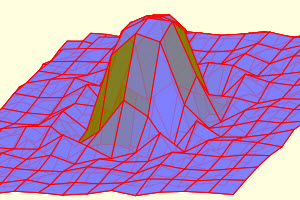
Another free calculator is calc5, a graphing calculator. There’s not much on the page when you arrive, but click the samples listed at the right, or enter your own data in the input box.