Summer Giveaway for Excel Nerds Winners

Thanks for participating! You’re an awesome bunch of Excel nerds. The entries in the “You might be an Excel nerd…” giveaway were very entertaining, and read more like my resume than a list of contest entries.

Yep, I do some of those things, and I’ll bet you do too. 😉
Thanks again to the generous prize donors:

The Draw

As promised, I did a random draw of prizes and entries. But, in true Excel nerd fashion, I didn’t just drop the names into a hat. No, that might have only taken 5 minutes or so. Instead, I wrote a macro to do the draws for me.

Before the draw, I cleaned up the list of entries, removing the people who said they weren’t participating, and deleting any extra entries per person. I kept the comment numbers with the names, and created a numbered list of prizes, based on the order they appeared in the original giveaway post.

I set up a list to record the draw number, prize number and entry number, then ran the macro. There was even a drum roll at the start of the draw, but it was disappointingly quiet. Oh well, at least everything else went smoothly.

You’d probably do it differently, and maybe without the drum roll, but if you’d like to see the macro that I used, you can download the Draw Macro Sample file. Now you’ll be able to organize your own giveaways!

And the Winners Are…

After the numbers had been selected, I used a couple VLOOKUP formulas to pull the prize names and winner names from the original lists of numbered prizes and entries. Congratulations to all the winners! Here’s the list:
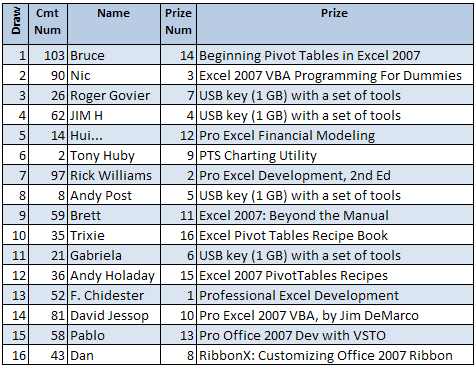
Giveaway20090729_Win

Collect Your Prize

I’ll send an email to all the winners on July 29, 2009, with instructions for claiming your prize. Please reply by 5 PM EDT on Monday August 10, 2009, or your prize will be put back into the vault for the next giveaway.

Note: Some of the prize donors will be away from their offices in August, so there may be a delay in mailing.

Update: I’ve sent out the emails, using the email address that you used in your comment. If you haven’t received your email, please let me know at ddalgleish @ contextures.com

______________
Prevent Excel Dependent Drop Down List Problems

You know how to create a drop down list in Excel, by using the Data Validation feature.

Sometimes you get extra fancy, and make a drop down list that depends on the selection made in another list, using dependent data validation.

Excel Dependent Drop Down Lists

Dependent Drop-Down List Problem

Dependent data validation works well, but there’s a loophole.

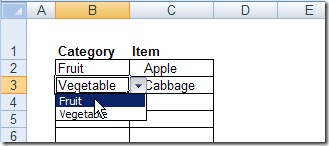
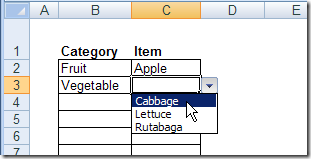
In the screen shot below, I can change the category to Fruit, even though a vegetable, Cabbage, is selected as the Item in that row.

With this loophole, you could end up with some strange data on your worksheet!

Changing Category Selection

Lock the First List

Excel users are very resourceful, and can find ways around almost every safeguard that you set up.

However, you can slow them down a bit, by making the first list dependent on the second.

They’ll have to clear the Item selection before they can change the Category.

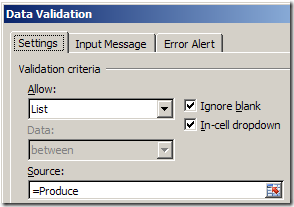
Currently, the Category cells have a data validation list that’s based on the named range, Produce.

DVProdDialog

Change Data Validation Formula

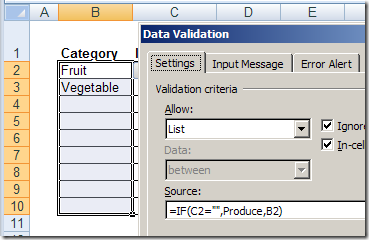
You can change the formula in the Source box, so it only uses the Produce range if the Item cell is empty. In the screen shot below, cell B2 is active, and the Data Validation Source formula is:

=IF(C2=””,Produce,B2)

Change Data Validation Formula

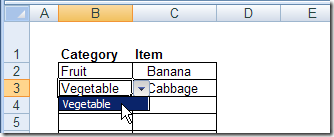
Cannot Change Category

If cell C2 is empty, the Produce list will show in the drop down list.

If an Item was selected in cell C2, then the drop down list will show contents of cell B2.

drop down list shows cell contents only

Highlight Any Inconsistencies

It’s still not foolproof. Users could clear the Category cell, then enter any value. Or they could cut and paste from another cell.

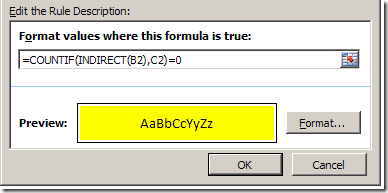
As an extra precaution, you could add conditional formatting in column C, to turn the cells yellow if the selected Item is not in the selected Category.

With cell C2 active, the conditional formatting formula is:

=COUNTIF(INDIRECT(B2),C2)=0

conditional formatting formula to highlight mismatches

The bright yellow colour will alert users if there’s an inconsistency in the selections, and make it easier for you to spot any problems.

Highlighted Items

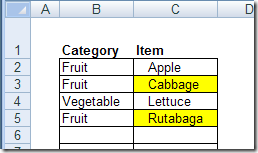
For example, in the following screen shot, Cabbage and Rutabaga are highlighted in yellow, because the Category has been changed to Fruit.

Those items don’t appear in the range named Fruit, so the COUNTIF formula returns a zero.

conditional formatting highlights mismatches

[Update] Video: Block Dependent Drop Down Changes

This short video shows another way to block people from changing the first drop down list, if there’s a selection in the second drop down.

There are written steps, and a sample file on the Advanced Dependent Drop Down Lists page, on my Contextures site.

_________________

Summer Giveaway For Excel Nerds

It’s time for an Excel giveaway! Just describe one of the telltale signs of Excel nerdery (is that a word?), and you could be the proud owner of a shiny new Excel book, e-book or utility.

To enter, write an original (and suitable for work!) comment below, completing the sentence, “You might be an Excel nerd if…”

For example, you might be an Excel nerd if:

  • you’ve written 3 books on pivot tables.
  • long-lost friends and relatives call you, not for money, but for Excel help.
  • you understand Dave’s “accept labels” comment, that inspired this giveaway.

The submission deadline is 12:00 noon (EDT) on Tuesday, July 28, 2009. Winners will be announced here on July 29th.

Update: Congratulations to all the Excel Nerds winners, listed in the July 29th blog post.

The Goodies

Thanks to the generosity of some Excel authors and developers, and my publisher, I have a nice collection of books and utilities to give away.

JKP Application Development Services

From Jan Karel Pieterse, of JKP Application Development Services:

ProExcel1 ProExcel2 VBA2007Dummies jkpDrive

The Ken Puls Blog

From Ken Puls, of The Ken Puls Blog:

RibbonX

Peltier Technical Services

From Jon Peltier, of Peltier Technical Services:

ptstilemekko ptstileboxplot ptstilecluster ptstilewaterfall

Apress Publishers

From my publisher, Apress, four prizes – e-book versions of Excel books:

(e-books)
ProExcelVBA Excel2007BTM ProExcelFinMod ProOfficeVSTO

Contextures

And finally, from Contextures – three prizes

  • Beginning Pivot Tables in Excel 2007
  • Excel 2007 PivotTables Recipes
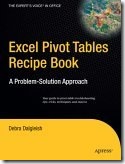
  • Excel Pivot Tables Recipe Book

BeginPT_2007 PTRec2007 PTRec

The Rules

  • To enter, just write an original (and suitable for work!) comment below, completing the sentence, “You might be an Excel nerd if…”
  • The comment must be submitted before the deadline of 12:00 noon (EDT) on Tuesday, July 28, 2009
  • One entry per person – any additional entries will be deleted from the draw
  • A random draw will select each prize and its winner. No substitution of prizes.
  • Winners will be notified by email, so please provide a valid email address. This will not be publicly visible, but may be shared with the contest sponsors, so they can contact prize winners to arrange delivery.
  • Physical prizes will be shipped, postage paid, but taxes or other charges (if any) will be the responsibility of the recipient.

______________

Slowly Installing Office 2010 Technical Preview

My head hurts today, and unfortunately it’s not from a weekend of wild carousing. No, it’s from a weekend of installing software. I’m sure you’ve experienced similar pain, and you might be a bit sympathetic.

Office 2010 Technical Preview

As you might know, the technical preview for Excel 2010 started last week, so I downloaded it, and was eager to take a peak at it.

Even though it was going onto my old laptop, I wanted to create a virtual machine first, and install Excel 2010 in that, away from all the other software.

Install a Virtual Machine (VM)

I’d never created a VM before, but how hard could it be? The first thing I did was find a site that gave step by step instructions on installing and setting up a VM.

That went well, and the next task was to install an operating system in the VM. Of course, all I could find were some Vista disks, and I wanted to install XP Pro.

My MSDN subscription came to the rescue, where I downloaded XP Pro, and installed it on the VM, which took a loooong time!

Install Microsoft Office 2010

The XP Pro installation went smoothly though, and eventually I was ready to load Office 2010.

That installation got off to a bad start, when it whined about a missing file, and wouldn’t begin the Office 2010 installation.

After a frustrating search, I finally found the missing file on the Microsoft site, and installed it.

Work Day Is Over

Finally, with all the pieces in place, the 2010 installation was relatively quick, and trouble free.

By then, the day was almost over, and my enthusiasm had waned considerably, so there wasn’t much time to explore the new features.

That exploration will have to wait until next weekend, I guess.

Other Installations

During the slow periods, while things were being installed, I decided to load Expression Studio onto my desktop computer.

That would give me a chance to work with it, and see if I like Expression Web better than my old version of Dreamweaver.

It took quite a while to install too, with four programs, and multiple product keys.

Browser Update Too

To top things off, I also upgraded to Firefox 3.51, then had to find new versions of some add-ons that I like to use.

Anyway, that’s all behind me now, and everything seems to be working well.

Excel Functions Word Search

Until my head recovers, I’d appreciate it if you use your inside voice, and work quietly at your desk.

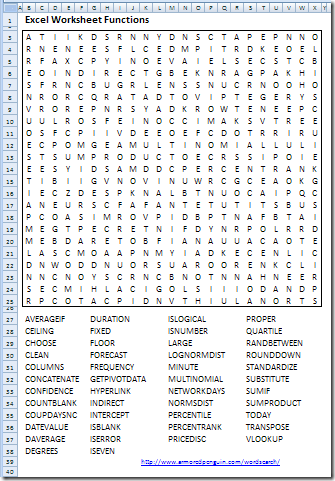
For your amusement, here’s an Excel Functions word search puzzle. If anyone asks, just tell them you’re working on some complex Excel functions.

To create it, I uploaded a list of Excel 2007 worksheet functions to the Armored Penguin site, and the puzzle was generated in a few seconds.

You can download the Excel file with the word search, and answer key sheet.
Thanks! We’ll resume our regular stomping about on Wednesday.

Excel Functions Word Search

_____________________

Copy Excel Code to a Different Workbook

Last week one of my clients asked for a bit of help, so I sent a workbook with some sample code to tackle the problem. It was just what he needed, so my client wanted to copy the code from the sample file, into his own workbook.

Unfortunately, he wasn’t sure how to do that, and asked for a bit more help.
A quick way to copy code is to drag a module from one workbook to another, in the Visual Basic Editor. In this example, the code is in VBACodeCopy.xls and will be copied to MyForm.xlsm.

  1. Open both workbooks
  2. On your keyboard, hold the Alt key, and press the F11 key, to open the Visual Basic Editor
  3. In the Project Explorer window, find both workbooks.
  4. In the workbook with the code, click the + sign to view the list of Modules
  5. Click on the module that you want to copy, and drag it over the project where you’d like the copy placed.
  6. Release the mouse button, and a copy of the module will appear in the workbook. It will automatically create a Modules folder, if necessary.
Find workbooks in Project Explorer window

Copy and Paste Excel Code

If you only want some of the code on a module sheet, or to copy code from a worksheet or workbook module, you can copy and paste the Excel code.

Watch the Video

To see the steps for copying an entire module, you can watch this short video.

________________
Run an Excel Macro With a Worksheet Button

In my workbooks, I sometimes add buttons to run macros. Usually, they’re for navigation to the next or previous sheet, or to run a macro that’s specific to the contents of the worksheet.

In this example, I’ve got two macros in the workbook – one that takes you to the next sheet in the workbook, and one that takes you to the previous sheet.

So, if you’re on the second sheet, you can click the Next button to go to the third sheet. Or, click the Back button to go to the first sheet.

Update: I’ve added a video, about halfway down the page, to show the steps.

Add a Button

  • On the Ribbon, click the Developer tab
    • Note: If the Developer tab isn’t visible, click the Office Button, then click Excel Options. Click the Popular category, then add a check mark to Show Developer tab in the Ribbon.
  • In the Controls group, click Insert, to see the controls from the Form toolbar and the Control Toolbox.
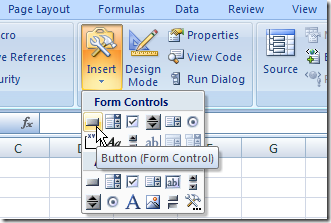
  • In the Form Controls section, click Button.

FormButton01

  • Click on the worksheet to add a button, or drag on the worksheet to add a button of a specific size.
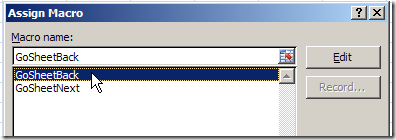
  • In the Assign Macro dialog box that opens automatically, click on the name of a macro to select it, then click OK
Assign Macro to Form Control button

Format the Button

While the button is still selected, you can change its caption and add some formatting.

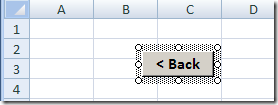
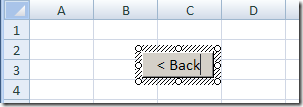
  • To change the button’s caption, select the existing text, and type a caption to replace it. The border around the button will have diagonal lines when you’re editing the text

ButtonBack01

  • Click on the border of the button, to select it. The outline should change to a dotted pattern, as you can see in the next screenshot.

ButtonBack02

  • On the Ribbon’s Home tab, use the font formatting buttons, such as Bold and Font Size, to change the appearance of the button.

Use the Buttons

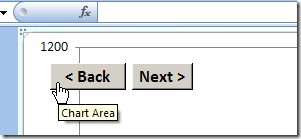
After you’ve added the Back button, repeat the steps to create a Next button. Then, copy the two buttons to any worksheets or chart sheets in the workbook.

To move through the sheets, click either the Back or Next button on any sheet.

ButtonBack03

Video: Add Worksheet Navigation Buttons

This video shows how to add the buttons, and align them. Then it shows how to copy the buttons to other worksheets.

NOTE: This video does NOT show the steps for writing the Excel macros. Those are in the sample file that you can download.

The Navigation Code

Here’s the code that I used to make the buttons select the next or previous sheet.

Sub GoSheetNext()
Dim wb As Workbook
Dim lSheet As Long
Set wb = ActiveWorkbook
lSheet = ActiveSheet.Index
With wb
  If lSheet = .Sheets.Count Then
    .Sheets(1).Select
  Else
    .Sheets(lSheet + 1).Select
  End If
End With
End Sub
'=================================
Sub GoSheetBack()
Dim wb As Workbook
Dim lSheet As Long
Set wb = ActiveWorkbook
lSheet = ActiveSheet.Index
With wb
  If lSheet = 1 Then
    .Sheets(.Sheets.Count).Select
  Else
    .Sheets(lSheet - 1).Select
  End If
End With
End Sub

Get the Sample File

To get an Excel sample file with buttons to navigate to the previous or next worksheet, go to the Worksheet Macro Buttons page on my Contextures site. The zipped Excel file is in xlsm format, and contains macros.

Update: There is a newer version of the code on this Add Navigation Buttons blog post.

________________
Celebrating Excel Day 40000

Excel was launched in 1985, so it hasn’t been around for 40,000 days. However,  Excel’s date system starts at January 1, 1900 (day 1), and today is day 40,000 in that date system.

Not on the Mac

It’s not Day 40000 for Excel Mac users though – its default date system starts at January 1, 1904 (day 0).

So, if you’re using Excel for the Mac,  you won’t hit the day 40000 milestone for another four years.

The two dating systems are explained in the Microsoft Knowledgebase article at this link: Description of the differences between the 1900 date system and the 1904 date system in Excel.

Switch to a Different Date System

Whether you’re using Excel on a Windows machine or on a Mac, you can switch from the default date system.

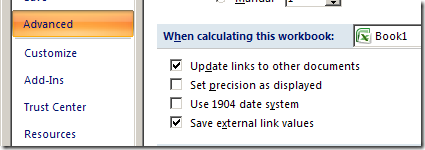
Follow the steps below, if you want to switch to the 1904 Date System in Excel 2007:

  1. Click the Office Button, then click Excel Options
  2. Click the Advanced category
  3. Scroll down to the section titled, When calculating this workbook
  4. Add a check mark to Use 1904 date system.
  5. Click OK
switch from the default date system

Keyboard Shortcuts for Dates

If you use these shortcuts, you’ll have more time available for celebrating the 40,000 day milestone.

  • Enter today’s date: Ctrl + ;
  • Format a date as dd-mmm-yy: Ctrl + #

______________________
Excel Rounds Off Large Numbers-Credit Card

What danger lurks in the evil spreadsheet? Drama and tension in outer space!

No, Excel shouldn’t change your numbers, but it can happen occasionally, as this poor guy discovered.

Yes, this is silly, but it was a fun project, and the serious instructions are below the video.

Numbers in General Format

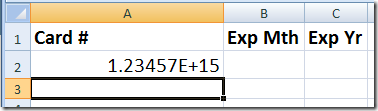
As the robot in the video mentioned, you might have problems if you try to enter a large number in Excel. For example, I’ve entered a 16-digit credit card number — 1234567890123456 — in cell A2.

Everything looks fine, until I press the Enter key.

Large number in exponential notarion number format

The cell is formatted as General, which will only display 11 numeric characters.

Since the credit card number is larger than that, it appears in exponential notation.

Significant Digits in Number Format

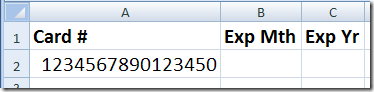
To make the credit card number display correctly, I could try Number format, with zero decimals.

CreditCardNumFrmt

That looks better, except that the last digit has changed from a 6 to a 0. Excel only retains 15 significant digits, so it changes our 16th digit to zero.

Large Numbers in Text Format

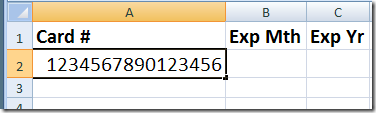
Since we need to see all 16 digits in the credit card number, we can format the credit card column as Text, and enter the numbers.

All 16 digits will be stored, and will display correctly.

Or, type an apostrophe before the credit card number, and it will be treated as text.

Large number in text format

More Information

On the Microsoft site, a brief article on the Number of significant digits MS Excel retains

Chip Pearson’s article on Rounding Errors In Microsoft Excel97

For smaller numbers that have been formatted as text, you can Convert Text to Numbers

____________