Add a Macro Button to the Excel QAT

As part of the Excel programming series, I described how to run an Excel macro by adding a button to the Quick Access Toolbar (QAT).

Video: Add Macro Button to QAT

If you use a macro frequently, you can add its icon to the Quick Access Toolbar (QAT). There are written instructions below the video

Add Macro Button to QAT

In this example, there is a macro named ToggleR1C1. that I use frequently. The macro toggles the worksheet reference style from letters (A1 style) to numbers (R1C1 style)

The ToggleR1C1 macro is stored in my Personal Macro Workbook, which is named Personal.xlsb.

  • Tip: Further down this page, there’s a video that shows how I recorded and edited the ToggleR1C1 macro

To add that macro to the QAT, I followed the steps below.

  • First, at the right end of the QAT, click the drop down arrow
  • Click More Commands

Excel Options Window

When the Excel Options window opens, the Customize category, at the left, is automatically selected.

  • In the window pane at the right, near the top, click the drop down arrow for the “Choose commands from” setting
  • In the drop down list, click on Macros
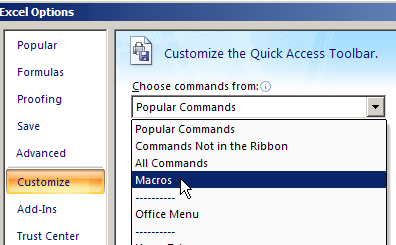
Select a Macro

  • Next, in the list of macros, click the PERSONAL.XLSB!ToggleR1C1 macro
    • PERSONAL.XLSB is the file name for the Personal Macro Workbook
  • Then click the Add button, to move the selected macro to the Quick Access Toolbar
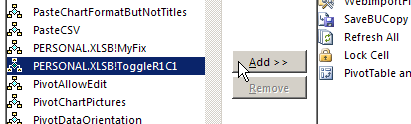
Choose Macro Button Icon

Next, follow these steps to add a picture (icon) to the Macro button

  • At the right, in the QAT list, click the PERSONAL.XLSB!ToggleR1C1 macro
  • Next, below the list, click the Modify button
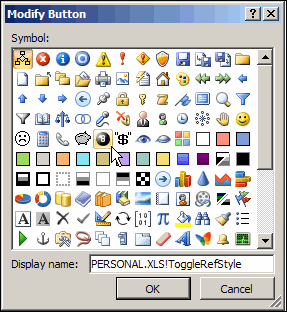
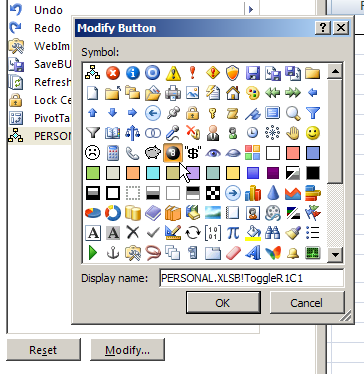
  • When the Modify Button dialog box opens, look for an icon will remind you of what your macro does.
  • Next, click on the icon you want to use for the macro
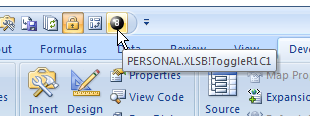
    • I used the 8-ball, because the macro switches headings from letters to numbers, or vice versa.
  • Then, click the OK button, to close the Modify Button dialog box
  • And finally, click the OK button, to close the Excel Options window
Use the Macro Button

When you’re back in Excel, the macro icon now appears on the QAT.

When you want to run your macro, just click its icon on the QAT.

New I can I click the 8 Ball icon, when I want to toggle the worksheet reference style from letters (A1 style) to numbers (R1C1 style)
Video: Record & Edit Macro to Toggle Styles

Watch this video, to see how to record your own macro, to change between R1C1 style (column numbers) and A1 style (column letters). Then, add a button for the macro on the Quick Access Toolbar.

Video: Add Excel Options to QAT

If you use the Excel Options window frequently, you can add a command to the Quick Access Toolbar, to open that window quickly.

In this video, I show how to turn off the Excel Option Boxes, with a setting in the Excel Options window. Next, I show how to add an Options command to the QAT, so the window opens with a specific tab activated

More Quick Access Toolbar Tips

Visit my Contextures site for more tips for using the Quick Access Toolbar with your macros, such as adding QAT buttons that run macros for a specific workbook only.

___________

Excel VBA Edit and Test a Macro

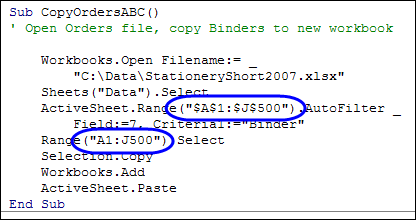
writeicon In the Excel VBA Edit a Recorded Macro article, you saw the steps for making changes to an Excel macro that you had recorded.

The original range was 50 rows, and I increased both references, to make them each 500 rows.

Excel VBA code edited

Video: Edit & Test Excel Macro

I’ve uploaded a new video that shows the steps for editing the Excel macro, and stepping through the macro code by using the F8 key.

The full transcript is below the video

Video Transcript

I recorded a macro in Excel and now we’d like to make a little change to that macro and test it.

Here’s the workbook where I store the macro

And to get started, there’s a security warning here.

I’m going to click Options and click, Enable this content, and OK

Now the macros will run.

See Macro Code

To see that macro, I’ll go to the Developer tab, click Macros

Select my macro in the list, and click Edit

That opens the Visual Basic Editor, and I can see all the workbooks that are open.

Most of these are hidden and just working in the background, but here’s the workbook where I recorded and stored the code.

And those are the sheets, and here’s the module where the code is stored

See Recorded Macro Steps

In this macro, I can see all the steps that were recorded.

  • It opens a workbook
  • Goes to a sheet
  • Range A1 on that sheet
  • Turns on an AutoFilter
  • Filters for Binders
  • Selects range A1 to J50
  • Copies it
  • Adds a new workbook
  • And pastes what we copied

The change I want to make is just making this a bit bigger range.

  • Right now, it’s going to row 50, which is where the orders stop now
  • I know that I’ll be adding more orders every month, so I’m going to change the 50 to 500

Change the Code and Save

I’ll change it there, and in the next line of code, that also had a 50

I’ve made the change, and to save that, I’ll go up to the toolbar, and click the Save button

Test Revised Macro

Now, to test this revised macro:

  • I’m going to just click somewhere between the Sub, and the End Sub row
  • I’ll click here, and on the toolbar, I’ll click Debug
  • There’s a Step Into command, and the keyboard shortcut is F8
  • I’ll click Step Into, and it highlights the first row in the macro
  • I’ll press F8 on the keyboard, and that takes me down to the first line of code, which is Workbooks.Open

It’s highlighting the row in the code that it’s about to run

  • When I press F8, it opens that workbook, and moves down to the next line of code

Here’s the workbook in the background now

  • And it will go to the Data sheet
  • I press F8, and it was already on the Data sheet, so nothing happened
  • Then it’ll go to range A1, and turn on the AutoFilter
  • I press F8 again, and you can see the filter arrow there now

The next line of code tells it to filter for Binder orders

  • So F8, and now you can see the row numbers are blue, and some rows are hidden, so the filter has been applied
  • Now it will select A1 to J500, when I press F8
  • Then it copies, and F8 again, to add a new workbook

And you can see the blank sheet in the background now

  • And now it will paste when, I press F8
  • And I’m at the last row here, so when I press F8 again, it’ll just take me out of the macro

We have made a revision to the macro, we saved it, tested the macro, and it works fine.

We can just close our macro workbook now, and know that our revised macro works fine

____________

Edit Records in Excel Worksheet Data Entry Form

How can you make it easy for people to enter and edit data in Excel, but keep them away from the data storage worksheet?

Last year, I posted a Worksheet Data Entry Form in Excel, where users could enter and view Excel data. It was based on a worksheet data entry form that Dave Peterson created.

I’ve created a new version, where users can enter, view and edit the Excel data.

Version 1: Add New Records

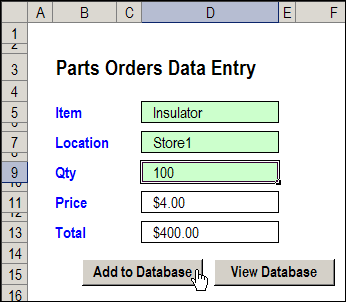
In Dave’s original worksheet data entry form, users could add records on the data entry worksheet, and click a button to go to the database sheet, and review or edit the order records.

original Excel data entry form

Version 2: View Existing Records

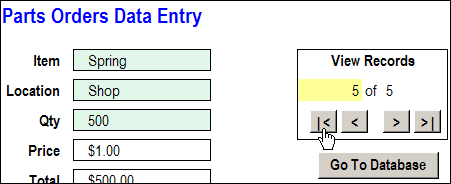
In version 2, I added a few buttons to Dave’s workbook, to allow users to scroll through the existing records.

With the navigation buttons, you could go to the first, previous, next or last record, or type a record number, to go to a specific record.

Excel data entry form scroll

Version 3: Update Existing Records

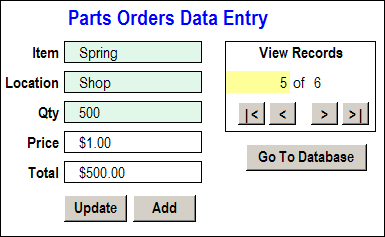
In the latest version of the Excel Worksheet Data Entry form, I’ve added an update feature.

As in the previous version, there are data validation drop down lists, to select Item and Location.

The Price calculation is based on a VLOOKUP formula, and the Total formula multiplies the quantity by the price.

After you select a record, you can change its data, then click the Update button to copy those changes to the database.

Excel data entry form Update Existing Records

For example, in the record shown above, if you discovered that there was an error, you could change the quantity from 500 to 200. The Total formula would automatically recalculate, to show the new total of $200.00.

Then, click the Update button, and the revised quantity and total would appear in that record on the database sheet.

The Update Code

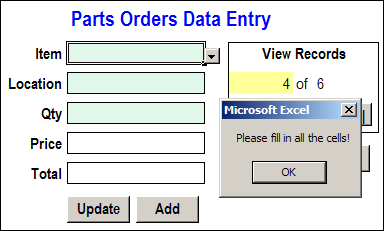
Before updating the database record, the Update code checks to see of all the data entry cells are filled in. If they aren’t, a warning message appears, and the macro stops running. This prevents you from accidentally overwriting an existing record with blank cells.

Excel data entry message

If all the data entry cells are filled in, the code:

  • writes the current date and time in the applicable row of the database
  • adds the User Name from the Excel application
  • copies the data to the database
  • clears the data entry cells

Then, with a cleared data entry sheet, you can go on to add, view and edit other records, or save and close the workbook.

Download the Sample File

The zipped sample workbook, in Excel 2003 format, can be downloaded from the Contextures website: Worksheet Data Entry Form
___________

Collect Data From Users in Excel VBA

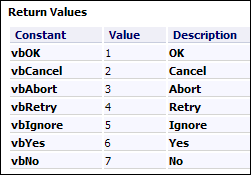
You can use Excel VBA to show messages to someone who’s using your workbook. A message can be simple, with just an OK button, or give people options, with Yes and No buttons.

That lets you collect data from users, and then complete macro steps based on which button they clicked.

Continue reading “Collect Data From Users in Excel VBA”

Excel VBA: Show a Message Before Printing

A bit of Excel programming can help us save some time and paper. Our goal is to stop people from printing an order form if they forgot to enter a customer name.

Final Macro Changes

Last week, you created a macro to show a message if the customer name was missing in an order form.

Today, you’ll make a final change to the macro, so it will run automatically when someone tries to print the order form.

Sample File: You can download the Excel order form with last week’s message macro. Enable macros when the file opens.

Create the Event Code

To create Excel code that runs automatically, you can use Event procedures. Those are macros that run when something specific happens in Excel, such as changing a cell on a worksheet, or printing a worksheet.

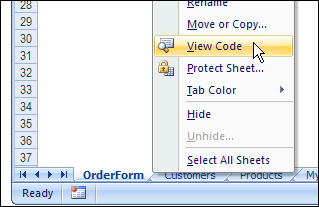
  • To open the Visual Basic Explorer (VBE), right-click on the Order Form sheet tab, then click View Code.
Create the Event Code

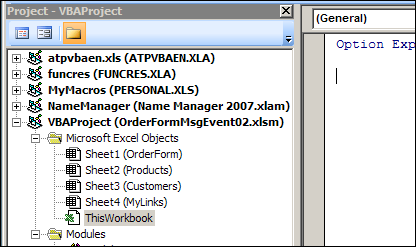
In the VBE, find the order form workbook in the list of projects, and under Microsoft Excel Objects, double-click ThisWorkbook.

Excel VBE ThisWorkbook

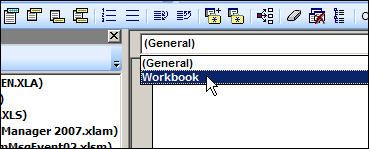
  • At the top left of the Code Window, select Workbook from the drop down list.

Excel VBE Workbook

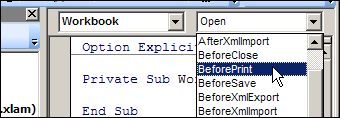
  • An event procedure for Workbook_open is automatically created, but that’s not the one we need, so just ignore it. At the top right of the Code Window, select BeforePrint from the drop down list.

Excel VBE Before Print

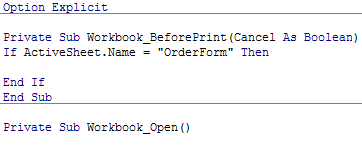
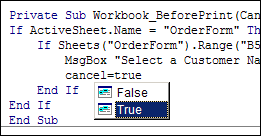
  • The cursor should be flashing between the Sub and End Sub lines for the Workbook_BeforePrint macro. We want to check the order form before someone prints it, so type the following 2 lines of code, to check the name of the active sheet:

VBE Before Print 02

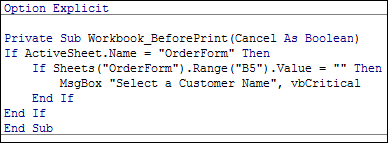
  • Next, copy the code from the CustomerMessage macro, on the Module1, and paste it between the If and End If lines.

VBE Before Print 03

Now, when someone tries to print or print preview, Excel will check the sheet name.

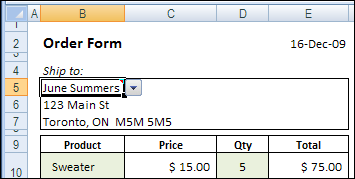
  • If OrderForm is the active sheet, it will check for a customer name in cell B5.
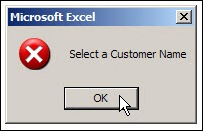
  • If the customer name is missing, our warning message will appear.

Test the Event Code

To see if the BeforePrint code is working correctly, you can test the code by using Print Preview.

  1. On the Order Form worksheet, delete the Customer Name in cell B5.
  2. Click the Office Button, point to Print, then click Print Preview.

The good new is that the warning message appears, because the Customer Name cell is empty. The bad news is that the Print Preview opens, even though the customer name is missing.

Fine-Tune the Event Code

You can see “(Cancel as Boolean)” at the end of the first line in the Workbook_BeforePrint macro. Some Excel events have a Cancel option, which allows you to cancel the event, if necessary.

We’ll add one more line of code, to cancel the printing if the customer name is missing.

  • In the Workbook_BeforePrint code, add a blank line, after the MsgBox line.
  • In the blank line, type: Cancel=true

VBEBeforePrint04

  • Then, save the workbook, and try the print preview again.

Now the warning message should appear if the customer name is missing, and the print or print preview should be cancelled.

If the customer name is filled in, then no message will appear, and the order form will print, or show up in the print preview window.
_________________

Previous Excel VBA articles:

Getting Started With Excel VBA

Excel VBA: Edit Your Recorded Macro

Excel VBA: Show a Message to Users

Excel VBA: Show Message Automatically

_________________

Excel VBA: Show Message Automatically

Keeping Excel users on the right path is a big job, but somebody’s got to do it!

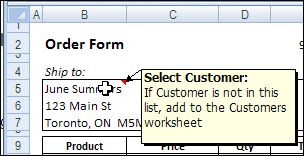
Last week we created an Excel message box in an order form, to remind users to select a customer name.

Excel Message 00

However, we don’t want the message to appear in every order form – it should only show if the customer name cell is empty. We’ll modify the code so it checks for a customer name.

Sample File: You can download the Excel order form with last week’s message macro. Enable macros when the file opens.

Clear the Customer Name Cell

To see how to refer to the customer name cell, we’ll record a test macro.

  1. Select any sheet in the workbook, other than the OrderForm sheet.
  2. Start the Macro Recorder
  3. Name the macro NameTest, and store it in This Workbook
  4. Click on the OrderForm sheet tab, to activate that sheet
  5. Select cell B5, where the customer name is entered
  6. Stop the Macro Recorder
Clear the Customer Name Cell

To see the recorded macro:

  1. On the Ribbon, click the View tab
  2. Click Macros, then click View Macros
  3. In the list of macros, click NameTest, then click Edit.

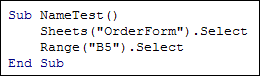
Here’s the recorded code, with the comment lines and blank lines removed. It shows you how to refer to a sheet and cell in Excel VBA code.

Excel Message 02

We’ll remove the Select in each line, and combine the two lines into one. At the end of the line, add: .Value = “”

The revised line of code will set the value of the customer name cell to an empty string.

Excel Message 03

Run the NameTest macro, and it should clear the customer name cell.

Check For a Customer Name

We’ll add the new code to the old code, that shows the message. To check for a customer name, we’ll create an IF…THEN section in the macro, similar to what you’d do in an IF formula on the worksheet.

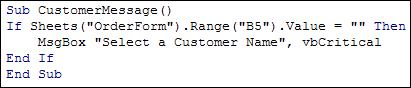
In English, the instructions would be: IF the customer name cell is empty, THEN show the message. In the Excel VBA code, we’ll use these three lines:

ExcelMessage04

Now, when you run the CustomerMessage macro, you should see the message box only if the customer name cell is empty.

The Next Step

Next week, we’ll add code to make the macro run automatically, when someone tries to print the order form.
_________________
Previous Excel VBA articles:

Getting Started With Excel VBA

Excel VBA: Edit Your Recorded Macro

Excel VBA: Switch Column Headings to Numbers

Excel VBA: Show a Message to Users

_________________

Excel VBA: Switch Column Headings to Numbers

It’s Friday, and your brain is almost full, but let’s try to cram a little bit of Excel VBA in there before the weekend.

We’ve talked about the Excel Column Headings before, and seen how to change the Reference Style setting from R1C1 (Numbers) to A1 (Letters).

That setting is pretty well hidden, and it’s a bit of a pain to switch on and off.

We’ll create a macro that will let us quickly switch from A1 to R1C1, or from R1C1 to A1.

Continue reading “Excel VBA: Switch Column Headings to Numbers”

Excel VBA Edit Your Recorded Macro

Last week was Recruit a New VBA Programmer Week on the Daily Dose of Excel blog, so we pitched in by recording an Excel macro, and running it.

I’ve updated that article, by adding a video, so you can see all the gory details, step-by-step.

This week we’ll look at the Excel VBA code that the Macro Recorder created, and make a minor change, to edit your recorded macro.

Continue reading “Excel VBA Edit Your Recorded Macro”

Print Selected Items on Excel Invoice

You have an Excel order form with a long list of products to select. After a customer enters quantities for the products they want to order, you want to print an invoice for the selected items.

Select the Products

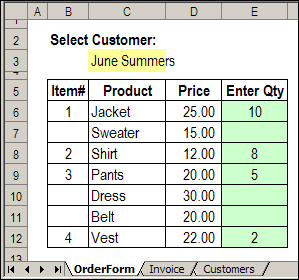
Here’s the OrderForm sheet, where quantities have been entered for four of the products, in column E.

Excel Order Form with quantities entered

Formula Adds Numbers

Formulas in column B check the quantity column (E).

If the quantity is filled in, then the next available number is calculated.

  • =IF(E6>0,MAX($B$5:B5)+1,””)

Print the Order

On the Invoice sheet, formulas pull the data from the Order form. For example, this formula shows the name of the first product that was ordered:

  • =IF(MAX(OrderForm!$B:$B)<$B12,””,
    INDEX(OrderForm!$C$6:$C$12, MATCH($B12,OrderForm!$B$6:$B$12,0)))

Print the Order Form

Here’s the Order Form sheet, ready to be printed.

  • The numbered rows from the Products sheet have been added to the Order form.
  • Products without a quantity, such as Sweater, don’t appear.
Order Form sheet, ready to be printed

The Sample File

To download the sample file, please visit the Excel Sample Files page, on my Contextures website.

In the Functions section, look for FN0027 – Print Marked Invoice Items.
___________________________