Excel Keyboard Shortcuts

Someone on Twitter said this recently:

  • “Microsoft Excel has no keyboard shortcut for “save as”. Probably because they are *only* on version 11.”

That was one of the Excel tweets that I posted on Saturday. However, as Jason Morin pointed out in the comments, you can use the F12 key to open the Save As dialog box.

Excel Help

Why didn’t the tweeter know about the F12 shortcut for Save As?

Well, when you go to the Keyboard Shortcuts topic in Excel’s Help, there’s an incomplete list. It doesn’t even show Ctl + S as a shortcut to Save, let alone tell us how to do a Save As.

To find a full list of Excel Keyboard shortcuts, you can download one of the following files or view the list on the web page.

Contextures site

View: Excel Keyboard Shortcuts list

Download: Excel Keyboard Shortcuts Excel file

Chip Pearson’s site

View: Excel Keyboard Shortcuts list

Download: Excel Keyboard Shortcuts Excel file

Microsoft Website

Web: Keyboard Shortcuts in Excel

Download: Excel Keyboard Shortcuts (in a Word document)

__________________
Simplify Data Entry With AutoCorrect

Instead of typing long phrases in Word or Excel, you can create AutoCorrect entries for those items.

What Do You Type Frequently?

Your AutoCorrect entries are most helpful if they are for long words or phrases that you type frequently, while you’re working.  For example:

  • your full name
  • your job title
  • your company’s full name
  • email sentences, such as, “I’ll send you the file tomorrow.”

Short Replacement Code

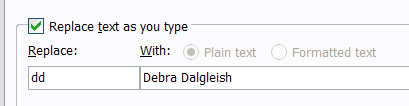
The goal is to type a very short AutoCorrect code, and have Excel automatically replace that with the full word or phrase.

  • Note: Don’t use a short code that is an actual word that you use!

Here are example codes, for the AutoCorrect entries that I suggested in the previous section:

  • DD: Debra Dalgleish
  • dmk: Director of Marketing, Canada
  • ctxi: Contextures Inc.
  • syf: I’ll send you the file tomorrow.”

Continue reading “Simplify Data Entry With AutoCorrect”

Control Key Tricks in Excel

Last week I listed a few tricks with the Shift key in Excel, and in the comments, Jon Peltier mentioned a trick he’d discovered with the Ctrl key.

Here are a few more things you can do with the Ctrl key in Excel.
There are many other Ctrl tricks, so if you have favourites, please share them in the comments.

Select Nonadjacent Ranges

This is my favourite use of the Ctrl key — to select nonadjacent ranges. For example:

  1. Click on cell A1 to select it
  2. Press the Ctrl key, and click on cell A5, then click on cell B3
  3. Release the Ctrl key, and all three cells are selected, with B3 as the active cell.

Enter Data in Several Cells

After you’ve selected several cells, adjacent or nonadjacent, you can enter the same data or formula in all of them

  1. Select the cells, and type the data or a formula.
  2. Press the Ctrl key, then tap the Enter key, to enter the data or formula in all the selected cells

Show the Active Cell

Sometimes I scroll to the bottom or far side of a worksheet, to view something, then want to get back to the active cell quickly.

  • To show the active cell, press Ctrl + Backspace

Select Precedent Cells

If you’re analyzing a formula, you might want to go to the precedent cells — those cells that are used in the current cell’s formula.

  • Select a cell with a formula that refers to other cells
  • Press Ctrl + [

The first cell referenced in the formula will be the active cell, and other referenced cells on the same sheet will be selected.

Shift Key Tricks in Excel

You probably know a few ways to use the Shift key in Excel, to extend the cells that you have selected.

For example:

  • Click on a cell, then hold the Shift key, and click on another cell. All the cells in between are selected.
  • Hold the Shift key while you use the arrow keys, and cells will be selected as you move.

Select Range of Cells

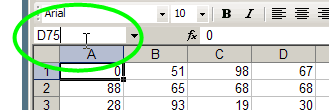
Here’s a Shift key trick with the Name Box

  • First, select a cell, to use as the starting cell for the range selection
  • Next, click in the Name box, at the left side of the Formula Bar.
  • Then, type the address of another cell, to use as the ending cell for the range selection
  • Finally, on your keyboard, press the Shift key, and tap the Enter key.
    • Shift + Enter

The entire range will be selected.

End Selection at Named Range

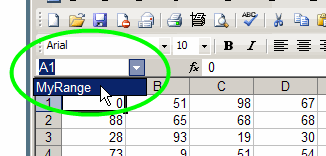
Here’s another Shift trick that uses the Name box, if your worksheet has at least one named range listed in the Name box:

  • First, select a starting cell,anywhere on the worksheet
  • Next, press and hold the Shift key
  • While holding the Shift key, click the drop-down arrow at the right end of the Name box
  • Click on a named range in the Name box drop down list.

On the worksheet, the selected range will include your starting cell, and the entire named range.

Share Excel Data With Swivel

NOTE: The Swivel site shut down in 2010. You can read an interview with the two founders on the Eager Eyes blog.

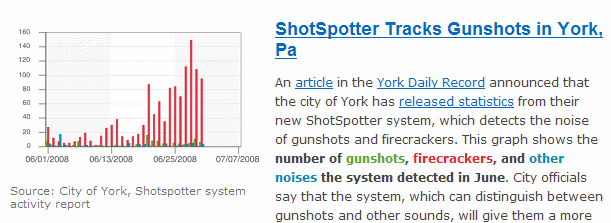
The Swivel web site lets users upload Excel data, create charts, and share the results. They’ve recently opened up their Business Swivel, where you can upload data and keep it private, for a monthly subscription fee.

It’s interesting to see what people are charting, such as the occurrences of gunshots, firecrackers and other noises in York, PA.

Customize Your Excel Toolbar

In Excel 2003 and earlier versions, you can customize your toolbar. Add buttons for commands that you use frequently, to reduce the amount of time you spend digging through the menus and sub-menus.

To make room, you can remove buttons that you never, or very rarely use.

Add a Macro Button to Toolbar

In this example, you’ll customize the toolbar to add the Toggle Grid button:

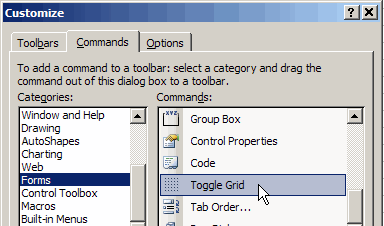
    • On the Excel menu, click Tools, then click Customize.
    • Click the Commnds tab, then click on the Forms category.
    • Scroll to the end of the list of Commands, and find the Toggle Grid command.
Add a Macro Button to Toolbar

Drag the Button

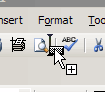
    • Drag the command to one of your existing toolbars. You’ll see an I-beam that indicates where the button will be placed.

  • Close the Customize dialog box.

Use Toolbar Button

Then, to show or hide the worksheet gridlines, just click the Toggle Grid button.

This is much quicker than going to Tools ► Options, and changing the Gridlines setting on the View tab.

On my toolbar I’ve added buttons for:

  • Paste Values (Edit Category)
  • Record New Macro (Tools Category)
  • Toggle Grid (Forms Category)
  • Set Print Area (File Category)
  • Lock Cell (Format Category)

and a few others.

The Lock Cell button is really useful when I’m setting up data entry forms, and want to lock and unlock parts of the worksheet.

Find Office Files with Keywords

When you save a Microsoft Office file, you can store keywords to help you find that file later.

For example, when you’re creating an estimate for a client’s Excel project:

  • In Excel, click on the File menu, and click on Properties
  • On the Summary tab, enter Estimate, Excel in the Keywords box, then click OK.
add keywords in Excel properties

Later, you can use one or more keywords to find relevant files:

  • In Excel, click the Open button on the toolbar.
  • At the top right of the Open dialog box, click the arrow on the Tools button
  • Click Search

  • In the Search dialog box, click the Advanced tab.
  • From the first drop down, select Keywords
  • Enter a keyword in the third box, and click Add

  • Enter more keywords, or any other search criteria, including location.
  • Click the Go button, to start the search.

Repair an Excel File

If you’re having problems with an Excel file, using the built-in repair feature might fix the problem.

For example, doing this repair procedure can help when:

  • data validation drop down arrows don’t appear
  • there are other signs of corruption, such as frequent crashes, or Excel freezes

Repair Excel Workbook

To repair an Excel workbook, follow the steps below:

  • First, close the problem file, but leave the Excel application open
  • Next, in Excel, choose File►Open
  • Locate and select the file
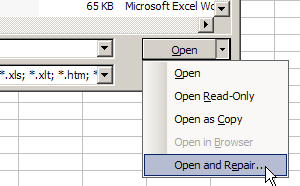
  • In the Open window, at the bottom right corner, click the arrow at the right side of the Open button
  • In the drop-down list, click on the Open and Repair command
click on the Open and Repair command

Complete the Repair

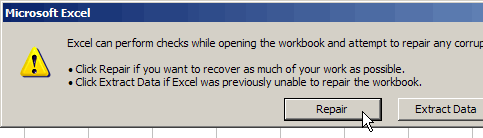
  • When prompted, click the Repair button.
  • Then, open the Excel file again, to see if it looks okay
Excel message - click the Repair button
Excel message – click the Repair button

Make a Backup!

I hope the repair was successful, and your Excel file is working correctly now. If so, be sure to make backup copies of your work!

If the repair was not successful, you can follow the same steps, but click Extract Data instead.

You might be able to retrieve all of the data, at least, or parts of the data.

And again, remember to make frequent backup copies of your work!

Show Full Menus in Excel

On my own computer, I like to see the full menus in Excel, so I selected that setting:

  1. On the Tools menu, click Customize
  2. On the Options tab, add a check mark to Always Show Full Menus

However, when visiting a client, I sometimes have to use another person’s machine, and I don’t like to change their settings.

Temporary Full Menus

If the full menus option has not been turned on, here’s what happens:

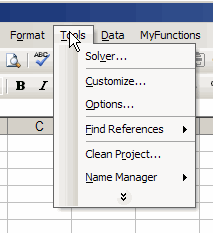
  • When you click on an Excel menu, a double chevron may appear at the bottom of the menu.

Then, to see the full Excel menu, you can:

  • click on that chevron
  • OR, wait a few seconds, and the full menu will appear.
Compact menu with 2 chevrons at bottom

Quick Trick for Full Menus

And here’s a way to avoid waiting to see those full menus.

I like to do this, if I’m on someone else’s computer, and not sure if full menus are enabled:

  • To quickly view the full menus, double-click on the menu name

Change a Comment’s Shape

To add some visual interest to a worksheet, change a comment’s shape from its default rectangle.

Here are the steps to change a comment shape in Excel 2003:

  1. Right-click the cell which contains the comment.
  2. Click on Edit Comment
  3. Click on the border of the comment, to select it.
  4. On the Drawing toolbar, click the Draw button
  5. Click on Change AutoShape, and click on a category.
  6. Click on a shape to select it.
  7. When finished, click outside the comment.

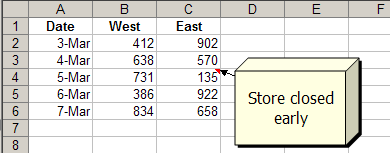
In this example, the Cube shape was selected from Basic Shapes. It looks a bit like a “big box” store!

changed comment shape to 3-d box

Don’t Change Too Many!

I wouldn’t change the shape of too many comments on a worksheet, or it could be very distracting and possibly confusing.

Just do this for one or two comments, that you want to stand out from the others.

__________________