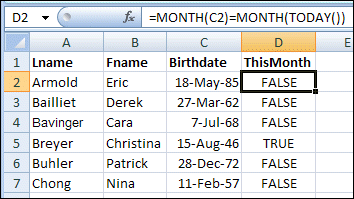
August seems to be a very popular birthday month among my Excel friends. I won’t mention any names here, because most of them are quite elderly, and the shock might upset them. 😉 Anyway, to all of them, and you, if you’re celebrating this month — happy birthday!
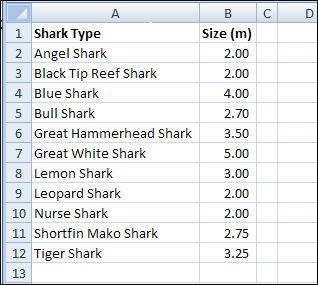
It’s Shark Week on the Discovery Channel, so here are a couple of handy Excel functions you can use in case of a shark attack. Of course, if you stay home and watch television, you should be safe. The infamous land shark rarely attacks.
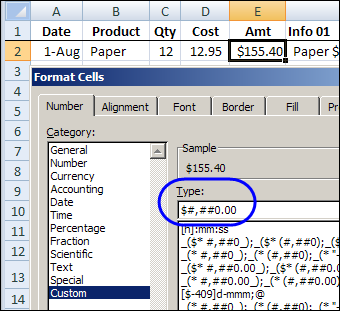
Good news, if you’re spelling challenged — or too lazy to type long words. You can combine cells in Excel, without CONCATENATE function. Keep reading, to learn the easy way to combine cells, and add some fancy formatting to the dates and numbers.
You’re comfortable with Excel, and can change formulas on the fly, when necessary. If you’re creating Excel workbooks for other people to use, their Excel skills probably aren’t as strong as yours.
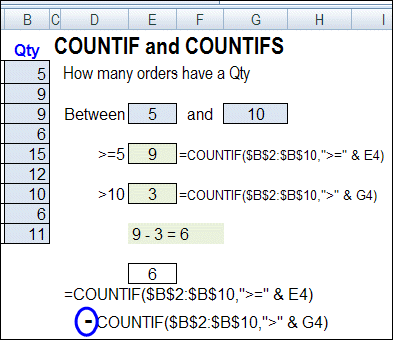
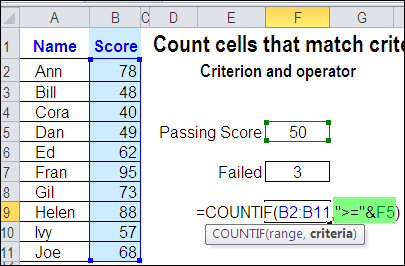
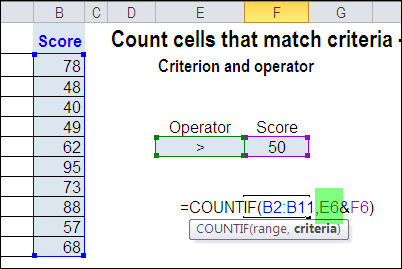
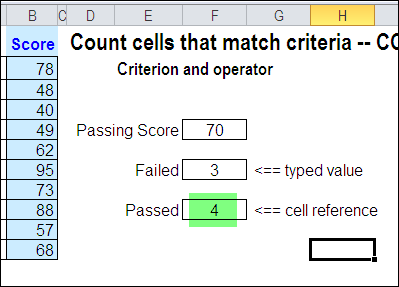
Last month we looked at the COUNTIF formula, and how you can type an operator, then refer to a worksheet cell, to set a minimum value for counting.
refer to worksheet cell in COUNTIF formula
Operator in Referenced Cell
In the comments, Kanti Chiba mentioned that the operator could be included in that referenced cell.
For example, you could type >=50 in a cell, and refer to that cell in the formula.
Create a List of Operators
I usually keep the operator in the formula, so it’s separate from the number, and users won’t have to worry about typing it. Kanti’s comment made me think about other options, and how we could let users select both the operator and the target number.
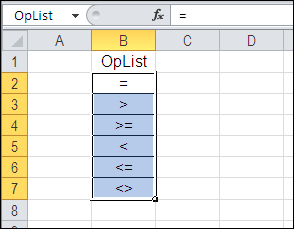
So, I typed a list of operators on a different sheet in the workbook, and named that list as OpList.
Add a Drop Down List of Operators
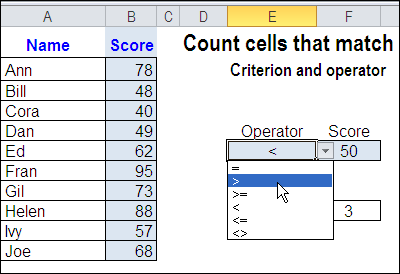
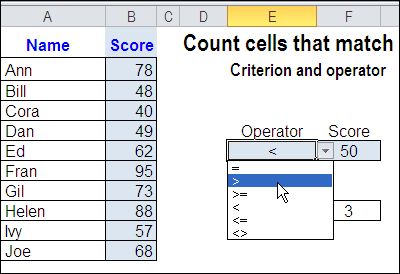
The next step was to create a drop down list of operators, in the cell to the left of the Score input cell. I used data validation to create the drop down list, then selected one of the operators.
Change the COUNTIF Formula
The final step was to change the COUNTIF formula, so it refers to the Operator cell. Now the COUNTIF formula results will change, if a different operator is selected.
Watch the Video
To see the steps for creating a COUNTIF formula with a drop down list of operators, please watch this short Excel tutorial video.
More COUNTIF Links
For more examples of using the Excel COUNTIF function, see these blog posts:
One of the tasks you have to do quite often in Excel is to count things. Here’s how to count cells greater than set amount with Excel COUNTIF function.
You’ve probably used the Excel Paste Special command to multiply cells by a specific percentage, or to add the same amount to a group of cells. Today, you’ll see how to update multiple Excel formula cells in one step.
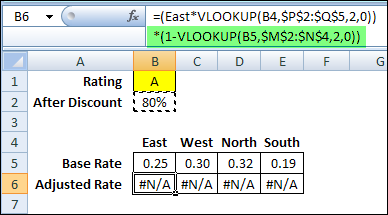
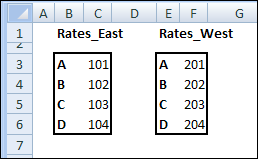
You can use the VLOOKUP function to find data in a lookup table, based on a specific value. If you enter a product number in an order form, you can use a VLOOKUP formula to find the matching product name or price. See how to use Excel VLOOKUP in different ranges.
NOTE: The examples below use VLOOKUP to get the value from the correct table. You could do a similar lookup with the INDEX and MATCH functions.
Lots of people visit my Contextures website looking for information on the Excel Count functions.
Counting seems like an easy thing to do in Excel, if you’ve been using the program for a while. But, if you’re just starting out, it might not be so obvious.
Count Quirks
Even if you’re an experienced Excel user, there are a few quirks with the Count functions, that you might not have noticed yet.
For example, different count functions treat “empty” cells differently, as you can see in the screenshot below.
In Row 5, the blue cells contain a formula that creates an empty string.
The COUNTA function counts that cell, even though it looks empty.
The COUNTBLANK function counts the cell too, even though it contains a formula.
There are many more tips, examples and videos on the Excel Count functions page on my Contextures site.
Video: 7 Ways to Count in Excel
To see a quick overview of 7 ways to get a total count of cells in Excel, watch this 77-second video. There are written steps for each count function on the Excel Count functions page.
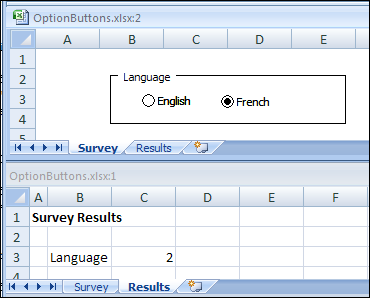
Male or female? English or French? Yes, No or Maybe? Those are just a few of the choices that you can make with Option Buttons in Excel. When people select answers with Excel Option Buttons, you can provide a list of possible answers to a questions, and users can only select one answer from the list.



 Male or female? English or French? Yes, No or Maybe? Those are just a few of the choices that you can make with Option Buttons in Excel. When people select answers with Excel Option Buttons, you can provide a list of possible answers to a questions, and users can only select one answer from the list.