
It’s fairly easy to make one drop down list show items based on what was selected in another drop down. But what about making a third drop down list? And how can you work with spaces, or other characters that can’t be used in Excel names?
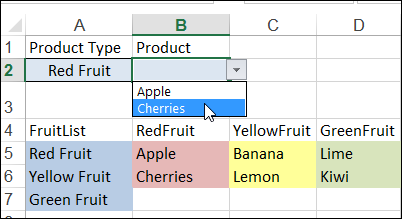
Here is a nice, simple conditional list – if you select Red Fruit in cell A2, you can see a list of red fruit in cell B2.
Video: Make a Basic Conditional Drop Down List
To see how to make a basic dependent drop down list in a cell, watch the steps in this short video, and the written instructions are on the Excel Dependent Drop Down List page on my Contextures site.
Using Named Ranges
Sometimes things aren’t quite as simple, as you can see in the next example.
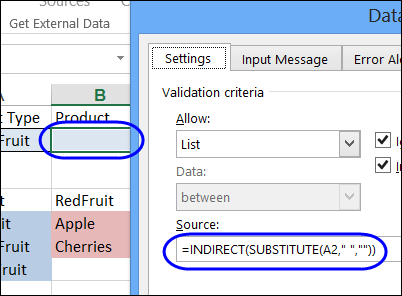
There is a named range on the worksheet – RedFruit – and the data validation formula uses the INDIRECT function to create a reference to that range. The formula also removes any spaces in the text, by using the SUBSTITUTE function, because the range names can’t use space characters.
=INDIRECT(SUBSTITUTE(A2,” “,””))
Lookup Tables for Complex Lists
It’s simple to use the SUBSTITUTE function to get rid of any spaces, but your list of items might contain other characters that can’t be used in range names, such as an ampersand (&) or asterisk (*).
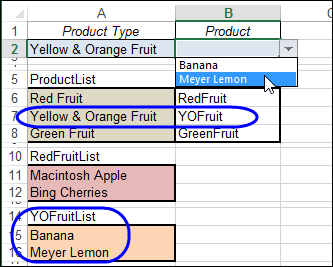
Instead of trying to substitute every illegal character, you can set up a lookup table. Put the list items in the first column, and a short code for each item in the second column. The range with items and codes is named ProductLookup.
The data validation formula will look in that list, to find the code, and show the items from a list with that name. In this example, all the list names end with “List”, so that is added in the formula.
=INDIRECT(VLOOKUP(A2,ProductLookup,2,0)&”List”)
Add a Third Dependent Drop Down
You could even add a third drop down list that is dependent on the selections in the first two.
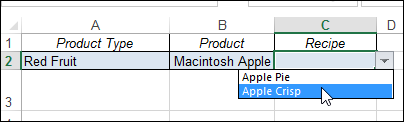
Just create a lookup table for each of the secondary lists, and an item list for each of those secondary codes.
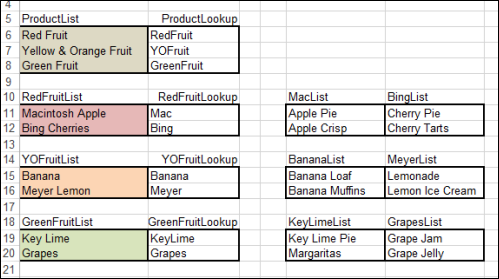
Here is the data validation formula in cell C2
=INDIRECT(VLOOKUP(B2,INDIRECT(VLOOKUP(A2,ProductLookup,2,0)&”Lookup”),2,0)&”List”)
It finds the product lookup table,
- VLOOKUP(A2,ProductLookup,2,0)&”Lookup”
the product code in that table,
- VLOOKUP(B2,INDIRECT(VLOOKUP(A2,ProductLookup,2,0)&”Lookup”),2,0)
and adds “List” to create a reference to the list name.
=INDIRECT(VLOOKUP(B2,INDIRECT(VLOOKUP(A2,ProductLookup,2,0)&”Lookup”),2,0)&”List”)
Download the Sample File
You can see the details on my Contextures website, Dependent Lists page, and download the sample file.
_________
Hi!
Look, I’ve been searching for a solution for months now, but coudn’t manage to figure out the ways to do it: I have a list of employees, with the date they were admited in the company and the day they got fired, something like:
NAME | IN | OUT |
======== ============ ============
Jane | 27/01/2013 | 06/04/2014 |
Luke | 01/02/2013 | 28/02/2014 |
Mary | 01/04/2013 | 01/01/2014 |
…
And I have this other sheet:
SERVICE | DATE | EMPLOYEE |
======== ============ ============
SERV1 | 05/05/2013 |{DROP-DOWN1}|
SERV2 | 05/04/2014 |{DROP-DOWN2}|
…
And I’d like to lock the drop-down menu according to the date a employee was working, so, the {DROP-DOWN1} would have all 3 names (Jane, Luke and Mary), ’cause they all were working in the company on 05/05/2013, but {DROP-DOWN2} would only have Jan as an option, ’cause seh would be the only one still working on the comppany in that period.
The conditional list would, somehow, have to admit some sort of condition like IF(AND([B2:B4]”>=” & SERVICE_DATE;[C2:C4] “<=" & SERVICE_DATE);TRUE;FALSE), thus generating a whole new list where all the items are true to the conditions set.
How can I do this?
Hello Debra..
Thanks for guidance. I was able to complete my task by simply following your instruction regarding the conditional dropdown list.
Further to your item on “Block Changes in First Drop Down”, can you further extend it to show on the coding formula on how to block changes in the second drop down?
Hi,
I have an excel sheet in which I have 2 drop downs. The second drop down is dependent on the first one.
The problem is that when I change the value in the first drop down, it updates the list in the second dd but it does not clear out the existing value on its own.
Is there a way to clear out the second dd value the moment I change the value on the first dd.
Thanks!
@Roopali, There is an example on my site that uses programming to clear out the second value, when you select from the first drop down.
On my Excel Samples page, go to the data validation section, and look for DV0064 – Dependent Lists Clear Cells
http://www.contextures.com/excelfiles.html#DataVal
Hi
This is fantastic, a great way to deal with illegal characters. I am wondering if it’s possible to extend it to a 4th level – so let’s say in your example, to include a type (e.g. Apple Crisp = Pastry, Apple Pie = Pie). How would you go about doing this?
Would it be a case of having a new lookup table for the type, and inserting another nested INDIRECT/VLOOKUP to do this? If you’re able to shed some light on this, that would be great.
Cheers
Joe
Hi, I have a table of projects where each project has 2 identifiers. I have followed your instructions to create a dependent drop down for the 2 project identifiers, but I would like my 3rd drop down to be dynamic and pull up a list of projects from a master project tab based on the 2 identifiers. The project list will change on a frequent basis, so I’m looking for functionality where I can regularly update the project table, but have the Project Drop Down list to change accordingly.
Basically I’m trying to avoid having team members scroll through an entire project list in a drop down, and need the 2 project identifiers to help minimize the scrolling.
Thanks in advance!
Aniket
Hello,
I am working on a project where I would like to be able to filter a drop down menu to display a limited number of records from a total. For example, I have a spreadsheet which includes a list of names, along with each persons personal and unique information (phone number, home address etc.) as well as work department, position and what councils or groups they are part of.
To start, Drop Down A allows the user to select from the list of names. When a name is selected all information related to that individual is entered into the fields on the display page. No issue with this part.
Drop Down B and C allows the user to select a department and a position. I would like to have these selections filter Drop Down A. Example, I want to know which individuals are Technologists in the R&D department. I really have no idea how to do this effectively.
Lastly I have multiple columns each associated with a different council or group. For an individual there will be a Boolean indicator in each column indicating if they are part of that group or not. I would like to create a fourth drop down (D) that will also Filter the options available in Drop Down A. I am even more lost on this issue than the one above.
Any assistance would be very much appreciated.
Regards, Dave