
It’s fairly easy to make one drop down list show items based on what was selected in another drop down. But what about making a third drop down list? And how can you work with spaces, or other characters that can’t be used in Excel names?
Here is a nice, simple conditional list – if you select Red Fruit in cell A2, you can see a list of red fruit in cell B2.
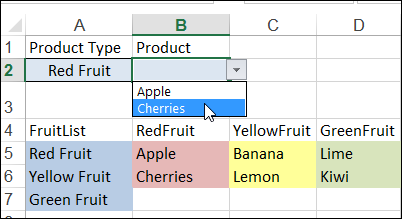
Video: Make a Basic Conditional Drop Down List
To see how to make a basic dependent drop down list in a cell, watch the steps in this short video, and the written instructions are on the Excel Dependent Drop Down List page on my Contextures site.
Using Named Ranges
Sometimes things aren’t quite as simple, as you can see in the next example.
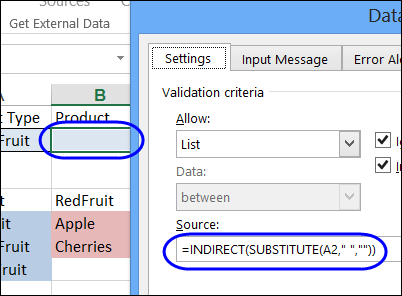
There is a named range on the worksheet – RedFruit – and the data validation formula uses the INDIRECT function to create a reference to that range. The formula also removes any spaces in the text, by using the SUBSTITUTE function, because the range names can’t use space characters.
=INDIRECT(SUBSTITUTE(A2,” “,””))
Lookup Tables for Complex Lists
It’s simple to use the SUBSTITUTE function to get rid of any spaces, but your list of items might contain other characters that can’t be used in range names, such as an ampersand (&) or asterisk (*).
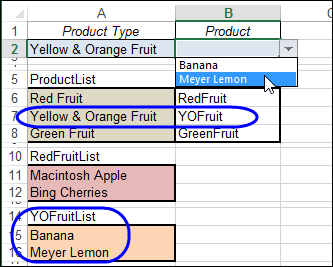
Instead of trying to substitute every illegal character, you can set up a lookup table. Put the list items in the first column, and a short code for each item in the second column. The range with items and codes is named ProductLookup.
The data validation formula will look in that list, to find the code, and show the items from a list with that name. In this example, all the list names end with “List”, so that is added in the formula.
=INDIRECT(VLOOKUP(A2,ProductLookup,2,0)&”List”)
Add a Third Dependent Drop Down
You could even add a third drop down list that is dependent on the selections in the first two.
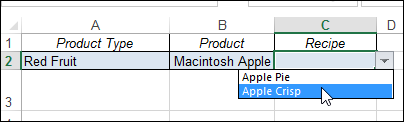
Just create a lookup table for each of the secondary lists, and an item list for each of those secondary codes.
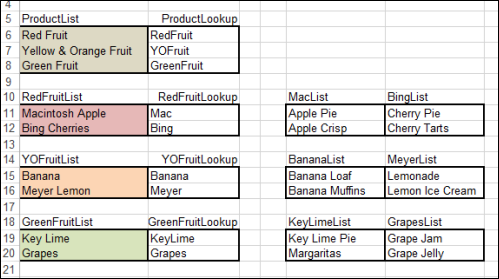
Here is the data validation formula in cell C2
=INDIRECT(VLOOKUP(B2,INDIRECT(VLOOKUP(A2,ProductLookup,2,0)&”Lookup”),2,0)&”List”)
It finds the product lookup table,
- VLOOKUP(A2,ProductLookup,2,0)&”Lookup”
the product code in that table,
- VLOOKUP(B2,INDIRECT(VLOOKUP(A2,ProductLookup,2,0)&”Lookup”),2,0)
and adds “List” to create a reference to the list name.
=INDIRECT(VLOOKUP(B2,INDIRECT(VLOOKUP(A2,ProductLookup,2,0)&”Lookup”),2,0)&”List”)
Download the Sample File
You can see the details on my Contextures website, Dependent Lists page, and download the sample file.
_________
I remember a similar trick on your website 5 years ago. Validation using 2 dependent dropdowns. This technique was the one who made me discover Contextures. I googled Excel validation and it returned me that blog with 2 dependent dropdowns. I was amazed to see that Excel could do this. This is where I learned how to do this.
Thank you so much for sharing the same technique for 3 dropdowns.
Hi Excel Guru, I am trying to prepare two worksheet, First one will act as Input Sheet and another will store the information from input sheet and the user can not insert any content manually in the database sheet. i have got excel template with above criteria (with macro’s) from your website, but i am facing one challange that after protecting the database worksheet content i am not able to input the date from Input sheet to database. i request for your valuable input. thanks in advance. Harish
Wow – I’m totally lost. I’m looking to use a simple excel drop down that will allow use of multiples of Company, Name, Address, Phone & Email from a list (300+) applied to a separate worksheet page within the same document.
It needs to auto fill separate cells for each of these entries.
It is apparent that you have all of these answers and many more, however I don’t know where to start looking.
Thank you for pointing me in the right direction. Lori
Lori, there is a sample order form on my website that might help you get started:
http://www.contextures.com/xlOrderForm01.html
You can select a product, and it fills in the price.
Or, select a customer, and if fills in the address, city and state.
Hi Debra,
I was wondering if you have made a tutorial on filtering a list of data. For example, if there is a list of students in different sections, how would I create a dropdown list of sections that will show all of the students in that section along with their work (ie – grades).
Thanks,
Kevin.
wondering the same thing…..if you’ve got this figured out already, please kindly let me know.
@Hart, I’m not clear on what you or Kevin are trying to do. If there is a column with the section names, you could filter that column to just show a specific section. Then, the visible rows would only show the results for students in that section.
Does anyone know how to fix this formula
=IF(D8=B149,E8*4)*IF(D8=B150,E8*2)*IF(D8=B151,E8)*IF(D8=B152,E8/3)*IF(D8=B153,E8/6)*IF(D8=B154,E8/12)
Where D8 contains a drop down menu using data validation – drop down menu is displaying payment method-‘weekly,fortnightly,monthly,quarterly,semi-annually,annually’- the box E8 has the monetary value of what was paid, the box I’m imputing the data into is to work out the monthly wage..
Any help would be very much appreciated.
Emily,
=IF(D8=B149,E8*4,IF(D8=B150,E8*2,IF(D8=B151,E8,IF(D8=B152,E8/3,IF(D8=B153,E8/6,IF(D8=B154,E8/12),0))))))
Can I use this solution for my scenario?
I have 3 columns of data taken from historical shipping information which I want to use as a transit time guide
1. Country of destination
2. Day of despatch
3. Transit time
Please advise the best way to show this if the user selects the country then day despatched, so it automatically gives an average transit time.
I have taken the average transit time from historical data and have 5 results for each destination. (Monday to Friday)