
It’s fairly easy to make one drop down list show items based on what was selected in another drop down. But what about making a third drop down list? And how can you work with spaces, or other characters that can’t be used in Excel names?
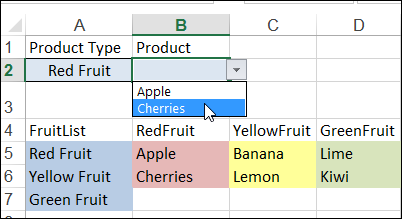
Here is a nice, simple conditional list – if you select Red Fruit in cell A2, you can see a list of red fruit in cell B2.
Video: Make a Basic Conditional Drop Down List
To see how to make a basic dependent drop down list in a cell, watch the steps in this short video, and the written instructions are on the Excel Dependent Drop Down List page on my Contextures site.
Using Named Ranges
Sometimes things aren’t quite as simple, as you can see in the next example.
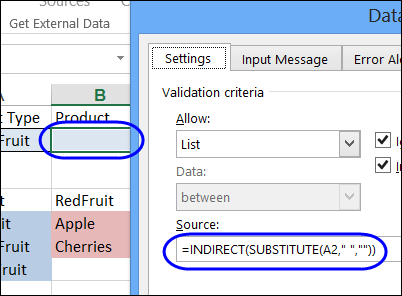
There is a named range on the worksheet – RedFruit – and the data validation formula uses the INDIRECT function to create a reference to that range. The formula also removes any spaces in the text, by using the SUBSTITUTE function, because the range names can’t use space characters.
=INDIRECT(SUBSTITUTE(A2,” “,””))
Lookup Tables for Complex Lists
It’s simple to use the SUBSTITUTE function to get rid of any spaces, but your list of items might contain other characters that can’t be used in range names, such as an ampersand (&) or asterisk (*).
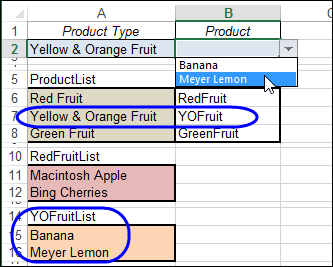
Instead of trying to substitute every illegal character, you can set up a lookup table. Put the list items in the first column, and a short code for each item in the second column. The range with items and codes is named ProductLookup.
The data validation formula will look in that list, to find the code, and show the items from a list with that name. In this example, all the list names end with “List”, so that is added in the formula.
=INDIRECT(VLOOKUP(A2,ProductLookup,2,0)&”List”)
Add a Third Dependent Drop Down
You could even add a third drop down list that is dependent on the selections in the first two.
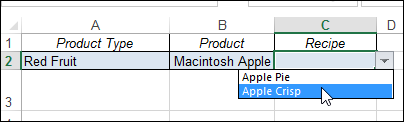
Just create a lookup table for each of the secondary lists, and an item list for each of those secondary codes.
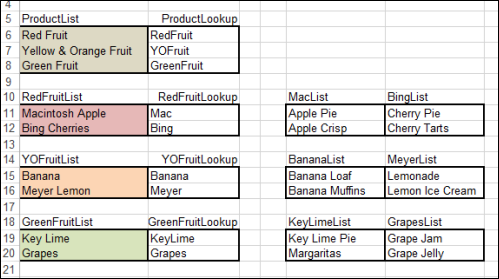
Here is the data validation formula in cell C2
=INDIRECT(VLOOKUP(B2,INDIRECT(VLOOKUP(A2,ProductLookup,2,0)&”Lookup”),2,0)&”List”)
It finds the product lookup table,
- VLOOKUP(A2,ProductLookup,2,0)&”Lookup”
the product code in that table,
- VLOOKUP(B2,INDIRECT(VLOOKUP(A2,ProductLookup,2,0)&”Lookup”),2,0)
and adds “List” to create a reference to the list name.
=INDIRECT(VLOOKUP(B2,INDIRECT(VLOOKUP(A2,ProductLookup,2,0)&”Lookup”),2,0)&”List”)
Download the Sample File
You can see the details on my Contextures website, Dependent Lists page, and download the sample file.
_________
heloo excel experts i am going to ask you one question .please let me know with full step
I have more datas like items last price initial price customer name phone no qty s.amount remarks
apple 200 300 aryan 984235435 1 500 profit
orange 100 200 devid 985362451 2 400 profit
like that and i have to add these datas regularly (day by day)so i want to make a software like advanced filter which you have shown but the condition is that i would like to put a file limitation so that it is easy for me upto which date the software works……
dear sir i have one another question for you
like i have a sheet in which i have apply formulas there
like =sum(a3:g3) =sum(b3:g3) =sum(c3:g3) like that….sir i want to do like that when i enter that cell that display formula right and when we dont write anything that cell shows 0 sir i wana do like that when i am entering in that cell that doesnot show formula but we can edit ,insert,delete everything we can do in that cell and also when we open the file it doesnot show any value like another sheet….like a software…….is it possible if so how can we do it…by vb or directly ..sir give me the full process with all og the informations
Hello,
Thanks for showing how to create dependent lists. This is very helpful. Is it possible that every time I re-pick at the first level, the rest of the 2 levels get cleared out. Basically, I am using dependent lists in a form. So when users want to change their option on the first level, the rest of the 2 level should get cleared out so the is not data mismatch.
Hello,
I’m trying to use Indirect in order to refer to a name in the active workbook which points to a defined name in another workbook, but Indirect won’t allow it (it seems). I can get Indirect to work with a name that points directly to a range in another workbook, however. Given that the “define a name in this workbook as a name in another workbook” method is a way around Excel’s workbook to workbook referencing issues for validation drop down lists and conditional formating, it seems odd.
Does anyone know of a way to have Indirect or some function like it work with a name that points to another name in another workbook?
Thank You,
Dave
Hi – I have been studing and trying to figure out how to do the third dependent drop down. I have been to other sites and still can’t figure it out. I get as far as getting the second one to work, but not the third. I am currently using this formula =INDEX(Main,,MATCH(Initiative,Main1,0)) for the second collum. Any thoughts?
Thanks-
Janna
I am stumped! I am trying to figure out how to calculate a %fee based on a word in the drop down menu.
Example:
Wine Purchases + Silent Auction Purchases + Live Auction Purchases = Subtotal
The next column has a drop down menu to choose from cash, check or credit. If credit is chosen, I want it to automatically calculate a 2.75% fee in the next column which will then automatically add into the Grand Total column.