
There’s a popular sample file on my website, that lets you select multiple items from a data validation drop down list. Since the original article, I’ve posted updates:
- how to set up multiple selection
- edit multiple selection cells
- prevent duplicates in multiple selection column
And here is the latest update.
Remove Previous Selections From Cell
In the comments on the original post, Dan asked for a way to remove items if they been previously selected. For example, the cell contains four items — “One, Two, Three, Four”.
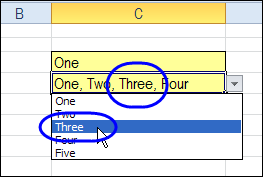
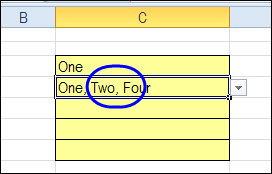
When you select Three again, that number is removed from the cell, instead of being added at the end of the cell.
Download the Sample File
To experiment with this technique, you can download the sample file from the Contextures website, on the Excel Data Validation – Select Multiple Items page. The file is in Excel 2003 format and zipped. There are macros in the file so enable them to test the features.
The new sample is on the SameCellAddRemove worksheet.
Please let me know in the comments if there are other features you’d like to see in this workbook. Thanks!
Watch the Excel Tutorial Video
This video shows how the multiple select and remove features work. You can also see the Excel VBA code, and the steps that it goes through, when you make a selection in the drop down list.
________________
Hi Debra,
I am 100% new to this whole coding aspect of life. I have 2 questions. The first is that i’m having difficulty with the removal of an entry in the code. If I’ve selected multiple entries in my same cell and i don’t need one of them or it was accidentally selected, i can’t get the removal code to work. I’m positive i’m entering it wrong…
The 2nd question is am i able to set this to work on multiple columns in a single work sheet? So where we have entered “Target.Column = #” is there a way to apply this to say columns 8 and 2?
Hi Gemma,
There are examples here on how to add more columns in the code:
http://www.contextures.com/excel-data-validation-multiple.html#column
The Remove code is in the sample file that you can download from this page:
http://www.contextures.com/excel-data-validation-multiple.html
On the Instruction sheet, there is a list of all the example sheets, and SameCellAddRemove2 is #13.
The VBA code only works in one cell. What do you do if the column contains several drop down lists and you want to be able to select multiple values from each list?
The code should work for any cell that has a data validation drop down list. It’s not limited to just one cell.
Thank you for sharing this very useful tool. I have found success when I am just creating a data validation in a new spreadsheet. However, I am needing to use it in an existing spreadsheet, which has multiple worksheets, vlookups, and existing data validation. The main worksheet is in a table format. I thought that may be an issue, so I removed the table format, but it didn’t seem to make any difference. The spreadsheet is not locked either. Are there any issues when using an existing spreadsheet that already uses vlookups or multiple data validation lists? I have used the both the SameCell code and the SameCellAddRemove options. Both only allow the one entry. I have also made sure I changed the code to include the correct column. Additionally, I have tried adding code in for many columns and removed the code for columns to allow for any data validation columns. So far, no luck. Any assistance would be appreciated.
Hello,
Was wondering if you could assist please…
I have the below code in Excel from “Excel Drop Down Multiple Select or Remove”. The sheet is now protected and the code no longer works.
1) What line do I change to allow the multiple select to work.
2) I’d like a line break instead of comma and if possible, for the multiple items to appear in A-Z order (if possible).
Any suggestions?
Thanks,
James
Private Sub Worksheet_Change(ByVal Target As Range)
Dim rInt As Range
Dim rCell As Range
Dim tCell As Range
Set rInt = Intersect(Target, Range(“A:A”))
If Not rInt Is Nothing Then
For Each rCell In rInt
Set tCell = rCell.Offset(0, 1)
If IsEmpty(tCell) Then
tCell = Now
tCell.NumberFormat = “dd/mm/yyyy hh:mm”
End If
Next
End If
‘ Developed by Contextures Inc.
‘ http://www.contextures.com
Dim rngDV As Range
Dim oldVal As String
Dim newVal As String
Dim lUsed As Long
If Target.Count > 1 Then GoTo exitHandler
On Error Resume Next
Set rngDV = Cells.SpecialCells(xlCellTypeAllValidation)
On Error GoTo exitHandler
If rngDV Is Nothing Then GoTo exitHandler
If Intersect(Target, rngDV) Is Nothing Then
‘do nothing
Else
Application.EnableEvents = False
newVal = Target.Value
Application.Undo
oldVal = Target.Value
Target.Value = newVal
If Target.Column = 3 Then
If oldVal = “” Then
‘do nothing
Else
If newVal = “” Then
‘do nothing
Else
lUsed = InStr(1, oldVal, newVal)
If lUsed > 0 Then
If Right(oldVal, Len(newVal)) = newVal Then
Target.Value = Left(oldVal, Len(oldVal) – Len(newVal) – 2)
Else
Target.Value = Replace(oldVal, newVal & “, “, “”)
End If
Else
Target.Value = oldVal _
& “, ” & newVal
End If
End If
End If
End If
End If
exitHandler:
Application.EnableEvents = True
End Sub
James, there is sample code on my site, for use with protected sheets:
https://www.contextures.com/excel-data-validation-multiple.html#protect
To use a line break instead of a comma/space separator, use Chr(10), instead of “, ”
There isn’t a simple solution for your A-Z question.
Hi Debra,
Thanks for your reply, I’ve managed to get the protection issue sorted.
Regarding a line break, when I remove an item that is already in the list, it removes a letter from the previous line, for example:
Selection 1
Selection 2
Selection 3
would turn into:
Selection 1
Selection
Many thanks,
James
Hi,
Is it possible that I want to be able users to choose multiple “Team” and show all Tasks under that Team; and at the same time be able to further choose multiple selection under “Task”:
Team Task # of Docs
A Editing Docs 3
A Proofreading Docs 2
A Final Draft Docs 0
A Printing Docs 2
B Editing Docs 2
B Proofreading Docs 5
B Final Draft Docs 6
B Printing Docs 0
C Editing Docs 3
C Proofreading Docs 2
C Final Draft Docs 2
C Printing Docs 0
Please help because as of the moment I have to input Team letter on each row, so that when I filter via the Team column, it shows the data on the following column
Using DataValMultiSelect workbook with SameCellEnter; Is there a way to have 2 different multiple choice drop-downs in different columns in the same table?
What code can be used pull the pick list from a separate table