
When you were first learning how to use Excel, you quickly discovered the basic Excel functions, like SUM, COUNT, MIN, MAX, and AVERAGE. Now you’re ready for advanced calculations, like how to find MIN IF or MAX IF in Excel.
Beyond the Basics with MIN IF
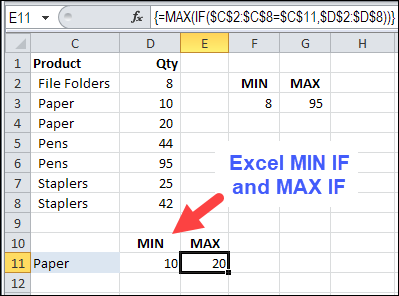
In this example, we want to see the MIN and MAX for a specific product. There is a SUMIF function and a COUNTIF function, but no MINIF or MAXIF.
- [Update]: In Excel 2019, and Excel for Office 365, you can use the new MINIFS and MAXIFS functions. There is more information on the MIN and MAX page on my Contextures site.
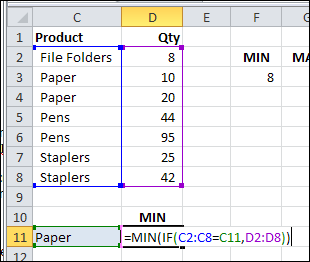
So, we’ll have to create our own MINIF formula, using MIN and IF. I’ve selected a product in cell C11, and the formula will be built in cell D11.
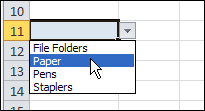
To make it easy to select a product, I created a drop down list of product names, by using data validation.
NOTE: You can also calculate MIN IF and MAX IF with Multiple Criteria
MIN IF Formula
The formula starts with the MIN and IF functions, and their opening brackets:
=MIN(IF(
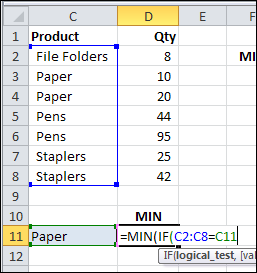
Next, we want to find the rows where the product name matches the product in C11:
- Select C2:C8, where the product names are listed
- Type an = sign
- Click on cell C11
=MIN(IF(C2:C8=C11
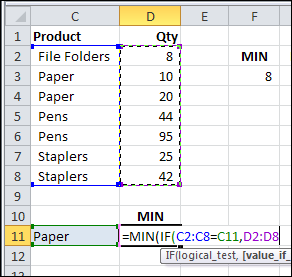
Next, select D2:D8, where the quantities are listed. If the product name matches, we want to check the product quantity
=MIN(IF(C2:C8=C11,D2:D8
To finish the formula:
- Type two closing brackets
- Then press Ctrl+Shift+Enter to array-enter the formula.
=MIN(IF(C2:C8=C11,D2:D8))
NOTE: If you plan to copy this formula down a column, use absolute references to the product and quantity ranges:
=MIN(IF($C$2:$C$8=C11,$D$2:$D$8))
Array Entered Formula
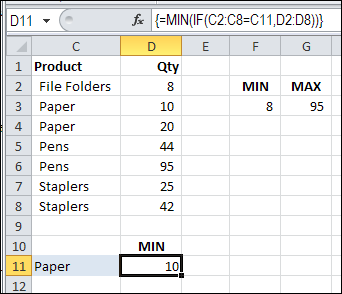
If you select cell D11, and look at the formula in the Formula Bar, there are curly brackets at the start and end of the formula. Those were automatically added, because the formula was array-entered (Ctrl + Shift + Enter).
If you don’t see those curly brackets, you pressed Enter, instead of Ctrl + Shift + Enter.
To fix the formula:
- Click in the formula bar (it doesn’t matter where you click within the formula)
- Press Ctrl + Shift + Enter.
Create a MAXIF Formula
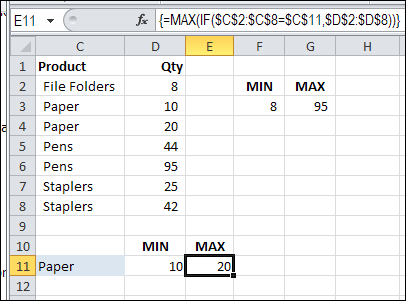
To find the maximum quantity for a specific product, use MAX instead of MIN.
=MAX(IF(C2:C8=C11,D2:D8))
or use absolute references for the product and quantity ranges:
=MAX(IF($C$2:$C$8=C11,$D$2:$D$8))
And remember to press Ctrl+Shift+Enter
Multiple Criteria for MIN IF or MAX IF
These formulas have only one criterion — the product name. If you’re ready for the next challenge, you can also calculate MIN IF and MAX IF with Multiple Criteria
- [Update]: In Excel 2019, and Excel 365, you can use the new MINIFS and MAXIFS functions. For more information, go to the MIN and MAX page on my Contextures site.
Watch the MIN IF or MAX IF Video
To see the steps for creating MIN IF and MAX IF formulas, watch this short Excel video tutorial. The sample file for this video can be downloaded from my Contextures website, on the MIN and MAX page.
________________________
________________
Thanks for this; is there anyway to know in advance whether I will need to convert formulas in excel into array formulas. Not 100% sure of when a formula should be an array vs a standard formula.
ty in advance
That’s great, but I’d like to take it a bit further. I’d like to combine the small/large functions with an if condition. Basically, I want to find the top/bottom 20 values in a column, given that 2 other conditions hold true. Does that make sense?
I can obviously do this with a pivot table using filters, but prefer to avoid having to update them each time. Thanks.
THANK YOU SO MUCH…………!!!
I have run into two issues…maybe someone can help.
1) The calculations take a long time when adding this formula.
2) if there is a #N/A in the data, it comes up with #N/A instead of ignoring it
Thanks!
Hi,
You probably found an answer to this as it was a few months ago, but if not, use:
=IF(ISERROR(insert debra’s fantastic formula here),””,insert debra’s fantastic formula again)
Why not just use:
=IFERROR(insert Debra’s fantastic formula here),””)
This way you don’t have to repeat the resource consuming Debra’s fantastic formula…
Very valid issue where this formula stumbles is that if the cells are blank or null, then it returns the min value as zero, and I solved it like this. It ignores all ZERO blank NA values and calculates perfectly:
=MIN(IF($U$2:$U$927>0,IF($B$2:$B$927=B157,$U$2:$U$927)))
This is a great method and it seems to work very well. I have a situation where the data is not arranged in a “vertical” array. By this I mean the records are listed column-wise, not row-wise. Unlike the capability of the built-in function =averageif() which works both ways, I can’t seem to get this method to work in an array where new records are added horizontally in columns.
Can you verify if this is true?
thanks, -doug
Thnk you evry much. I’ve been working on this for quite a while, but this is an easy solution. Thanks for putting it online for everyone! I’m sure you’ve helped a lot of people, most people dont post a thankyou…