
Most of the time when you’re sorting in Excel, you sort based on the values in one or more columns.
If your workbooks are like mine, it’s rare that you sort horizontally, based on the values in a row. But if you need to do that, here’s how to sort a row in Excel.
Sort a Row
Usually we sort by the values in a column in Excel.
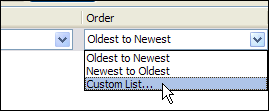
It is possible though, to sort by the values in a row, and you can sort in ascending, descending, or custom sort order.
Change the Sort Options
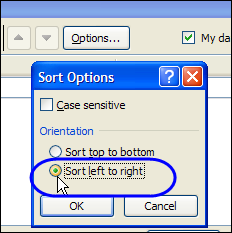
To sort by row, click the Options button in the Sort dialog box.
Then, in the Sort Options, select Sort Left to Right.
Sorted By Total Row
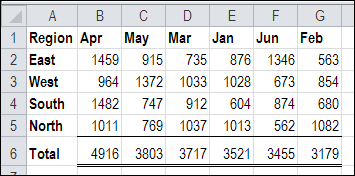
In the screen shot below, the total row has been sorted, so the month with the highest total is at the left.
Excel 2010 Sorting
So much has changed in Excel 2010 and Excel 2007 sorting, that I’ve finally updated the sorting in Excel page on the Contextures website.
You can find the detailed instructions for sorting by row, and other sorting tips.
There is also an Excel sorting sample workbook that you can download, at the bottom of the sorting page.
Video: Sort Across Row in Excel
To see the steps for sorting a row in Excel 2010, watch this short Excel video tutorial.
And for more Excel advanced sorting tips, go to the Excel Add-in Advanced Sorting page on my Contextures site.
________________
Great solution for numbers, thanks. Would you have one for text?
raju krishnan you have given a solution for a column sort method, how about on rows sorting ?