
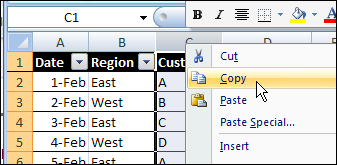
This week, I’ve been working in an Excel 2007 file that has several named Excel Tables. After adding a column in one table, I copied the entire worksheet column.
Next, I tried to paste it into another worksheet, where there was a similar table.
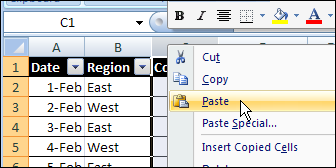
That didn’t go too well. After a few minutes of staring at the hourglass, I gave up, and closed Excel in the Task Manager.
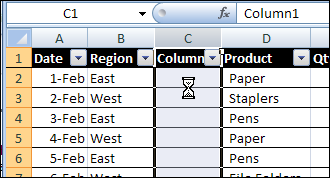
Today, I tried to repeat the column copy and paste, forgetting about the previous problem.
Sure enough, Excel crashed again. Well, technically, I guess it’s a hang, rather than a crash, but it’s still annoying.
A Smaller Named Excel Table
In a smaller workbook, with smaller tables, the copy eventually completed, but with strange results. There was a strange message in the Status Bar.
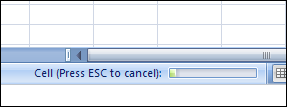
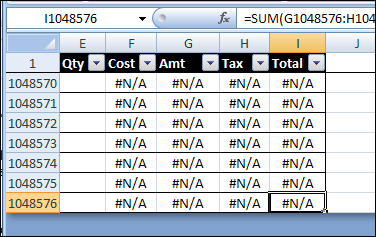
Eventually, the copy completed, but instead of the ten rows from the original table, the paste filled the entire column, so the named Excel Table ended in the last row.
Successful Copy and Paste
Instead of copying and pasting the entire column, you can copy and paste the named Excel table column.
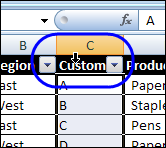
- To select the table column, click, the top of the table heading cell, instead of the column heading button.
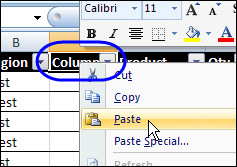
- Then, to paste into the other table, right-click the heading cell, and paste.
Or you can copy the cells, and paste them, instead of copying and pasting the column.
How Do You Crash Excel?
Enough about my problems! What’s your favourite way to crash/hang Excel?
________________
@Lynda, maybe it’s the foot tapping, or heavy sighs, that trigger the crashes.
@John, that’s impressive! I’ve never let something run for the whole weekend.
On some days I find that booting Excel is often followed by a crash.
Jon, that’s a classic! Maybe you’re not holding your head at the right angle.
I find the surest way to crash Excel (send it into an infinite unbreakable loop) is to forget to save a piece of code I am writing before running it. Early on in development, I usually forget a trap to stop this and end up clicking the Run button a micro-second before I realize I didn’t save the code… BAM!… I’m in that damn infinite unbreakable loop which means, of course, that the code is completely lost.
@Rick, unfortunately, that problem sounds familiar!
I’ve recently created a right-click menu customizer. The trickiest part is getting a list of all the controls, even ones not currently on any toolbar. I tried this code, but it crashes on 5957 (and then on later ones). It brings up the “Excel has stopped working” with it’s generous offer to save and restart. This is in Excel 2010, can’t remember if it’s the same in 2003. The On Error Resume Next skips over all the non-existent controls (and I think some that won’t work on a shortcut bar) but still crashes at 5957:
Sub ListAllControls()
Dim i As Long
Dim j As Long
Dim cbar As Office.CommandBar
Dim ctl As Office.CommandBarControl
Set cbar = Application.CommandBars.Add(temporary:=True)
Sheet1.Cells.Clear
For i = 1 To 6000
On Error Resume Next
Set ctl = cbar.Controls.Add(ID:=i)
If Err.Number = 0 Then
j = j + 1
Sheet1.Cells(j, 2) = ctl.Caption
Sheet1.Cells(j, 1) = i
End If
On Error GoTo 0
Next i
End Sub