
A couple of years ago, I posted about an Excel bingo workbook, that you could use to create a set of three cards with random numbers.
Bingo Card Formulas
In the Excel workbook, the bingo card sheet uses the INDEX and MATCH functions to pull the numbers from another sheet.
- =INDEX(Numbers!$M$1:$M$15, MATCH(LARGE(
Numbers!$N$1:$N$15, ROW()-1), Numbers!$N$1:$N$15,0))
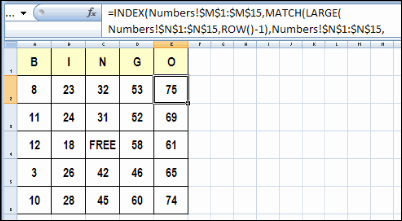
There were a few follow up workbooks, including an Excel Bingo Number Selector file from Dick Kusleika.
Horizontal Number Lists
This week, Carrie posted a comment on that article, and she wanted to adapt the bingo cards so they could be printed with Adobe InDesign. Instead of a square with 25 numbers, that program needs the 25 numbers in a single row.
Using the example in the screen shot above, the numbers in the first two rows would be arranged like this, followed by the numbers from the remaining rows:

Random Number Code
Jim Cone pitched in, and wrote some code to generate the random numbers in single rows, but it created some duplicates in the rows. Carrie didn’t want an uprising in the bingo hall, so we sent Jim away to try again. 😉
It didn’t take long for him to return with some code that worked correctly, so Carrie, and her Hummel figurine collecting friends, can safely play bingo this summer.
Whew! A bit later, Dick posted an update for Jim’s code. It’s shorter, and does the job very well.
Copy the Random Number Code
Thanks Jim and Dick! I’m sure Carrie appreciates the code, and maybe it will help a few other people.
To use this random number code, copy it to a regular code module in your workbook.
Then, go to a blank sheet, and run the SurelyYouCantBeSerious_R1 code.
Sub SurelyYouCantBeSerious_R1()
'Generates 800 sets of random Bingo numbers with no duplicates.
'Each row contains an individual set of Bingo numbers.
'Designed to be used with the "Adobe InDesign" application.
'Jim Cone - Portland, Oregon USA - February 02, 2011
'[email protected] - remove all "X"
'Edited by Dick dailydoseofexcel.com
On Error GoTo DontCallMeShirley
Dim arrList(1 To 800, 1 To 25) As Long
Dim j As Long
Dim R As Long
'B COLUMNS
'1 to 15 in the B column
Randomize
For R = 1 To 800
  For j = 1 To 5
    FillList arrList, j, R
  Next j
Next R
Range("A1:Y800").Value = arrList()
  Exit Sub
DontCallMeShirley:
  Beep
  Resume Next
End Sub
'==========
Sub FillList(ByRef arrList As Variant, lStart As Long, R As Long)
Dim j As Long
Dim C As Long
Dim N As Long
Dim arrCheck(1 To 75) As Long
j = 1
For C = lStart To 25 Step 5
  Do While j < 6
    'Int((High - Low + 1) * Rnd + Low)
    N = Int(Rnd * 15 + ((lStart - 1) * 15 + 1))
    If arrCheck(N) < 1 Then
      arrList(R, C) = N
      arrCheck(N) = N
      j = j + 1
      Exit Do
    End If
  Loop
Next C
End Sub
______________
This worked AWESOME! I changed the code to generate 10,000 cards. You can make it generate as many or as few as you need. The only altering you have to do afterward is to create headers for the different columns. Mine are B1, B2, B3, B4, B5, I1, I2, etc… As for the free space, I just skipped N3. Also, I created a table in InDesign for the merge.
Thanks, Wesley, and that’s a lot of bingo cards!