
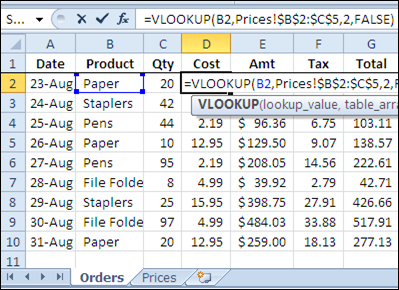
If you’re filling in an order form in Excel, you can use the VLOOKUP function to find the selling price for each item in the sales order. For example, in the screen shot below, the order form is on the Orders worksheet, and a VLOOKUP formula in column D pulls the cost from a pricing table on the Prices worksheet.
Lookup Range in Another Workbook
However, you might want to keep your price list separate from the orders workbook, so the prices are easy to update. If your price list is in a different workbook, you can still use a VLOOKUP formula to pull the data, by referring to the external list.
To refer to another workbook in a VLOOKUP formula, follow these steps.
- Open both workbooks (this step isn’t mandatory, but makes it easier to create the link)
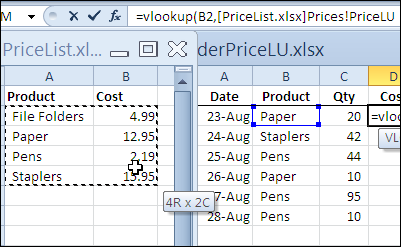
- Create the VLOOKUP formula, and for the table_array argument, select the lookup range in the other workbook. Excel will automatically add the other workbook’s name and the worksheet name in the formula.
In the screen shot below, the lookup table is in the PriceList.xlsx workbook, on the Prices sheet, in a range named PriceLU.
Closing the Lookup Workbook
While the price list lookup table workbook is open, the VLOOKUP formula will show the workbook name and the referenced range address or range name.
You can see the PriceLU name and workbook information in the formula bar, in the screen shot below.

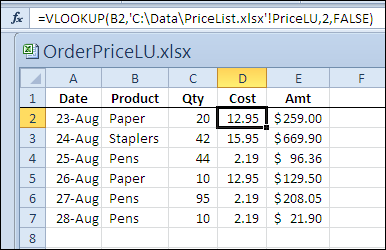
If the price list lookup table workbook is closed, the VLOOKUP formula will still work, and the full file path for the price list lookup table workbook will be shown in the formula.
Watch the Video
To see the steps for referring to a VLOOKUP range in another workbook, please watch this short Excel tutorial video.
More Lookup Links
VLOOKUP Number/Text Troubleshooting
_____________
=VLOOKUP(B44,’C:\Users\rlewison\Desktop\[itemid.xlsx]Sheet1′!$A$5:$B$114,2,FALSE)
Try this
I have a Vlookup refence to another file that works perfectly when the file is open, but not when the file is closed. The error is #REF.
Here is the formula :
=IFERROR(VLOOKUP([@[‘# commande]];’T:\DuraBac\Adam + Feu\Restructuration\Département Production\Tableau multiples\Dessin-commandes.xlsm’!Table120[#Data];14;FALSE);”Erreur”)
Can someone help me with this ?
It works Great..
Except i’m working with zip codes (I had to first convert from text to number) where the leading zero disappears.
ie.
06511 New Haven, CT becomes 6511
and it cant find 6511 in the zip code file
I’ve used vlookup opening workbooks within one excel instance and it works great. Now when I try to do a vlookup opening two separate instances of Excel with different workbooks, the function does not work. Can this be done? Please help!
Note: Two instances is when you open Excel from the start menu and open a second Excel workbook from the start menu a second time.
Many thanks for a straightforward example with clean simple images that quickly and easily convey the topic. Well done!
I get error messages if I want to use a vlookup in combination with table tools => so my syntax would include sth like this Table1[#All] etc. This works if I use it in one excel sheet, however if I want to do the vlookup to another excel sheet, it does not work. If I then change the Table1[#All] syntax to the standard A1:A65000, it works. The Table1[#All] syntax however would be dynamic and include all changes that I do in table1. So I would prefer that one. Any ideas how to solve that?