
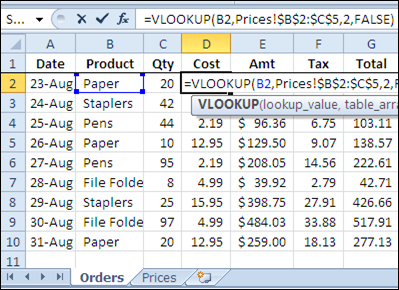
If you’re filling in an order form in Excel, you can use the VLOOKUP function to find the selling price for each item in the sales order. For example, in the screen shot below, the order form is on the Orders worksheet, and a VLOOKUP formula in column D pulls the cost from a pricing table on the Prices worksheet.
Lookup Range in Another Workbook
However, you might want to keep your price list separate from the orders workbook, so the prices are easy to update. If your price list is in a different workbook, you can still use a VLOOKUP formula to pull the data, by referring to the external list.
To refer to another workbook in a VLOOKUP formula, follow these steps.
- Open both workbooks (this step isn’t mandatory, but makes it easier to create the link)
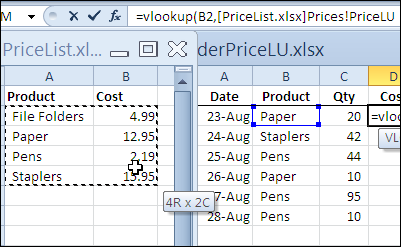
- Create the VLOOKUP formula, and for the table_array argument, select the lookup range in the other workbook. Excel will automatically add the other workbook’s name and the worksheet name in the formula.
In the screen shot below, the lookup table is in the PriceList.xlsx workbook, on the Prices sheet, in a range named PriceLU.
Closing the Lookup Workbook
While the price list lookup table workbook is open, the VLOOKUP formula will show the workbook name and the referenced range address or range name.
You can see the PriceLU name and workbook information in the formula bar, in the screen shot below.

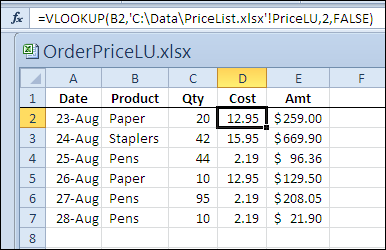
If the price list lookup table workbook is closed, the VLOOKUP formula will still work, and the full file path for the price list lookup table workbook will be shown in the formula.
Watch the Video
To see the steps for referring to a VLOOKUP range in another workbook, please watch this short Excel tutorial video.
More Lookup Links
VLOOKUP Number/Text Troubleshooting
_____________
when i was try to lookup value from another workbook it could not pick its reference from the workbook i also save it on my desktop but still it could not be selected for table array
i also facing the same issue,did you get any solution ,please comment???
Do you have a solution for referencing large tables with 19+ columns? I’ve noticed that the Vlookup formulas seem to work for the earlier columns, but provide a #REF! error after column 6.
Hi Jo. Would be safest to just copy the VLOOKUP table into your destination workbook. References across workbooks are a recipe for disaster – especially given that if someone changes the structure of the source workbook while the destination workbook is closed then the VLOOKUP won’t work and will return incorrect data.
You can also use MS Query to pull data from one spreadsheet to another. Are you familiar with it? It’s available via the Data tab in Excel 2010:
Data>From Other Sources>From Microsoft Query
A google search should point you in the right direction.
Hello,
I have followed the tutorial and video and everything looks good but I get a #REF! error. Here is my formula:
=VLOOKUP(P66,'[Seminar Schedule.xlsx]Sheet1′!$B1:$B500,11,FALSE)
I’m not sure why this error is showing.
Any hints?
Thanks,
John
@John your formula is looking for a result in column 11, so your lookup table should be at least 11 columns wide. Try changing the lookup range to $B$1:$L$500
it is because table_array and col_index doesn’t match,you are mentioning one column B1:B500 and mentioned 11 as col_index means 11th column.
Thank you Debra, that worked smashingly!
I get a #ref! error when I use the following formula:
=VLOOKUP(B44,’C:\Users\rlewison\Desktop\[itemid.xlsx]Sheet1′!$A$5:$A$114,’C:\Users\rlewison\Desktop\[itemid.xlsx]Sheet1′!$B$5:$B$114,FALSE)
any ideas?
thanks,
Rian