
One of the tasks you have to do quite often in Excel is to count things. Here’s how to count cells greater than set amount with Excel COUNTIF function.
Student Test Scores
In this example, we have a list of students and their test scores.
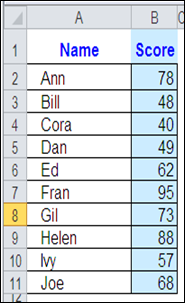
If the passing score is 50, how can you get Excel to count the number of students who passed the test?
Use COUNTIF and an Operator
The Excel COUNTIF function will count cells, based on the criteria that you enter. As part of the criteria, you can use an operator, such as greater than, or less than, to count a specific range of numbers.
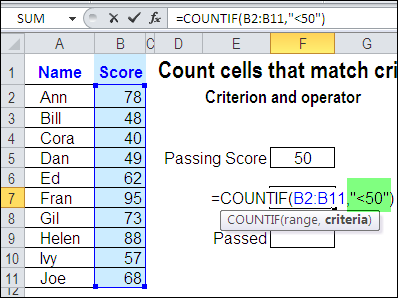
In this example, the passing score is 50. To find the students who failed the test, you’d count the scores that are less than 50 — <50.
To include this operator in the COUNTIF criteria, enclose the operator and number in double quote marks.
=COUNTIF(B2:B11,”<50″)
Use a Cell Reference with COUNTIF Criteria
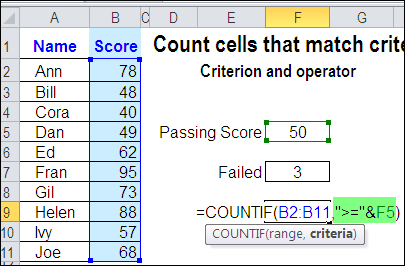
Instead of typing a number in the COUNTIF criteria, you can use a cell reference. In this example, cell F5 contains the passing score.
To find the students who passed the test, you’d count the scores that are greater than or equal to the value in cell F5 — >=F5.
To include a cell reference and operator in the COUNTIF criteria, enclose the operator in double quote marks, and use an ampersand before the cell reference.
=COUNTIF(B2:B11,”>=” & F5)
Cell Reference Automatically Updates
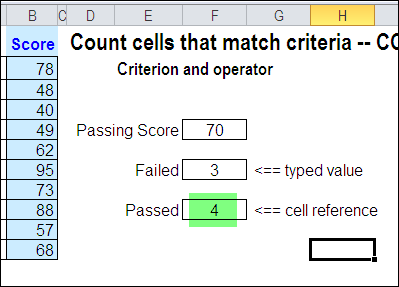
An advantage to using a cell reference in the COUNTIF criteria is that the result will automatically update, if the value in the referenced cell changes.
In the screenshot below, you can see that the passing score has been increased from 50 to 70. Because the Passed formula uses a reference to cell F5, the count is automatically updated.
The Failed formula has the passing score of 50 typed into the criteria, so that value would have to be changed, before the result is updated.
Watch the COUNTIF Video
To see the steps for creating a COUNTIF formula with an operator, you can watch this short Excel tutorial video.
_________________________
How can I count the number of times the value of a cell equals to or is less than 0:26 minutes. The cell is formatted as Time 13:30.
You could use the below formula as long as your cell is formatted as time.
Hi There, I am trying to perform a calculation using the datedif to count the days between two dates and if the total is less than 30 to enter 0 in that cell. Help ?
I have times which I need to count how many are below a certain time
each line below is an example
12:59 AM,3:07 AM,2:51 AM,2:30 AM,12:06 AM times below 3:00 AM
11:42 PM,12:05 AM,12:07 AM,10:57 PM,11:45 PM times below midnight
1:05 AM 12:55 AM,1:03 AM,12:25 AM,1:00 AM times below 1:00
as these are in 24 hour I cannot find a formula that works (I have tried countif but this gives false answers i believe its due to passing midnight)
any help would be great
Thanks Andy
I am attempting to reference a date that correlates to the twentith count of another column. That’s number one problem.
The second is the sum of the other 12 columns between those dates. Right now it looks like this sumif($L,”>0″,$B)
This can easily become sumifs and include the dates but I want the dates to auto populate for every 20 items in column L.
Column A are all dates.
Column B have decimals.
Column L is either 0 or 1.
Thanks in advance.
Jon
Jon, I’m not clear on what you’re trying to sum. Are you using the MOD function in column L, to mark the 20th rows?
It might be better to post your question in one of the Excel forums, where you can upload a sample workbook, and provide more details, to get help. You could try one of these forums:
http://answers.microsoft.com/en-us/office/forum/excel
http://www.mrexcel.com/forum/forum.php
Thanks, your explanation very clear and well understood
Hello…I am using the countif formula (COUNTIF(E7, “>=” &G7)) to determine the number of PE students who meet a certain requirement on their fitness testing…students have to improve by 20% in all post-tests…here’s the problem…if a student equals the 20% requirement, then the formula doesn’t count…in fact, I changed the formula to “=” just to see what would happen and it wouldn’t count…any suggestions?
@Soyini, perhaps cell formatting is be rounding the result. It might look like 20%, but really be 19.999%.