
One of the tasks you have to do quite often in Excel is to count things. Here’s how to count cells greater than set amount with Excel COUNTIF function.
Student Test Scores
In this example, we have a list of students and their test scores.
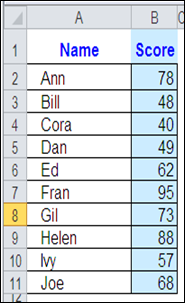
If the passing score is 50, how can you get Excel to count the number of students who passed the test?
Use COUNTIF and an Operator
The Excel COUNTIF function will count cells, based on the criteria that you enter. As part of the criteria, you can use an operator, such as greater than, or less than, to count a specific range of numbers.
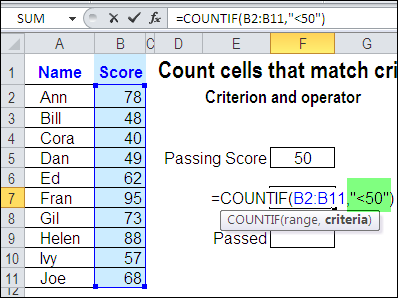
In this example, the passing score is 50. To find the students who failed the test, you’d count the scores that are less than 50 — <50.
To include this operator in the COUNTIF criteria, enclose the operator and number in double quote marks.
=COUNTIF(B2:B11,”<50″)
Use a Cell Reference with COUNTIF Criteria
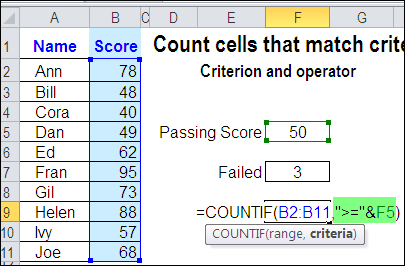
Instead of typing a number in the COUNTIF criteria, you can use a cell reference. In this example, cell F5 contains the passing score.
To find the students who passed the test, you’d count the scores that are greater than or equal to the value in cell F5 — >=F5.
To include a cell reference and operator in the COUNTIF criteria, enclose the operator in double quote marks, and use an ampersand before the cell reference.
=COUNTIF(B2:B11,”>=” & F5)
Cell Reference Automatically Updates
An advantage to using a cell reference in the COUNTIF criteria is that the result will automatically update, if the value in the referenced cell changes.
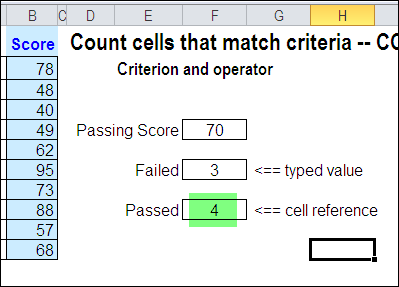
In the screenshot below, you can see that the passing score has been increased from 50 to 70. Because the Passed formula uses a reference to cell F5, the count is automatically updated.
The Failed formula has the passing score of 50 typed into the criteria, so that value would have to be changed, before the result is updated.
Watch the COUNTIF Video
To see the steps for creating a COUNTIF formula with an operator, you can watch this short Excel tutorial video.
_________________________
Sorry, another quick question, I have Excel 2003 is there an alternative for countifs with multiple range options and multiple criterion or would i be best using sumproduct?
Hi,
need a help!!! i need to find the number of cells in a row which are greater than a certain value.
problem is i my data is available in every fourth cell of the row. i am able to use the Mod and Array formula to arrive at the sum of these cells but finding the count is difficult
Countif requires “>” & A1
(replace > whit needed symbol > = <= and A1 whit apropriate cell\cells\ranges ect
Hi Deb,
I’m attempting to use the countif command to find the percent of my class that passed a test. With this command setup when 3 students pass, it returns 300%. Do I need additional data in the command such as dividing the passing students buy the total number of students. Hope that makes sense. And thanks in advance.
=COUNTIF(H4:H28,”>=.7″)
Did you get an answer for this? It is exactly what I am trying to do and what is happening to me?
Thanks
=COUNTIF(H4:H28,”>=.7″)/COUNT(H4:H28)
Would give you count of passing scores divided by count of total scores which should be percent passed.
HI, interesting article thanks. I have a COUNTIFS formula that works perfectly in Excel 2007 but had to save the spreadsheet for another user who only has Excel 2003. The results just return #NAME?. The EX07 formula is in B2 and counts a range of numbers in col A.
COUNTIFS(A2:A100,”>=50″,A2:A100,”<=59"). How can I re-write this for Excel 2003. Thank you.
HI,
I’m trying to use a COUNTIFS formula in a spreadsheet to count the number of cells where the value is a range. I have 3 ranges
Under 500 (easy as can use less than
Over 1000 (easy as can use more than.
Between 500 and 1000 – I’m stuck… Have tried =COUNTIFS(B$2:B$30,”NAME”,C$2:C$30,”>500:<1000") But it's not working. (I"ve also subbed a comma instead of colun.)
Any ideas?
=COUNTIFS(B$2:B$30,”NAME”,C$2:C$30,”>500″,$C$2:$C$30,”<1000")