
One of the tasks you have to do quite often in Excel is to count things. Here’s how to count cells greater than set amount with Excel COUNTIF function.
Student Test Scores
In this example, we have a list of students and their test scores.
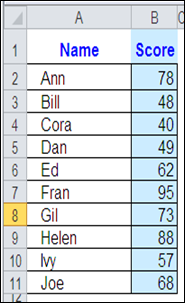
If the passing score is 50, how can you get Excel to count the number of students who passed the test?
Use COUNTIF and an Operator
The Excel COUNTIF function will count cells, based on the criteria that you enter. As part of the criteria, you can use an operator, such as greater than, or less than, to count a specific range of numbers.
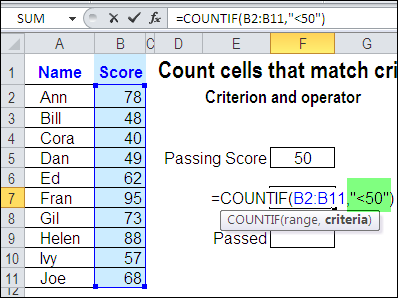
In this example, the passing score is 50. To find the students who failed the test, you’d count the scores that are less than 50 — <50.
To include this operator in the COUNTIF criteria, enclose the operator and number in double quote marks.
=COUNTIF(B2:B11,”<50″)
Use a Cell Reference with COUNTIF Criteria
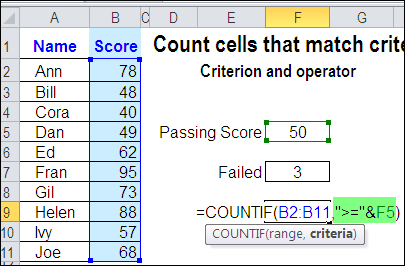
Instead of typing a number in the COUNTIF criteria, you can use a cell reference. In this example, cell F5 contains the passing score.
To find the students who passed the test, you’d count the scores that are greater than or equal to the value in cell F5 — >=F5.
To include a cell reference and operator in the COUNTIF criteria, enclose the operator in double quote marks, and use an ampersand before the cell reference.
=COUNTIF(B2:B11,”>=” & F5)
Cell Reference Automatically Updates
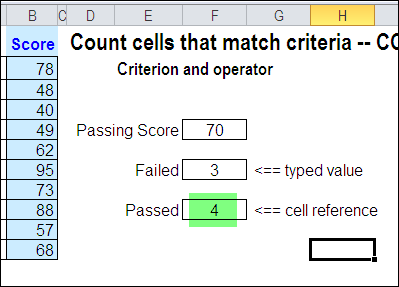
An advantage to using a cell reference in the COUNTIF criteria is that the result will automatically update, if the value in the referenced cell changes.
In the screenshot below, you can see that the passing score has been increased from 50 to 70. Because the Passed formula uses a reference to cell F5, the count is automatically updated.
The Failed formula has the passing score of 50 typed into the criteria, so that value would have to be changed, before the result is updated.
Watch the COUNTIF Video
To see the steps for creating a COUNTIF formula with an operator, you can watch this short Excel tutorial video.
_________________________
Hi Debra,
When using a cell reference in the COUNTIF formula, you could enter the >= directly in the cell.
So that in the above example F5 would be >=50 and the formula would be COUNTIF(B2:B11,F5).
I have used the above with COUNTIF(xxx,xx) – COUNTIF(xxx,yy) to arrive at the count between two values
Enjoy your blog very much, thanks for all the effort
Regards
Kanti
Great Blog, thanks.
Excel 2007 also has the additional function of COUNTIFS:
=COUNTIFS(criteria range 1, criteria 1, criteria range 2 ….)
This enables you to count the number of cells based on multiple criteria. An excellent addition from Microsoft.
[…] month we looked at the COUNTIF formula, and how you can type an operator, then refer to a worksheet cell, to set a minimum value for […]
Thank you very much for the countif(B2:B11,”>=” &F5) formula. Very helpful.
how will I count cells in a given range whose dates are not greater than 2/20/2013?
if they are not greater then they are smaller or equal, you will use “”
Thank you so much Debra, I’ve been working on this all day and went to numerous sites and chat rooms to find assistance with no luck, until i found your post… thank you so much, you are wonderful!