
In Excel, you can create a drop down Data Validation list, so it’s easy to enter valid items in a cell.
Usually, the list of valid items is stored in the same workbook, but it’s possible to set up a drop down from a list in another workbook — as long as the other workbook is open.
The instructions are below, and watch the video to see the steps. The demo uses Excel 2010, and it’s the same in Excel 2007, except that there is an Office button, instead of a File tab.
Drop Down from a List in Another Workbook
Important Note: For the data validation to work, the workbook that contains the list must be open, in the same instance of Excel. Users will have to open both the workbooks — the one with the drop down lists, and the workbook with the original source list.
The following instructions are for Excel 2007 and later. On my website, there are similar instructions to create a data validation list from a different workbook in Excel 2003.

Create the Source List
In this example, you have a workbook named DataValWb.xlsx, which contains a list of customer names. This list is in a range named CustName. (For instructions on creating a named range, refer to Naming Ranges.)
Create a Named Reference to the Source List
Next, you’ll create named range in the workbook where the drop down list will be added.
- Open the workbook that contains the source list — DataValWb.xlsx in this example.
- Open the workbook in which you wish to use the list in Data Validation, or create a new workbook.
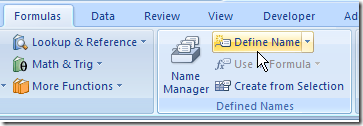
- On the Ribbon, click the Formulas tab, then click Define Name.
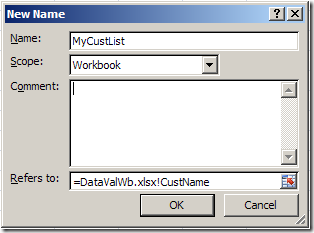
- Type a name for the List, e.g. MyCustList
- From the Scope drop down, select Workbook
- Click in the Refers to box — this is where you’ll type a reference to the named range in the source workbook
- Type an equal sign, then the source workbook name and extension. Do NOT include any square brackets in the name. For example:
=DataValWb.xlsx - OR, if the workbook name includes spaces, start and end the name with an apostrophe. For example: ‘DataVal May10.xlsx’
- Next, type an exclamation mark — !
- Finally, type the range name in the source workbook
- The completed reference should look like this:
=DataValWb.xlsx!CustName
OR =’DataVal May10.xlsx’!CustName
- Click OK
Create the Dropdown List
- Select the cells in which data validation will be set.
- On the Ribbon, click the Data tab, then click Data Validation
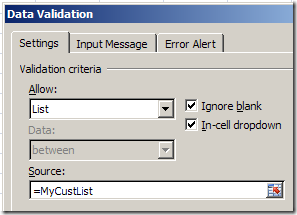
- In the Allow box, choose List
- In the Source box, type an equal sign, then the list name that you just created, e.g.: =MyCustList
- Click OK
Use the Data Validation List
Remember, to use the data validation drop down list, both workbooks must be open.
- Open both workbooks — the one with the drop down lists, and the workbook with the original source list.
- Select an item from the data validation drop down list.
Watch the Video
Watch this video to see the steps for creating a drop down from a list in another workbook. You’ll see how to set up the named ranges, and the drop down lists. The demo is in Excel 2010.
________________________________
Come on!!!
This is very simple…
You don’t need to do complex naming process like this.
Just use indirect function!!!
=indirect(“[Book2]Sheet1!$A$1:$A$10”)
(Book 2 A1 ~ A10 should have validation list)
Debra,
On the Excel Expert exam for 2007 there is an objective for referencing external data in a drop down list under restrict data entry by using data validation. What would they be referring to on this exam objective on the Microsoft exam?
Most likely, they’re referring to a technique like this, in which you’re using a name that references another workbook, and that workbook must be open.
I am getting an error when I try to save the source in Data Validation which says “the ;list source must be a delimited list or referenced to a single row or column”
I want to keep data file (source file) in server computer which is confidential and number of users should access the only some cells in common source file using data validation list from other network shared computer.Is it possible? If yes please describe me.
Thanx
I have followed these steps to the T, including using the names (they just happen to work in my case). But when I get to the Data Validation step to pick the source it says “The Source currently evaluates to an error. Do you want to continue? If I choose yes, there is nothing in the drop down if I say no, nothing happens at all.
Windows 7, Office 2010 I am attempting to place the data file in my Personal excel file as I have to use this data each month i do not want to place it in my end file (which is already large enough). Any help is greatly appreciated!
A simple way to get around the issue of having to have both speadsheets open is to create dynamic links between the source data workbook and a worksheet in your destination workbook. Then just use the linked data for your named range(s) which is now inside the same workbook.