
In Excel, you can create a drop down Data Validation list, so it’s easy to enter valid items in a cell.
Usually, the list of valid items is stored in the same workbook, but it’s possible to set up a drop down from a list in another workbook — as long as the other workbook is open.
The instructions are below, and watch the video to see the steps. The demo uses Excel 2010, and it’s the same in Excel 2007, except that there is an Office button, instead of a File tab.
Drop Down from a List in Another Workbook
Important Note: For the data validation to work, the workbook that contains the list must be open, in the same instance of Excel. Users will have to open both the workbooks — the one with the drop down lists, and the workbook with the original source list.
The following instructions are for Excel 2007 and later. On my website, there are similar instructions to create a data validation list from a different workbook in Excel 2003.

Create the Source List
In this example, you have a workbook named DataValWb.xlsx, which contains a list of customer names. This list is in a range named CustName. (For instructions on creating a named range, refer to Naming Ranges.)
Create a Named Reference to the Source List
Next, you’ll create named range in the workbook where the drop down list will be added.
- Open the workbook that contains the source list — DataValWb.xlsx in this example.
- Open the workbook in which you wish to use the list in Data Validation, or create a new workbook.
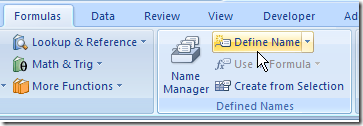
- On the Ribbon, click the Formulas tab, then click Define Name.
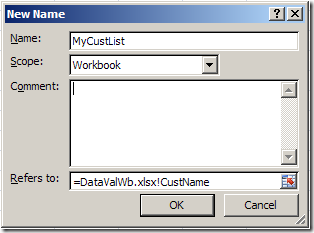
- Type a name for the List, e.g. MyCustList
- From the Scope drop down, select Workbook
- Click in the Refers to box — this is where you’ll type a reference to the named range in the source workbook
- Type an equal sign, then the source workbook name and extension. Do NOT include any square brackets in the name. For example:
=DataValWb.xlsx - OR, if the workbook name includes spaces, start and end the name with an apostrophe. For example: ‘DataVal May10.xlsx’
- Next, type an exclamation mark — !
- Finally, type the range name in the source workbook
- The completed reference should look like this:
=DataValWb.xlsx!CustName
OR =’DataVal May10.xlsx’!CustName
- Click OK
Create the Dropdown List
- Select the cells in which data validation will be set.
- On the Ribbon, click the Data tab, then click Data Validation
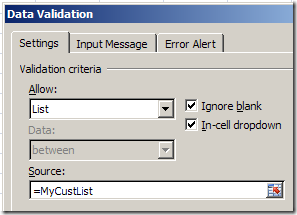
- In the Allow box, choose List
- In the Source box, type an equal sign, then the list name that you just created, e.g.: =MyCustList
- Click OK
Use the Data Validation List
Remember, to use the data validation drop down list, both workbooks must be open.
- Open both workbooks — the one with the drop down lists, and the workbook with the original source list.
- Select an item from the data validation drop down list.
Watch the Video
Watch this video to see the steps for creating a drop down from a list in another workbook. You’ll see how to set up the named ranges, and the drop down lists. The demo is in Excel 2010.
________________________________
Have both files open is not an issue for me, as I use macros fairly often I always have my Personal file open. I just need to get past this Source error.
I have exactly the same error message as Alice experienced when following precisely the procedure described. It seems not to applicable for office 2010/Windows 7/64bit. Anybody succeeded in such an office/system environment?
This was very helpful. Just saying hello from another Dalgleish. We are a rare breed.
I seem to keep getting the same error message when I try to define the name of the cells. I am exporting a spreadsheet from another program into an excel sheet which automatically the spreadsheet “Book!” and my information is on “Sheet1” so I enter this =’Book1′!sheet1!$E:$E to have it name the row “E” and the error states the standard formula contains an error and highlights the first $E.
Here’s what I’m trying to do…
A centrally held spreadsheet is owned by department A who regularly update the item lists and named ranges to keep their catalogue up to date.
Various other departments need to reference the named ranges they have to create their own drop down lists and use data validation (e.g, finance need the catalogue item for recharge info, the engineering department to use standard items in their designs etc.,)
So… creating a sheet for one of these departments…. I have created a macro that loads the central sheet upon opening so I can then reference the named ranges in that list as per instructions here.
However, I now need to use the INDIRECT function to provide a sublist in my sheet based upon the selection form the dropdown the user selects.
e.g,
Sheet A contains “Produce” named range which con taints “Fruit” and Veg” as items. NAmed ranges called “Fruit” and “Veg” hold list of…wait for it…. fruit and veg 🙂
Sheet B needs to open sheet A, and have a dropdown data validation list that provides the choice of “Fruit” and Veg” in Column A. Upon the user selecting “Fruit” in spreadsheet B Column A, the Column B would then need to provide another dropdown with only selections from the Fruit named range in spreadsheet A.
Hope that makes sense…. trying to do this I can get column A working but when trying to use =INDIRECT(A2) in column B excel tells me the source is evaluates to an error.
Hello David, I am also caught up with the same problem. I hope you share the solution if you come across it. thanks 🙂