
In Excel, you can create a drop down Data Validation list, so it’s easy to enter valid items in a cell.
Usually, the list of valid items is stored in the same workbook, but it’s possible to set up a drop down from a list in another workbook — as long as the other workbook is open.
The instructions are below, and watch the video to see the steps. The demo uses Excel 2010, and it’s the same in Excel 2007, except that there is an Office button, instead of a File tab.
Drop Down from a List in Another Workbook
Important Note: For the data validation to work, the workbook that contains the list must be open, in the same instance of Excel. Users will have to open both the workbooks — the one with the drop down lists, and the workbook with the original source list.
The following instructions are for Excel 2007 and later. On my website, there are similar instructions to create a data validation list from a different workbook in Excel 2003.

Create the Source List
In this example, you have a workbook named DataValWb.xlsx, which contains a list of customer names. This list is in a range named CustName. (For instructions on creating a named range, refer to Naming Ranges.)
Create a Named Reference to the Source List
Next, you’ll create named range in the workbook where the drop down list will be added.
- Open the workbook that contains the source list — DataValWb.xlsx in this example.
- Open the workbook in which you wish to use the list in Data Validation, or create a new workbook.
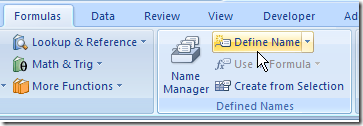
- On the Ribbon, click the Formulas tab, then click Define Name.
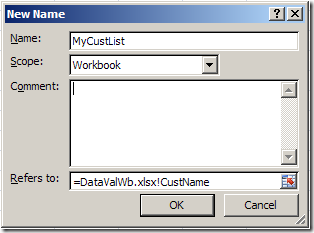
- Type a name for the List, e.g. MyCustList
- From the Scope drop down, select Workbook
- Click in the Refers to box — this is where you’ll type a reference to the named range in the source workbook
- Type an equal sign, then the source workbook name and extension. Do NOT include any square brackets in the name. For example:
=DataValWb.xlsx - OR, if the workbook name includes spaces, start and end the name with an apostrophe. For example: ‘DataVal May10.xlsx’
- Next, type an exclamation mark — !
- Finally, type the range name in the source workbook
- The completed reference should look like this:
=DataValWb.xlsx!CustName
OR =’DataVal May10.xlsx’!CustName
- Click OK
Create the Dropdown List
- Select the cells in which data validation will be set.
- On the Ribbon, click the Data tab, then click Data Validation
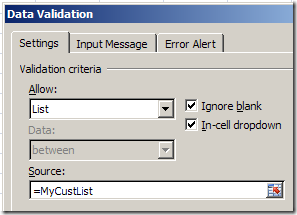
- In the Allow box, choose List
- In the Source box, type an equal sign, then the list name that you just created, e.g.: =MyCustList
- Click OK
Use the Data Validation List
Remember, to use the data validation drop down list, both workbooks must be open.
- Open both workbooks — the one with the drop down lists, and the workbook with the original source list.
- Select an item from the data validation drop down list.
Watch the Video
Watch this video to see the steps for creating a drop down from a list in another workbook. You’ll see how to set up the named ranges, and the drop down lists. The demo is in Excel 2010.
________________________________
On trying to create list in the cell, a message pops up: “You cannot use references to other worksheets or workbooks for Data Validation criteria”
Anybody knowing reason and solution for same???
Please reply
Thanks in advance
Atul, I get the exact same problem you describe. Did you manage to find a solution? I am using Excel 2007. Your post is 2 years old now, I hope you remember what this was about? Do let me know.
Hi I followed your instructions in the other page on how to create a combo box in a workbook that has data validation and it was such a good piece of work however i have to problems the first problem is i want to make my drop down list searchable in this way i want to search for a character like MR and it gives me all the words that have MR in them regardless of the position in the word whether it’s the first middle or last character in that word.
Secondly i wouldn’t like some one entering wrong data in the excel workbook boxes i need them to get an error but when i enable the error box during the validating data it doesn’t show the error once i run the code to make those cells searchable…………Pleeeeasseee Help it Urgent i kindly ask.
Hi Debra, I was following your thread on this subject and should be glad for your kind help here. I have an Invoice template for which I need to pull the name and address details of the invoice from a database. I am trying to use a drop down validation for the name cell and vlookup for the address cells. The database has first name, second name and last name columns. May I know, how best do I use the ‘concatenate’ function or indeed any other function you might prescribe to combine the first name and last name onto the ‘Name’ cell of the Invoice template. The Data Validation Source box is giving me an error message when I try to combine the names from the database. I believe that if I can get this right, then I’d be able to use vlookup to automatically insert the addresses based on the data on the ‘Name’ cell on the Invoice. Please help.
Thanks.
Kenny
Hi Debra, To further explain what I have done so you’d have all the information to advise me: The first three columns of my database are: Title, FirstName, Middle Name, LastName. But I want to extract the Title, FirstName and LastName onto the Invoice Name & Addresses. On the database, I highlighted the Title column, went to ‘Format, define name, and I named it. I did same for the FirstName and LastName columns, respectively. Then on the separate sheet which houses the Invoice template, I clicked on the cell where I want the name to appear. Then I chose Data, Data Validation & List. For me, the problem arises from what I should enter in the ‘Source’ box in order to pull together the Title, FirstName and LastName from the database onto the Invoice ‘Name’ cell. As I indicated in my earlier post, I tried to use the concatenate function as follows in the ‘Source’ box: =concatenate(Title, ” “, FName, ” “, LName). But when I click OK, I get the following error message – ‘The source currently evaluates to an error – Do you want to continue’. I believe that I’m doing something very wrong. Please help.
Thanks.
Kenny
Superb. Really helped me and very self explanatory..Thanks a lot
I need some details regarding macros. I’m using excel 2007 for create invoice, and I want to save all invoices in a single sheet. possible?