
In Excel, you can create a drop down Data Validation list, so it’s easy to enter valid items in a cell.
Usually, the list of valid items is stored in the same workbook, but it’s possible to set up a drop down from a list in another workbook — as long as the other workbook is open.
The instructions are below, and watch the video to see the steps. The demo uses Excel 2010, and it’s the same in Excel 2007, except that there is an Office button, instead of a File tab.
Drop Down from a List in Another Workbook
Important Note: For the data validation to work, the workbook that contains the list must be open, in the same instance of Excel. Users will have to open both the workbooks — the one with the drop down lists, and the workbook with the original source list.
The following instructions are for Excel 2007 and later. On my website, there are similar instructions to create a data validation list from a different workbook in Excel 2003.

Create the Source List
In this example, you have a workbook named DataValWb.xlsx, which contains a list of customer names. This list is in a range named CustName. (For instructions on creating a named range, refer to Naming Ranges.)
Create a Named Reference to the Source List
Next, you’ll create named range in the workbook where the drop down list will be added.
- Open the workbook that contains the source list — DataValWb.xlsx in this example.
- Open the workbook in which you wish to use the list in Data Validation, or create a new workbook.
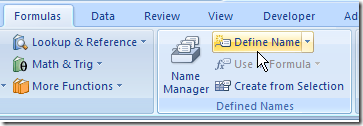
- On the Ribbon, click the Formulas tab, then click Define Name.
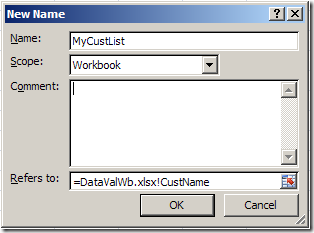
- Type a name for the List, e.g. MyCustList
- From the Scope drop down, select Workbook
- Click in the Refers to box — this is where you’ll type a reference to the named range in the source workbook
- Type an equal sign, then the source workbook name and extension. Do NOT include any square brackets in the name. For example:
=DataValWb.xlsx - OR, if the workbook name includes spaces, start and end the name with an apostrophe. For example: ‘DataVal May10.xlsx’
- Next, type an exclamation mark — !
- Finally, type the range name in the source workbook
- The completed reference should look like this:
=DataValWb.xlsx!CustName
OR =’DataVal May10.xlsx’!CustName
- Click OK
Create the Dropdown List
- Select the cells in which data validation will be set.
- On the Ribbon, click the Data tab, then click Data Validation
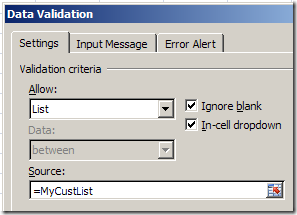
- In the Allow box, choose List
- In the Source box, type an equal sign, then the list name that you just created, e.g.: =MyCustList
- Click OK
Use the Data Validation List
Remember, to use the data validation drop down list, both workbooks must be open.
- Open both workbooks — the one with the drop down lists, and the workbook with the original source list.
- Select an item from the data validation drop down list.
Watch the Video
Watch this video to see the steps for creating a drop down from a list in another workbook. You’ll see how to set up the named ranges, and the drop down lists. The demo is in Excel 2010.
________________________________
I followed the instructions on this page, and the drop-down menu referencing my source list works fine. But I can’t get the error alert to show when invalid data is entered. Any suggestions? Thanks.
Is it possible to have one source file saved on a network, that other files reference, plus this source book would have to open and hide itself each time the original file is open? What code is used to open and hide the source book?
Hi Debra
Great article a step through of how to create a data validation list from another workbook. It’s worth mentioning that with Excel 2010/13/Office 365 it is possible to use SharePoint sites to reference your “list” from and then accessing through an Excel Web App, so hopefully reducing the amount of work-arounds you have to do. More information can be found: https://support.office.com/en-nz/article/Use-a-shared-workbook-to-collaborate-b8207fe9-a613-483f-b804-0ca4658b0c61
Hi Debra,
I have created a master source list, and wanted to use it for a new worksheet that about 40 people will use. I wanted to be able to use drop-downs that come from a separate source worksheet because there are constant updates to the information, and I didn’t want 40 people to constantly have to update their form. I figured if I could update one master worksheet, and have the other sheets always pull from it with drop down options, it would be perfect. Is there a work-around or a way to do this without having to have the source file open?
Thanks
Hi everyone
This lesson was super helpful. I read through the comment list and did not find my question already answered. The one thing that I would like to alter is after we named the source CustName it was a set selection of cells. can we make that group of cells change automatically as my CustName changes over time? I thought maybe =offset formula would work but it does not. just like if the range was within the same workbook.
I made this work in Excel 2007, now I have Excel 2016.
Are there different instructions or have the squashed this great capability?
thank you for the informative articles.