
In Excel, you can create a drop down Data Validation list, so it’s easy to enter valid items in a cell.
Usually, the list of valid items is stored in the same workbook, but it’s possible to set up a drop down from a list in another workbook — as long as the other workbook is open.
The instructions are below, and watch the video to see the steps. The demo uses Excel 2010, and it’s the same in Excel 2007, except that there is an Office button, instead of a File tab.
Drop Down from a List in Another Workbook
Important Note: For the data validation to work, the workbook that contains the list must be open, in the same instance of Excel. Users will have to open both the workbooks — the one with the drop down lists, and the workbook with the original source list.
The following instructions are for Excel 2007 and later. On my website, there are similar instructions to create a data validation list from a different workbook in Excel 2003.

Create the Source List
In this example, you have a workbook named DataValWb.xlsx, which contains a list of customer names. This list is in a range named CustName. (For instructions on creating a named range, refer to Naming Ranges.)
Create a Named Reference to the Source List
Next, you’ll create named range in the workbook where the drop down list will be added.
- Open the workbook that contains the source list — DataValWb.xlsx in this example.
- Open the workbook in which you wish to use the list in Data Validation, or create a new workbook.
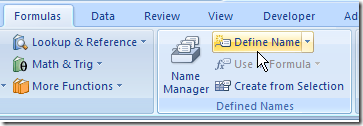
- On the Ribbon, click the Formulas tab, then click Define Name.
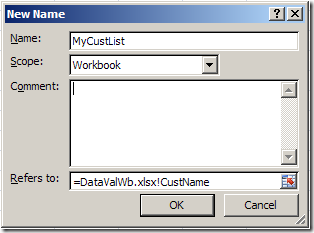
- Type a name for the List, e.g. MyCustList
- From the Scope drop down, select Workbook
- Click in the Refers to box — this is where you’ll type a reference to the named range in the source workbook
- Type an equal sign, then the source workbook name and extension. Do NOT include any square brackets in the name. For example:
=DataValWb.xlsx - OR, if the workbook name includes spaces, start and end the name with an apostrophe. For example: ‘DataVal May10.xlsx’
- Next, type an exclamation mark — !
- Finally, type the range name in the source workbook
- The completed reference should look like this:
=DataValWb.xlsx!CustName
OR =’DataVal May10.xlsx’!CustName
- Click OK
Create the Dropdown List
- Select the cells in which data validation will be set.
- On the Ribbon, click the Data tab, then click Data Validation
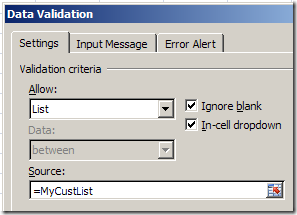
- In the Allow box, choose List
- In the Source box, type an equal sign, then the list name that you just created, e.g.: =MyCustList
- Click OK
Use the Data Validation List
Remember, to use the data validation drop down list, both workbooks must be open.
- Open both workbooks — the one with the drop down lists, and the workbook with the original source list.
- Select an item from the data validation drop down list.
Watch the Video
Watch this video to see the steps for creating a drop down from a list in another workbook. You’ll see how to set up the named ranges, and the drop down lists. The demo is in Excel 2010.
________________________________
By “delete the bad link” do you mean delete the source file, recreate the source file, and then tell the ‘result’ file to look for the newly created source file? The “MoM Template” result file in my case doesn’t seem to allow me to change the source file at all. I have been able to recreate the “MoM Template” from scratch and tell it to attach to a source file (to force the change) but I get the same problem. Another piece of info that may help shed some light … the “MoM Data” and “MoM Template” files are in 2 different folders on the same machine but then accessed across the network by a number of users. Could this be a ‘path’ issue?
Another option in my opinion is to Create a DataQuery to get the list of Customer Names from the source workbook (connected by network) and NamedRange that portion that will fill combo-box.
This will neither required Enableing Macro nor you have to open the Source workbook.
Murtaza
Yes, I like that approach too.
The video is very specific as to how to do this, and I have done it many times, but to no avail. I get a message that “the source currently evaluates to an error. Do you want to continue?” when I enter a valid code from the separate open workbook.
@Leo do you see the drop down list that shows the items from the other open workbook, or are you not able to create the list?
Also, make sure you’re using the correct spelling for the name in the other workbook — it’s easy to miss a letter, or add an extra one.
Long confusion with regard to the dropdown list from different work book is solved. Thanks alot. The video was very precise.
I’ve read many of the responses, but I am still wondering how I can work around opening the source workbook? We have a list of values that will be common for every project, so it makes more sense to have one source workbook, with all the values listed, and then the project workbooks in the working directories. I am using Data Validation to try and make the lists (which is working) but it stops working when the source is closed.
If there is something else that I should be looking at, other then data validation, then I am open to that.
Debra, you are great.
I always learn new things from you.
Thanks a lot!