
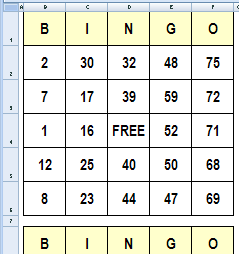
It’s Friday, and things are slow at the office. To liven things up, you could create bingo cards in Excel, and organize a game during the lunch hour.
In this example, there are three cards, each with a set of random numbers. You’ll need one of those numbered ball popper machines though, or create a number selector in Excel.
Make Lists of Random Numbers
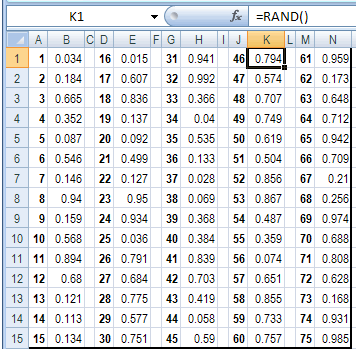
To generate the random numbers, there are three sets of lists on the Numbers sheet. In each set, there are typed numbers 1-75, with the formula =RAND() in the adjacent column.
- Tip: You can get the completed Excel file on the Excel Bingo Cards page on my Contextures site.
When you press the F9 key, the sheet recalculates, and those random numbers change.
Add Random Numbers On Cards
On the three bingo cards, an INDEX/MATCH formula pulls the numbers from the random number tables.You can read more about the INDEX and MATCH functions on my website.
For example, this formula is used in cell E2:
=INDEX(Numbers!$M$1:$M$15,MATCH(LARGE(
Numbers!$N$1:$N$15,ROW()-1),Numbers!$N$1:$N$15,0))
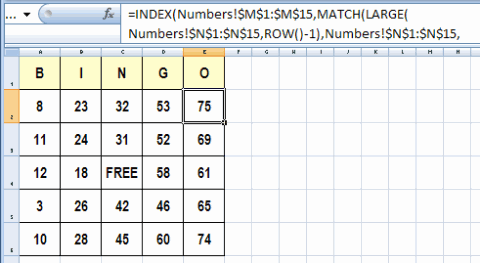
The same number might appear on all three cards, but each card uses a separate lookup table of random numbers. With all that randomness (is that a word?), the 3 cards should never be exactly the same.
Print the Bingo Cards in Excel
The cards are formatted to print three per sheet, on letter sized paper.
After you print each set of three cards, press the F9 key to generate a new set of numbered cards.
Download the Sample File
You can get the completed bingo card creator file on the Excel Bingo Cards page on my Contextures site.
On that page, there are other types of bingo cards too, including:
- Bingo Cards With Pictures
- Bingo Card with numbers 1 to 100.
- Vision Board Bingo
_____________________
I am an American currently teaching English in Japan. I would like to use your Bingo Card Excel file to make vocabulary bingo game cards. I want to make cards that display the Japanese translations (using Japanese characters) of English vocabulary words.
Is it possible to modify the random numbers tables to return words or phrases as opposed to numbers?
Yes, create another sheet with numbers in column A. column B and C should be your words, English and Japanese. Then use the Random number rounded to a single digit to lookup using the VLOOKUP function the word that corresponds to that number. Switch between columns B and C to show English or Japanese words.
Hi buddy, I found a good example looking for “mini bingo smart” in google… a blog called “excelminiapps” or something like this. Good luck
This is exactly what I am looking for but I can’t figure out how to change the 3-card format. I want 4 cards on top of each other. How do I do that? Copy and paste did not work and I can’t figure out how to adjust the formuala for the additional card.
Excellent! This is just what I was looking for to have a team building game in my call center!
Excellent, but to complete your explanation It is possible to know how to make, in excel, call numbers and have a sheet with the numbers already out?
Please show me how to create in a 3X9 card with only 15 numbers in a card and the numbers 1to 90 number base..Please
The 1 to 75 number base is ok and is 5×5 with center empty. I like that.. Thanks