
In an Excel file with lots of worksheets, how do you help users navigate through the workbook?
Here are a few of the methods I’ve used. and I’d be interested in hearing about them. I’m sure you’ve found your own creative ways to deal with the Excel workbook navigation problem.
Add Drop Down List of Sheets
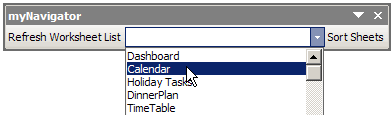
One workbook navigation solution is to install an add-in that lists all the sheets in the active workbook, in a toolbar drop-down list.
For example, Dave Peterson created a Navigation Toolbar for Excel 2003, that you can download from my Contextures site
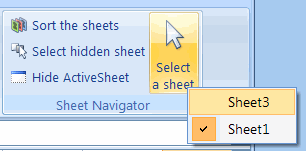
Excel Ribbon Version
Later, Ron de Bruin adapted Dave’s VBA code, to create a Navigation Command for Excel 2007.
Go to that link to download Ron’s sample file, from my Contextures site.
Create List of Hyperlinks
A non-programming option is to create a list of sheets on a worksheet, then change each sheet name into a hyperlink.
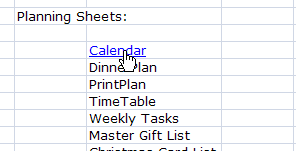
Create the Hyperlinks
To create your own list of worksheet hyperlinks, follow these step:
- Click on a cell that contains a sheet name.
- On Excel’s Ribbon, click the Insert tab (In Excel 2003, click the Insert Menu.)
- Click Hyperlink, to open the Insert Hyperlink dialog box.
- In the Link To list, click on Place in This Document
- In the list of places in the document, click on a sheet name, then click OK.
It will take you a few minutes to set up all the hyperlinks in a large Excel workbook, but they’ll make it easy to navigate through the sheets.
Get the Hyperlink Workbook
Based on sample code from Sam and Andrew in the reader comments below, I’ve posted an Excel Table of Contents workbook in which you can create a popup list or or a list with sheet hyperlinks.
Go to the Excel Sample Files page on my Contextures site, and in the UserForms & VBA section, look for UF0007 – Create a Table of Contents
More Hyperlinks Info
To see more hyperlink tips, videos, and macros, go to the Hyperlinks and Hyperlink Function page on my Contextures site.
There are hyperlink tips, videos, and macros, and sample files to download.
______________________
I found some code to test if a sheet is a chart or not at http://www.vbaexpress.com/kb/getarticle.php?kb_id=389
I modified my code to not link chart sheets as well:
Option Explicit
‘Sample code posted by Andrew
‘http://blog.contextures.com/archives/2008/12/17/create-a-table-of-contents-in-excel/#comment-1267
Sub CreateTableOfContents()
‘Below is a macro that creates a Table of Contents sheet and
‘puts a hyperlink to every sheet that isn’t hidden and is not the current sheet.
‘The links do not work for sheets that are graphs and I do not know
‘how to either make them work or test that they are graphs and not include them.
Dim shtName As String
Dim shtLink As String
Dim rowNum As Integer
Dim newSht As Worksheet
Dim i As Long
Set newSht = Sheets.Add
newSht.Name = “Table Of Contents”
newSht.Select
newSht.Range(“A1”).Value = “Table of Contents”
rowNum = 2
For i = 1 To Sheets.Count
‘Does not create a link if the Sheet isn’t visible or the sheet is the current sheet
If Sheets(i).Visible = True And Sheets(i).Name ActiveSheet.Name And IsSheet(Sheets(i).Name) Then
shtName = Sheets(i).Name
shtLink = “‘” & shtName & “‘!A1″
newSht.Cells(rowNum, 1).Select
‘inserts the hyperlink to the sheet and cell A1
ActiveSheet.Hyperlinks.Add Anchor:=Selection, Address:=””, SubAddress:= _
shtLink, TextToDisplay:=shtName
rowNum = rowNum + 1
End If
Next i
End Sub
Public Function IsSheet(cName As String) As Boolean
Dim tmpChart As Chart
On Error Resume Next
Set tmpChart = Charts(cName)
On Error GoTo 0
IsSheet = IIf(tmpChart Is Nothing, True, False)
End Function
Thanks Andrew — I updated the sample file.
Hi guys!
Great code in the comments here..
@Sam: thanks for the very neat trick, never thought of using the “workbook tabs” popup in this way, definitively going to use this
@Andrew: if you loop through the Worksheets collection (instead of the Sheets collection) there is no need to test if the Sheet is a chart or not..
Also you should refrain from using the ActiveSheet object. You’ve already declared a object variable (newSht) use this instead, this way your code will be explicit and more robust..
As a small tip, I would also suggest to implement a check as to whether a worksheet named “Table of Contents” already exists, optionally replacing this worksheet. The way you’ve written the procedure now, it fails if you run it more than once..
There’s a similar blog entry from April 2009 at http://www.dailydoseofexcel.com/archives/2009/04/22/previous-sheets-stack/ that has some ideas re this to. I posted an idea of my own there, which I’ve copied below:
You could store often-used sheets as custom views, and then use the custom views dialog box to select them (which can be done without the use of the mouse if you like). An added bonus is that you can then save multiple views of the same spreadsheet in the case that you’ve filtered or hidden rows. For instance, in a workbook I use, I have a ‘Customer information’ customer view, and then have ‘Customer info – customer x’ view for any specific customers I might want to check on often.
The downside is that this can be slow, as it not only takes you to the sheet concerned, but then does a whole heap of filtering/unfiltering…even if none is needed.
Sometimes I also use named ranges for navigation. I start any functionality-based named ranges with ZZ_ so that they appear at the bottom of the list.
Thanks Jeffrey, interesting ideas.