
In an Excel file with lots of worksheets, how do you help users navigate through the workbook?
Here are a few of the methods I’ve used. and I’d be interested in hearing about them. I’m sure you’ve found your own creative ways to deal with the Excel workbook navigation problem.
Add Drop Down List of Sheets
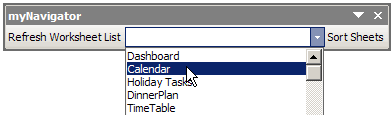
One workbook navigation solution is to install an add-in that lists all the sheets in the active workbook, in a toolbar drop-down list.
For example, Dave Peterson created a Navigation Toolbar for Excel 2003, that you can download from my Contextures site
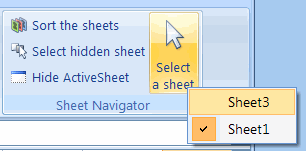
Excel Ribbon Version
Later, Ron de Bruin adapted Dave’s VBA code, to create a Navigation Command for Excel 2007.
Go to that link to download Ron’s sample file, from my Contextures site.
Create List of Hyperlinks
A non-programming option is to create a list of sheets on a worksheet, then change each sheet name into a hyperlink.
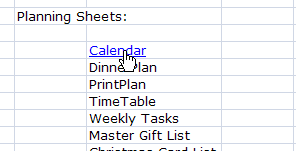
Create the Hyperlinks
To create your own list of worksheet hyperlinks, follow these step:
- Click on a cell that contains a sheet name.
- On Excel’s Ribbon, click the Insert tab (In Excel 2003, click the Insert Menu.)
- Click Hyperlink, to open the Insert Hyperlink dialog box.
- In the Link To list, click on Place in This Document
- In the list of places in the document, click on a sheet name, then click OK.
It will take you a few minutes to set up all the hyperlinks in a large Excel workbook, but they’ll make it easy to navigate through the sheets.
Get the Hyperlink Workbook
Based on sample code from Sam and Andrew in the reader comments below, I’ve posted an Excel Table of Contents workbook in which you can create a popup list or or a list with sheet hyperlinks.
Go to the Excel Sample Files page on my Contextures site, and in the UserForms & VBA section, look for UF0007 – Create a Table of Contents
More Hyperlinks Info
To see more hyperlink tips, videos, and macros, go to the Hyperlinks and Hyperlink Function page on my Contextures site.
There are hyperlink tips, videos, and macros, and sample files to download.
______________________
You left out my favorite, built-in method: Right-click on the transport controls to the left of the sheet tabs. Granted, that won’t work as well if you have more than 19 worksheets, but it works great for my needs.
Tim, thanks for mentioning that technique. I like it too, and the workbook that I’m working with now has too many sheet to fit in that list.
Debra, the problem is that you do REAL work. I’m an academic. 🙂
I have the below macro assigned to a shortcut key – Ctrl+q
It shows a very interesting thing….
The behaviour of SendKeys is different not only between 2003 and 2007 but also between XP and VISTA….
Sub Sheet_Index()
If Application.CommandBars(“workbook tabs”).Controls(16).Caption Like “More Sheets*” Then
Application.ScreenUpdating = False
If WINDOWS_VER > 5 Then
If Application.Version = “12.0” Then
Application.SendKeys “{end}~”
Application.CommandBars(“workbook tabs”).ShowPopup
Else
Application.SendKeys “{end}~”
Application.CommandBars(“workbook tabs”).Controls(16).Execute
End If
Else
Application.SendKeys “{end}~”
Application.CommandBars(“workbook tabs”).ShowPopup
End If
Application.ScreenUpdating = True
Else
Application.CommandBars(“workbook tabs”).ShowPopup
End If
Application.ScreenUpdating = True
End Sub
Public Type OSVERSIONINFO
dwOSVersionInfoSize As Long
dwMajorVersion As Long
dwMinorVersion As Long
dwBuildNumber As Long
dwPlatformId As Long
szCSDVersion As String * 128
End Type
Public Declare Function apiGetVersionEx Lib “kernel32” _
Alias “GetVersionExA” _
(lpVersionInformation As Any) _
As Long
Public Const VER_PLATFORM_WIN32_WINDOWS = 1
Public Const VER_PLATFORM_WIN32_NT = 2
Public WINDOWS_VER
Sub WinVer()
Dim osvi As OSVERSIONINFO
Dim strOut As String
osvi.dwOSVersionInfoSize = Len(osvi)
If CBool(apiGetVersionEx(osvi)) Then
With osvi
‘ Win 2000
If .dwMajorVersion > 5 Then
WINDOWS_VER = 6
End If
End With
End If
End Sub
Below is a macro that creates a Table of Contents sheet and puts a hyperlink to every sheet that isn’t hidden and is not the current sheet.
The links do not work for sheets that are graphs and I do not know how to either make them work or test that they are graphs and not include them. If anyone knows how, let me know.
Sub CreateTableOfContents()
Dim shtName As String
Dim shtLink As String
Dim rowNum As Integer
Dim newSht As Worksheet
Set newSht = Sheets.Add
newSht.Name = “Table Of Contents”
newSht.Select
newSht.Range(“A1”).Value = “Table of Contents”
rowNum = 2
For i = 1 To Sheets.Count
‘Does not create a link if the Sheet isn’t visible or the sheet is the current sheet
If Sheets(i).Visible = True And Sheets(i).Name ActiveSheet.Name Then
shtName = Sheets(i).Name
shtLink = “‘” & shtName & “‘!A1″
newSht.Cells(rowNum, 1).Select
‘inserts the hyperlink to the sheet and cell A1
ActiveSheet.Hyperlinks.Add Anchor:=Selection, Address:=””, SubAddress:= _
shtLink, TextToDisplay:=shtName
rowNum = rowNum + 1
End If
Next i
End Sub
Thanks Sam and Andrew! WordPress changed all the quotes to curly quotes, which messes up the code, so I put your sample code in a file here: Create an Excel Table of Contents