
Occasionally a client asks me to create a shared workbook in Excel, so two or more employees can work in it at the same time. It sounds good in theory, but I always try to come up with a different solution.
There are many reasons for avoiding shared workbooks in Excel.
Note: See a newer version of this article: Shared Workbook Limits in Excel 2010
Your Thoughts on Shared Workbooks
Maybe you’ve had success with shared workbooks, and I’d love to hear about it in the comments. For me, the limitations far outweigh the benefits, and there’s usually another way to accommodate multiple users.
[Update] Your Comments
Thanks to everyone who left a comment below, detailing their experiences with Excel shared workbooks.
- Be sure to read through those comments, if you plan to share an Excel workbook. They might convince you to find a different solution!
- Or, if you have no choice in the matter, and have to use a shared workbook, you might find helpful tips in the comments, and workarounds for some of the problems they cause.
Too Many Missing Features
After you share a workbook, many of Excel’s features can’t be used. There’s a list of unavailable features for Excel 2003 on the Microsoft site, and in Excel’s help.
For example, you can’t add any of the following features, and in some cases you can’t even change the existing items:
- Conditional Formatting
- Data Validation
- Lists
- Protection
- Pivot Tables
If you do need to create a shared workbook, check the list of restricted features, and make sure you have everything set up exactly the way you want it, before you share the file.
Test everything after you share the file, because things might not work the way they did before.
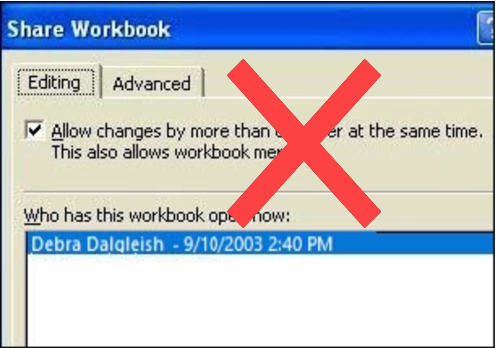
Alternatives to Shared Workbooks
What can you do instead? Find out exactly what the workbook’s purpose is, and why multiple people need to use it.
- If users are entering data, they could get in and out of the workbook quickly, so another person has a chance to enter their data. Excel will notify the next user when the workbook is available.
- If users need the workbook as a calculator, make the file read only, or save it as a template, so anyone can open a copy. Users can save the file with a different name, if they need to save their work.
- If users enter data on separate sheets, create separate workbooks instead. Then, create a summary workbook to pull all the data together.
- If users need to enter data many times throughout the day, a database might be a better option.
If you have other solutions, I’d like to hear them.
Note: See a newer version of this article: Shared Workbook Limits in Excel 2010
===========================
Wow, This is not what I want to hear!
I just spent some months working on a shared workbook application and am introducing it to the rest of our company.
I’ve used shared workbooks for years now. My work around to the corruption problem is to backup daily before using it and then again whenever you run a potentially destructive macro or do any heavy data manipulation. So far I haven’t had any “unexpected” corruption issues in some years now.
What drives me to the shared approach is the need for users to copy the shared workbook template and use it for their own projects. Projects are different enough that users need flexibility in how they use the tool. Users aren’t very good at figuring out exactly what they need the “database” to do till they need to do it. The spreadsheet allows them to do things manually that may not be automated yet.
Typically the spreadhseet is unshared when reports, extra sheets, and pivot tables are needed. It may be that the unsharing cleans up the spreadsheet as well as far as corruption goes…
I just spent 2 months in creating a excel – vba application……………
I am starting to have some issues when i share my workbook…
i am getting errors,,,when users save their work at about the same time.
i want to know, what the problem is? that they try to put data in the same cell, or the saving function that is causing the errors?
and also the application that excel have to solve the conflicts, is there any possibility to not lose one of the users data?
and how hard is to transform vba coding to access?
thanks ,, i tried so hard for this application 🙁
When you set a workbook to be shared, Excel creates a hidden worksheet that contains all the changes, who made them and when. This file can grow rather large and do so quickly. Yo may notice this happening if you use the “Share” feature a lot. File size can create its own problems. If you opena shared file and no longer need to have the file in share move, I highly recommend turning off the share mode on the file.
Shameless promotion: Sharing & Merging Excel workbooks can be easy. Hit my domain for more info.
Is there anything i can do to avoid as much as possible the clashes in my workbook? i am using user input forms to create my projects informations and all the changes can be done through the user forms………
i have an option that every project is entered into the next availiable line(empty) but i can still can’t avoid the conflict if 2 users press save almost at the same time…..
is there any vba coding that can help me in achieving this?
i tried to assign an empty row before the user create the project.///////////// but no luck…….
any other idea?
Is there any workaround on this shared excel scenario? Can Access solve the problem of data entering?
I have had extensive experience of shared workbooks over the last 5 years & my Works currently use 4 of these applications. I agree with previous comments about the fragility of this type of spreadsheet application. However if you find that other, more suitable alternative software is not available to you, you can minimise a lot of problems, especially those of data clashes & file corruptions. Never, NEVER allow users to input, edit or delete data from a “common” data input area or data table in Excel – you may as well give up & go home now if you do that! Instead, create seperate & user-restricted data input areas, edit/amend areas & data table areas for each & every user. You will also need to write data input validation routines, VB code to perform additional validation & standardised write, amend & delete routines. Users viewing of the data areas can be achieved out of harms way by using a protected sheet for a data array & that is all they can access – NOT the “real” data.
It’s a lot of work & expertise required & if you don’t have the wherewithall to do this, then don’t touch shared workbooks!! (Otherwise it’s great fun if you are an Excel freak!). So far, the only problems we have experienced are those which are common to all files & applications on a network. As for reports, pivot tables etc. then write these in a seperate workbook, out of the way, and leave the report workbook on exclusive access basis.
Please don’t think I am suggesting that everyone start trying to use shared workbooks – they are hard work. I would recommend alternatives wherever possible, but it IS possible to get a reasonable result if you have to.