
Occasionally a client asks me to create a shared workbook in Excel, so two or more employees can work in it at the same time. It sounds good in theory, but I always try to come up with a different solution.
There are many reasons for avoiding shared workbooks in Excel.
Note: See a newer version of this article: Shared Workbook Limits in Excel 2010
Your Thoughts on Shared Workbooks
Maybe you’ve had success with shared workbooks, and I’d love to hear about it in the comments. For me, the limitations far outweigh the benefits, and there’s usually another way to accommodate multiple users.
[Update] Your Comments
Thanks to everyone who left a comment below, detailing their experiences with Excel shared workbooks.
- Be sure to read through those comments, if you plan to share an Excel workbook. They might convince you to find a different solution!
- Or, if you have no choice in the matter, and have to use a shared workbook, you might find helpful tips in the comments, and workarounds for some of the problems they cause.
Too Many Missing Features
After you share a workbook, many of Excel’s features can’t be used. There’s a list of unavailable features for Excel 2003 on the Microsoft site, and in Excel’s help.
For example, you can’t add any of the following features, and in some cases you can’t even change the existing items:
- Conditional Formatting
- Data Validation
- Lists
- Protection
- Pivot Tables
If you do need to create a shared workbook, check the list of restricted features, and make sure you have everything set up exactly the way you want it, before you share the file.
Test everything after you share the file, because things might not work the way they did before.
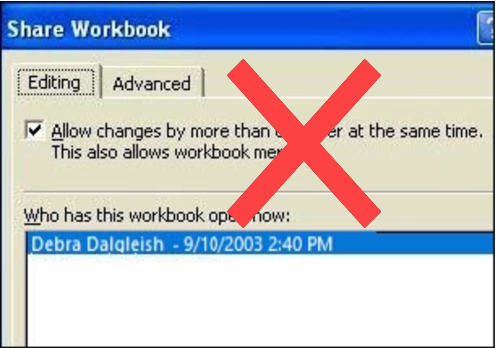
Alternatives to Shared Workbooks
What can you do instead? Find out exactly what the workbook’s purpose is, and why multiple people need to use it.
- If users are entering data, they could get in and out of the workbook quickly, so another person has a chance to enter their data. Excel will notify the next user when the workbook is available.
- If users need the workbook as a calculator, make the file read only, or save it as a template, so anyone can open a copy. Users can save the file with a different name, if they need to save their work.
- If users enter data on separate sheets, create separate workbooks instead. Then, create a summary workbook to pull all the data together.
- If users need to enter data many times throughout the day, a database might be a better option.
If you have other solutions, I’d like to hear them.
Note: See a newer version of this article: Shared Workbook Limits in Excel 2010
===========================
Oh – another item to watch out for are “ghost sessions”. Excel has a nasty habit of retaining data of sessions which terminated unexpectedly, such as when your server or network has a problem. Excel does not delete these sessions in its Share Workbook dialogue, but will check them all each time the file is opened, saved or closed & I suspect the file becomes more vulnerable because of this. These ghost sessions can become quite numerous at times of network problems – I have counted 26 of them on an application. Go in & delete these ghost sessions periodically or, more quickly if there are a lot of them, remove the file from shared use totally & then put it back on a shared basis.
Like I said, best to use some other database application if you possibly can.
Thanks Chris, your comments should help those who need to share a workbook, and want to avoid as many problems as possible.
I have a single shared workbook that has crashed and become corrupted sporadically, and it typically happens more to remote users (sharing workbook over WAN) than local. Questions:
1) Chris’ comment said to avoid using a “Common data input area”. What does this mean? Different worksheets? Distinct ranges within a worksheet? Our users don’t enter into the same cells, but they do enter on the same worksheet. Would simply having each enter on their own worksheet minimize the corruption/crash problem?
2) Is a linked workbook a better solution (each person enters into their own unshared workbook on the common network drive and all are linked to a master workbook in the same network location)? Do linked workbooks have any stability issues similar to shared workbooks? What other disadvantages would this cause?
Hi Jim, I have used seperate user restricted areas on the same sheet & I think they work as well as as using seperate user restricted sheets for input areas – a matter of preference which you use I think, or what your application needs. If I knew EXACTLY why shared workbooks have a vulnerability to crashing then I’d know more than I do! I have strong suspicions though & they all centre around the file saving process & on a heavily used workbook & network, especially on a WAN with remote users, I think there are conflicts between users saving in the same “save time frame” & I have seen some users application lock up because of it & data not getting saved. I’m sure those “ghost” sessions I mentioned increase the save time frame for each user. Eventually, sods law says you will get 2 or more users saving their files / updating each others files in the same time frame which must increase the chances of a conflict or crash. Short of writing some code to control each users saves, I have resorted to having my users ensure that they do not save their work at the same time. Not very neat, but I don’t get many crashes since I instituted that regime. Harder to implement if you have remote users of course.
I think the suggestion to use a linking master workbook is good & I have some master files like this that use data arrays of the input-user file data (arrays use less resources than cell formulae to pick up external data.) It really depends on how & what purpose you are using the master data file for, as to whether this may be a better solution – I think you should minimise the conflict problems that shared workbooks can have however. If you are using the master file continually, with arrays, you would have to regularly use the UPDATE LINKS feature each time you wanted to see current data (again that is dependant on how often users save their files), but I guess that is no more work than saving a shared workbook master file in order to force updates from the user files. The users of course would not be able to see the full application data if the master file is on exclusive use setting. If they don’t, then linked workbooks may be the better option.
I think we have to accept that Excel is not the best medium to use for multi users data input etc. Excel is clever, but it’s not a universal remedy I’m afraid & databases are much better for multi user applications, that’s what they were designed for. Sorry that this doesn’t give a nice neat & tidy solution & I don’t pretend that I know all of the answers, but hopefully the bits I can offer are of some help to users, or spark off some more input from readers on the subject – even if to say that something I’ve said isn’t right!! I don’t mind. Regards.
Chris,
Thanks for the thorough answer. Your comments match my experience. Our corruption occurs when multiple users are actively using the workbook. Unfortunately it is a deadline driven application where all of the users (3 people) have 1 day each month to enter and save their data.
The long term solution is to enter the data in our corporate forecasting tool, so there is light at the end of the tunnel, but some additional development work needs to occur to get there. I’ll investigate linked workbooks in the meantime. If there is no data input in the master workbook, it may make sense to share that one and have the individual workbooks in exclusive mode since they wouldn’t need to save it. That brings to mind another idea – setting up the Master workbook as a template (.xlt), then each user would be opening their own version – since all the data is linked, they should be able to see the application and not corrupt the original. Not sure what downsides that could have (having multiple open workbooks referencing the same input workbooks via links), but I may try it out and post my findings.
Jim, glad to have been of some small help & good luck with your template idea. Regarding setting up a linked-file master workbook on a shared basis, might it be better to set it up as exclusive-use and Read-Only with a password protection. That way if anything goes awry with the read only file the original is left intact. Again it depends on how you need users to use & access the full data. Good luck & I look forward to hearing what happens.