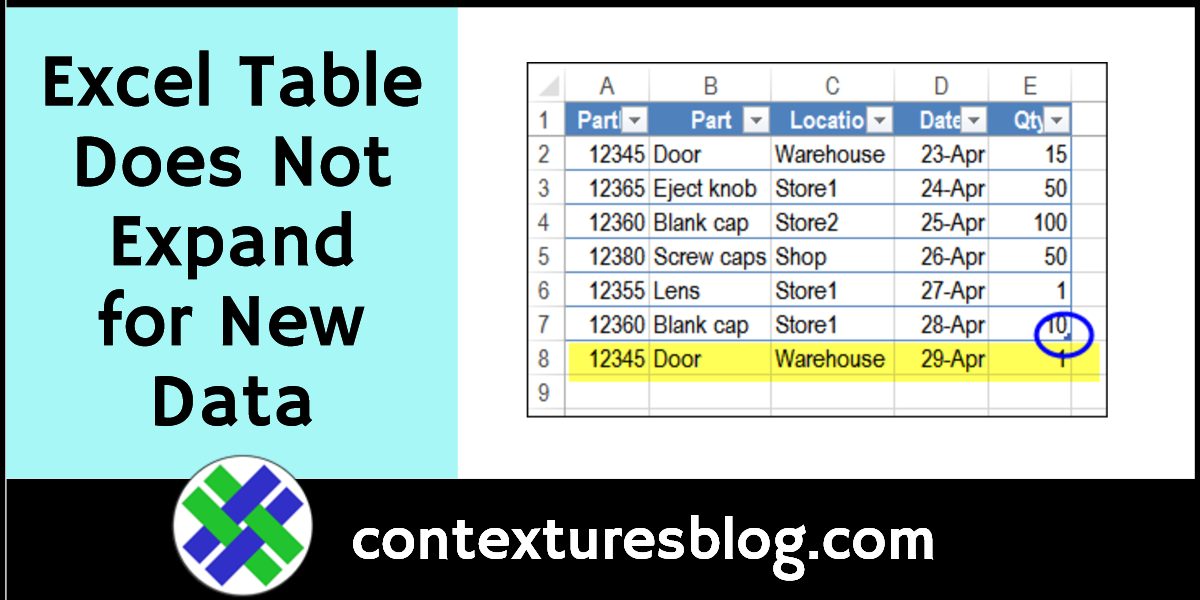
Excel Table Does Not Expand Automatically to Include New Data

If you notice that Excel tables don’t automatically expand on your computer, to include new data, there might be a problem with the Excel Option settings. See how to change those settings manually, or use a macro to make the change.

Continue reading “Excel Table Does Not Expand Automatically to Include New Data”

Send Data to Different Sheets in Excel Based on Criteria

If you’ve got a long list of sales orders on an Excel worksheet, how can you send one sales rep’s orders to a different sheet? There are lots of creative ways to do that, but my favourite solution is to use an Excel Advanced Filter. Would you use that solution too, or something different? Continue reading “Send Data to Different Sheets in Excel Based on Criteria”

Choose Random Names From Excel List – Formulas No Macros

Do you ever need to choose random names from a list in Excel? Maybe your charity is picking winners for a raffle, or your blog is doing a giveaway, or you need “volunteers” for a special project at work. As long as you have a list of the names, or ticket numbers, or anything else, Excel can do a random draw for you.

Continue reading “Choose Random Names From Excel List – Formulas No Macros”

3 Ways to Create Excel Clustered Stacked Column Charts

In Excel, you can create a Stacked Column chart, or a Clustered Column chart, using the built-in chart options. There isn’t a Clustered Stacked Column chart type, but here are 3 ways to create one. There’s a video below, that shows the steps for one method.

Continue reading “3 Ways to Create Excel Clustered Stacked Column Charts”

Excel Workbook for Golf Tee Off Times Update

Whether you’re scheduling players for a golf tournament, or assigning employees for daily shifts, Excel can make the job easier. There’s a Golf Tee Off Times example on my site, and you could adapt it for building other types of schedules. This week, I uploaded a second version of the file – it gives you more flexibility in assigning people to specific times.

Continue reading “Excel Workbook for Golf Tee Off Times Update”

Hide Used Items in Drop Down List With Excel 365 Formula

In some data entry lists, you only want each item selected once. For example, pick players for a baseball lineup, or assign employees for their weekly on-call assignment. To prevent entries from being selected twice, use this data validation trick, to hide the used items in an Excel drop down list.

Continue reading “Hide Used Items in Drop Down List With Excel 365 Formula”

Excel Queries & Connections Pane Stuck at Top of Screen

Ken Puls and Miguel Escobar just released their new Power Query book – Master Your Data with Excel and Power BI. I bought a digital copy, downloaded the sample files, and eagerly dove  into the book. Then I remembered the problem I’ve had for a few months – the Excel Queries & Connections pane is stuck at the top of my second monitor. Here’s how I finally fixed it.

Continue reading “Excel Queries & Connections Pane Stuck at Top of Screen”

Find MAX and MIN With Criteria in Excel Formulas

To find the highest and lowest amounts in Excel, use the MAX and MIN function. If you need to use criteria in your calculations, add the IF function to your formula, in older versions of Excel. In Excel 2019 and Excel 365, use the newer MAXIFS and MINIFS functions. You can even get the answer without formulas – use a pivot table instead!

Continue reading “Find MAX and MIN With Criteria in Excel Formulas”