

If you’re planning a wedding, or another type of event, you might need a seating plan. Get this free Excel seating plan with charts, and modify it to show your guest names and table arrangement. See how to use the sample file, and how to add more guests and tables.
Author: Debra Dalgleish
Hockey Player Data Analysis in Excel
Congratulations to the USA Women’s Hockey team, who won the Olympic gold medal. They beat our Canadian team, in a hard-fought game that went into overtime, and ended with a shootout. The team rosters were available online, so I used those for a hockey player data analysis, in Excel pivot tables. Is there anything in the player data that shows why the USA team won?
Excel Budget Report with Value Selector
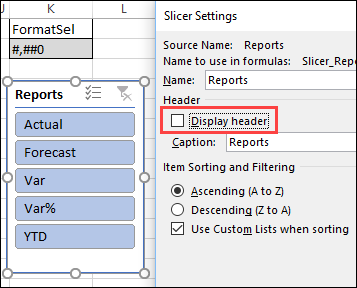
Instead of showing a budget’s forecast, actual and variance data all at once, click a button to view the values one at a time. That makes the report easier to read, and takes less space on the worksheet. See how this technique works in my Budget Reporter with value selector workbook.
Excel VLOOKUP Formula Error Mystery
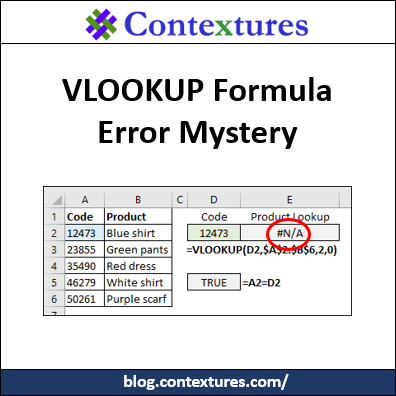
Someone sent me a workbook in which a simple VLOOKUP formula was returning #N/A errors, instead of the correct results. The product numbers looked the same, but Excel didn’t match them in the lookup. Can you solve this VLOOKUP formula error mystery?
Show Warning in Excel Drop Down
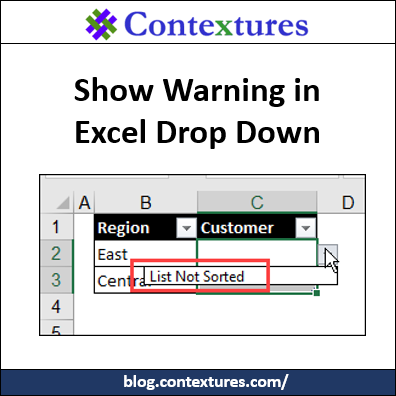
With Excel’s data validation, you can show a drop down list of items in a cell. You can even create “dependent” drop downs. For example, select a region, and see only the customers in that region. See how to show a warning in Excel drop down list, if the source data is not set up correctly.
Create and Copy AutoCorrect List Items
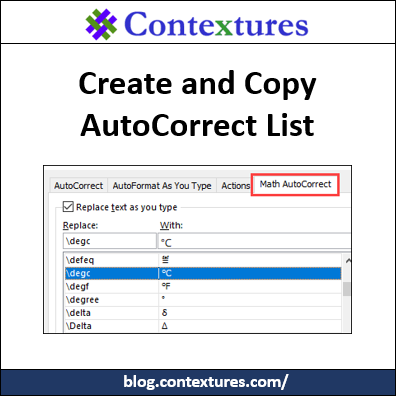
To save time, create AutoCorrect entries for words, phrases, and even symbols that you type frequently. Then, type a short code, and Excel automatically changes it to the full text. See how to create an entry, then print a list of all your entries, and copy them to a different computer, using the AutoCorrect macros below.
Problems Counting Excel Data COUNTIF COUNTA

Last week, I ran into problems counting Excel data with COUNTIF, and it’s Twitter’s fault! The COUNTA function can cause problems too, when it counts cells that look empty. Let’s see how to fix both of those issues.
Continue reading “Problems Counting Excel Data COUNTIF COUNTA”
Problem Grouping Pivot Table Items
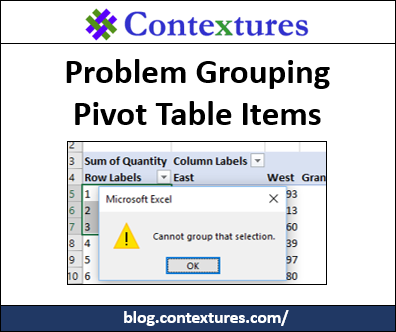
If you try to group pivot table items in Excel, you might get an error message that says, “Cannot group that selection.” For older versions of Excel, if you had a problem grouping pivot table items, it was usually caused by blank cells, or text in number/date fields. For Excel 2013 and later, there’s another thing that can prevent you from grouping — the Excel Data Model.
Count Items in a Cell with SUBSTITUTE

Do you use the Microsoft Excel SUBSTITUTE function very often? It’s a handy way to count items in a cell, when they’re separated by commas or spaces. The examples below show different ways to use this function – have you tried the variation in the last example?
Scroll Through Filter Items in Excel Table
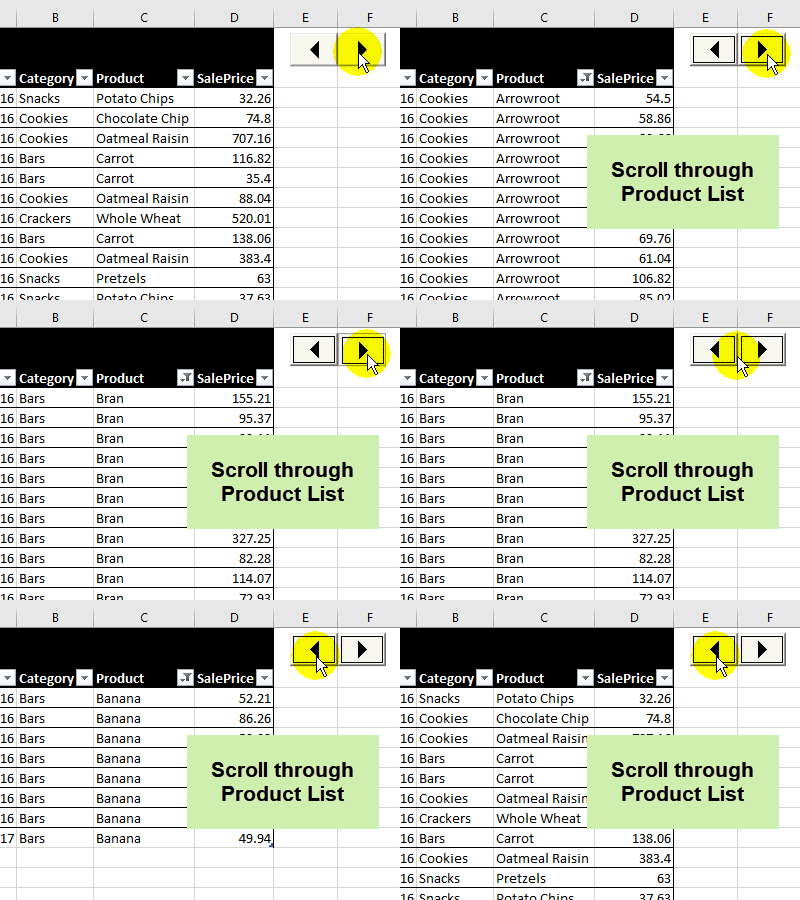
To see specific data in an Excel Table, you can select an item from the drop down filter in a column heading. Someone asked me if there was a way to scroll through the items, instead of opening the filter list each time. This technique uses a pivot table, which could be hidden on a different sheet, and a spin button, to go up or down in the list of items.
Continue reading “Scroll Through Filter Items in Excel Table”