
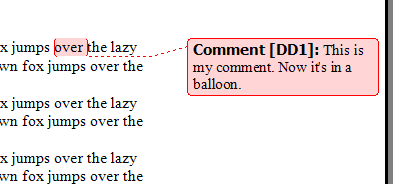
I’m reviewing Word files and inserting comments for the author. I’d like to see show Word comments in balloons along the sidebar, but Word won’t cooperate, and shows them in a Reviewing Pane, at the bottom of the window. Here’s how to fix the problem
Author: Debra Dalgleish
Count Blank Cells in Pivot Table Source Data
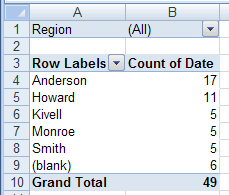
Sometimes there are blank cells in a pivot table’s source data. If you try to count blank cells in Pivot Table source data fields, you might run into a problem.
Here are the steps to follow, to show the count of blanks.
Continue reading “Count Blank Cells in Pivot Table Source Data”
Make Excel Box and Whisker Chart-Box Plot Chart
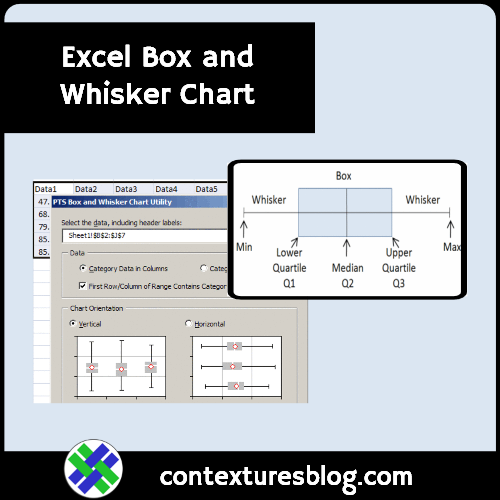
What the heck is a box and whisker chart, and why would you need one? Well, I’m not a statistician, but here’s my overview.
Continue reading “Make Excel Box and Whisker Chart-Box Plot Chart”
Convert Excel Numbers to Roman Numerals
Recently, I read a business article that said you should “become a Roman” to succeed in business. By that, the author meant, “be disciplined and willing to keep fighting”.
Excel ROMAN Function
Maybe that’s why we have the Excel ROMAN function! It will quickly convert a worksheet number into Roman numerals.
That frees up our time, so we can “keep fighting” to fix other problems in our Excel files.
In the sections below, I’ll show you how the ROMAN function works. And I found a couple of fun facts about ROMAN, that might impress your friends and co-workers. (Or not!)
Excel ROMAN Function Syntax
Here are the two arguments in the ROMAN function:
- number: an Arabic number, between 0 and 3999, that you want to convert to Roman numerals.
- form: (optional) the type of conciseness that you want to display.
Tip: Read about the standard Roman numeral format, and other forms, on the Wikipedia Roman Numerals page.
1. Number Argument
For the number argument, you can type the number into the formula, or refer to a cell that contains a number between zero and 3999
At first, I incorrectly assumed that the 3999 was an Excel limit, but that’s not the reason. Instead, I learned that 3999 is a Roman numeral limit.
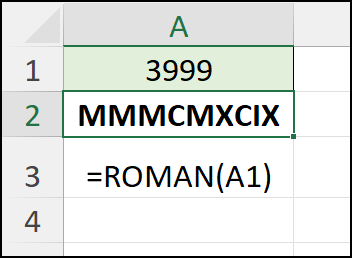
- The largest number that can be represented in standard Roman numeral form is 3999
- That number is written as MMMCMXCIX in Roman numerals
2. Form Argument
On those rare occasions when I use the ROMAN function, I always omit the second argument, form.
- If you omit the 2nd argument, or use TRUE or zero, the result is a classic Roman numeral, that you probably learned in school.
Form Argument Omitted
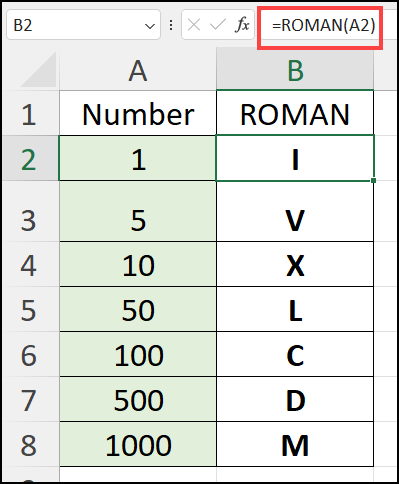
In the screen shot below, I entered 7 numbers in column A, and the ROMAN function, with the 2nd argument omitted, in column B.
NOTE: Those are the only 7 characters used to create any Roman numeral:
- I, V, X, L, C, D, M
Levels of Conciseness
For the Form argument, you can also use numbers between 1 and 4, as well as FALSE.
- Numbers 1 to 4 create more concise versions of the Roman numeral.
- The higher the number, the greater the level of conciseness.
- FALSE is Simplified form, the same as number 4
Some numbers will show different Roman numeral, depending on the form argument. Other numbers will have the same Roman numeral for all forms.
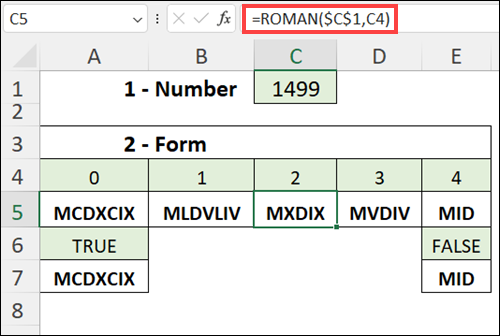
- For example, in the screen shot below, number 1499 has a different Roman numeral for each form.
- The number 115 (not shown) has the same result for all forms
Also, the results below show that
- TRUE is the same as zero
- FALSE is the same as 4
Excel Function Tutorials
These tutorials, on my Contextures site, show how to use some of the most popular Excel functions.
To see full list of Excel functions, visit the Excel Functions List page.
1 — How to Sum Cells – Start with the SUM function, then try SUMIFS and more!
2 — Count All or Specific Cells – Do a simple count, or count based on criteria
3 — How to Do a VLOOKUP – Find a lookup item in a table, such price for specific product
4 — Lookup With Criteria – Use formulas to get values from a lookup table, based on multiple criteria
5 — Combine Text & Numbers – Use formulas to combine values text and numbers from different cells
__________________________
Clearing Out the Deadwood
Last weekend a friend, aka Chauncey, who has some gardening knowledge, came over to help trim the trees and shrubs in the back yard.
About an hour later, much of the lawn was covered with branches, twigs and leaves.
It took another couple of hours to stuff everything into yard waste bags, and bundle the big pieces.
This week it’ll be taken to the city recycling centre, where it will be turned into compost or mulch.

It was way more work than I expected, but the catalpa tree, which was overgrown, now looks much better.
Chauncey claims it will flourish in the spring, without all the extra branches.

Clear the Office Too
When I got back to my office, I realized that I should do the same thing there.
So, next weekend I’ll clear out more of the deadwood in the office — old paper files, computer programs that I’m no longer using, RSS feeds that I never read, links to time-wasting web sites, and old email with large attachments that I don’t need.
All that stuff is slowing me and my computer down, and a few hours of work should make other things go faster when I’m finished the cleanup. I hope!
__________________________________
Enter the Time in a Notepad File
I like to use Notepad to make notes as I work. In July, I described how I type .LOG at the top of the Notepad file, so the date and time are automatically entered when the file opens.
That’s a handy feature, but I wanted to timestamp the files as I was working to, to record my start and stop times. There are date and time shortcuts in Excel and Access, but unfortunately those shortcuts don’t work in Notepad.
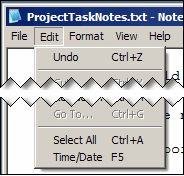
I obviously hadn’t looked too hard, because today I found the shortcut that I’ve been looking for — listed right there on the Edit menu in Notepad.
Now, if I want to insert the date and time, I press the F5 key, and it’s automatically entered for me.
========================
Excel Holiday Dinner Planner Template
If you’re busy getting ready for a big family dinner today, you might find the dinner planner in this Excel workbook helpful.
When Will We Eat?
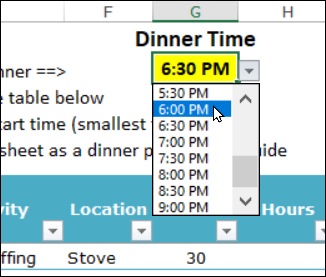
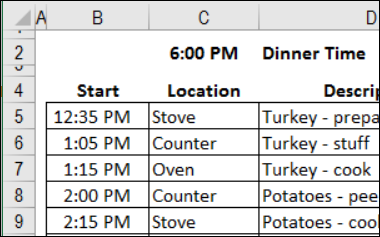
At the top of the worksheet, you can enter your target dinner hour.
The entire timetable will be based on that entry, so choose wisely!
What’s On the Menu
After you pick a dinner time, you can enter information for the dinner planning schedule.
- First, enter a list of the food you need to prepare,
- After that, enter how long each step takes.
See the Step Start Times
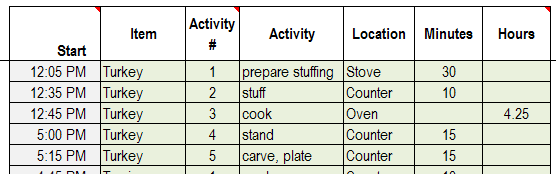
When it has all the details, the Excel dinner planner calculates the start time for each item.
Then, sort the list by the Start Time column, to see all the preparation steps, in order that they need to be started.
Print Dinner Schedule
I use this dinner planner for our all of our family dinners, and it’s a big help in scheduling, and staying on track.
I like to print out the preparation schedule, and keep it on the kitchen counter while we get the dinner ready.
Dinner Prep Timeline Chart
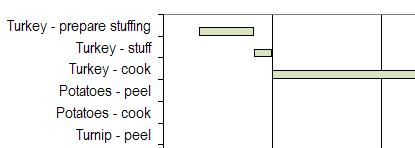
There’s also a fancy Excel timeline chart, if you like to see visual overviews.
Who is going to peel the potatoes, and when should they start? That chore always takes way longer than you expect!
Plan Your Shopping
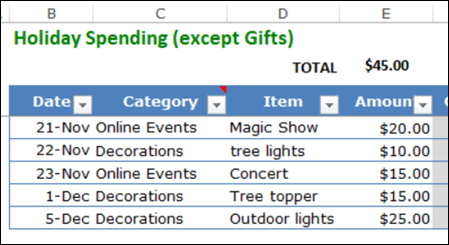
The Excel workbook also other helpful sheet, like this Holiday Spending tracker.
If you’re going to any of the Black Friday sales tomorrow, you can make a list of the items you want to buy, in column D
Then, when you get home from your successful shopping trip, enter the cost for each item in column E
And good luck out there — it can get wild in the malls at this time of year!
More Excel Holiday Templates
Here are a few more pages on my Contextures site, where you can find Excel files for help with holiday planning, or a bit of holiday fun and games.
Classic Menus Add-In for Excel 2007
Have you switched from Excel 2003, with its compact toolbars, to Excel with its Ribbons commands?
If you’ve switched, did you find it easy to adjust to the new User Interface?
Classic Menu Add-in
I’ve heard lots of complaints about switching from those toolbars to the Excel Ribbon.
So, when I noticed an Excel add-in called, “Excel 2007 Ribbon to old Excel Classic Menu Toolbar” recently, I decided to download the trial version and take a look.
Transition to Excel Ribbon
Maybe this add-in would help people make an easier transition to Excel 2007. The add-in was at an introductory sale price of $8.99, so it wouldn’t be too big an investment.
The download went smoothly, and the installation took a bit longer than I expected, but nothing too serious.
Annoying Pop-up Window
However, immediately after the installation, a pop-up window appeared, asking me to send my name and email address, and subscribe to a newsletter.
I didn’t want the newsletter, and tried to close the window, but there’s no way to get rid of it.
The X button has no effect, and the Send button demands that you fill in the boxes.
Finally, I was able to close it with the Task Manager.
Uninstalling the Add-In
Because of that bad experience, I haven’t even tried the product and I’ve decided that I don’t want anything to do with this company.
I’ll be uninstalling the trial version in a couple of minutes.
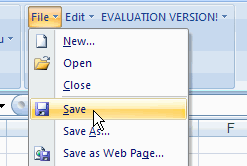
By the way, the trial version only installs two of the old style menus (File and Edit).
If you want the rest of the menus, you’ll have to buy the full version.
I won’t be buying it, but maybe it’s something you’d like to try.
Loved Those Tiny Toolbars
This Excel Toolbar add-in did make me realize one thing though.
It’s not the drop-down menus I miss, it’s the space-saving toolbars, with their tiny rows of efficient little buttons.
John Walkenbach’s PUP Add-In For Excel
[Update – John Walkenbach has sold his website and this product is no longer available]
About a week ago, John Walkenbach had a clearance sale for his PUP Add-In for Excel. PUP stands for Power Utility Pak, and that’s not an overstatement.
I’ve been using the latest version, PUPv7 for Excel 2007, for the past week, and am amazed by all its features.
When installed, PUPv7 adds a tab to the Excel Ribbon, with six groups of commands. The Ribbon tab’s groups don’t collapse if you make the Excel window narrower, like the built-in tabs do, but that’s a minor quibble.
There are too many features to list, but here are some of my favourites, so far.
PUP Bookmarks
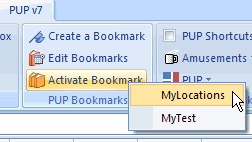
Create a bookmark to mark a range in any Excel file, and you can quickly return to that file and location from the PUP Ribbon tab.
Create Workbook Contents Sheet
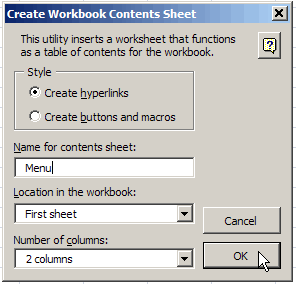
There’s a list of workbook tools, including the handy Create Workbook Contents Sheet command. This creates a cover sheet in your workbook, with a set of hyperlinks or buttons that link to the other sheets in the workbook.
Maybe the next version will add a hyperlink back to the contents sheet on each indexed sheet, in a specified cell.
Customize a New Workbook
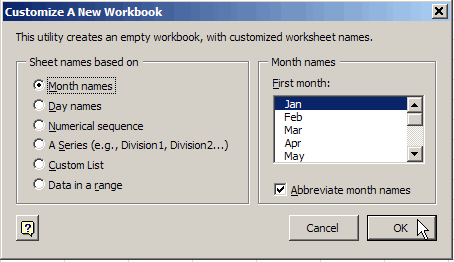
With the Customize a New Workbook command you can quickly create a workbook with a sheet for each month, each weekday, a numbered series or a list of items.
Text Tools
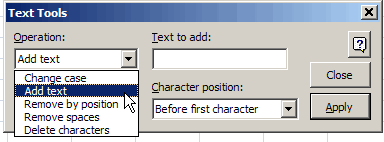
In the Modify Cells and Ranges drop down is a Text Tools command. With it, you can change the case of text in selected cells, add text within existing text, or remove text or spaces.
With this tool you won’t have to create formulas or macros when you want to modify text, just fill in boxes and click Apply.
Many More Features
Those are just a few of the features in PUPv7.
There are also worksheet functions, randomizer tools, workbook reports and many more features.
I highly recommend that you download the free trial (30 days) or purchase a copy ($40 US).
PUPv7 is a real time saver as as you work in Excel 2007, and it should pay for itself very quickly. PUPv6 is available for Excel 2003 or earlier versions.
__________________
Get Organized With Excel Holiday Planner
There are sites that offer Christmas Planner templates, usually in pdf format, which you can download and print.
Then, store the printed sheets in a binder, and write out your task list, holiday budget, gift list and calendar.
It’s Better in Excel
I’m sure that helps people who are trying to organize a hectic holiday season, but Excel would be a better tool for all those lists and budgets.
So, with my daughter’s help, I created an Excel Christmas Planner that you can download from my web site.
Instead of hand writing your lists, and doing your budgeting on a calculator, enter all the details in an Excel workbook, and let it do the heavy lifting for you.
Planning Sheets
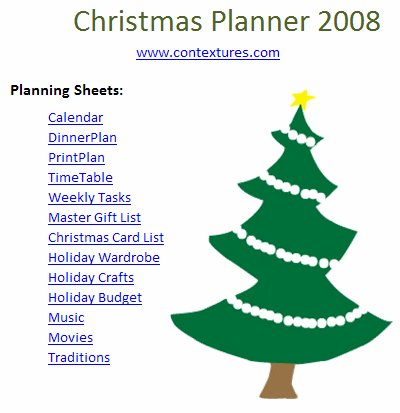
There are 15 sheets in the planner, currently, and we’ll add more, if we have new ideas.
For example, there’s an extended weekly calendar, so you can see what’s happening on specific days.
You can also make a list of upcoming tasks, keep a master gift list, keep costs in line with a holiday budget planner, and many more sheets.
Dinner Planner
The workbook includes a dinner planner, which will help you schedule the preparation for any large meal.
The dinner planner is helpful for smaller meals too, if they have lots of preparation steps!
You can get organized for the American Thanksgiving this week, or Christmas next month, or a weekend dinner party, any time of the year.
What Should We Add?
It’s our first draft of our Holiday Planner, so there’s probably much more that we could add. If you have any suggestions for improving it, we’d love to hear from you!