Excel Data Validation Combo box Codes

Instead of selecting a product code in an Excel drop down list, it’s usually easier to select a product name instead.

However, your pricing calculations might use the product code, instead of the product name, so you need that information.

Show Description, Enter Code

With a bit of programming in Excel, you can show a description in a combo box, but enter the matching code for the selected item into the cell. You’ve seen other versions of my data validation combo box code:

Keep reading, to see how the new combo box codes example works.

Select From a Combo Box

I’ve uploaded a new sample file on the Contextures website, which lets you select a month name, or weekday name, from an Excel combo box.
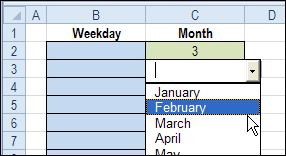
Select From a Combo Box

When you leave the combo box, the month number, or weekday code is automatically entered in the cell, instead of the full description.
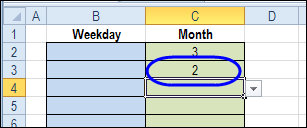
datavalcomboboxcodes02

The Named Ranges

In the data validation cells, lists are allowed, and they refer to the named ranges – DayList and MonthList – where the short codes are stored.
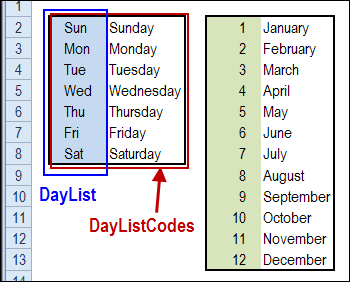
Named Ranges on Worksheet

Another range is created for each list, to include the description column, and these names end with “Codes” – DayListCodes and MonthListCodes.

These “Codes” ranges are used to fill the combo box, which is formatted with 2 columns. The first column has a width of zero, so the codes aren’t visible.
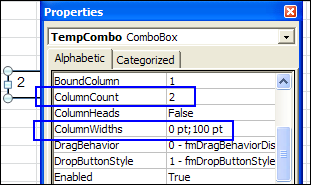
datavalcomboboxcodes04

Download the Sample File

To test the combo box codes example, and see how it works, you can download the sample file from the Contextures website.

In the Data Validation section look for DV0057 – Data Validation Combobox Codes.

The file is in Excel 2007/2010 format, and contains macros.
______________________
When Good Excel Macros Go Bad

iconmacrosWhy do good Excel macros suddenly go bad? Does that ever happen to you? Here’s my latest adventure, and maybe it will help you prevent (or solve) a similar problem.

Unprotect Sheets With a Macro

When making changes to client files, I use macros to quickly and easily protect or unprotect all the sheets in an Excel file, like the examples shown below.

  • This macro protects all the worksheets in the active workbook, with no password.
Sub ProtectAllSheetsNoPwd()
Dim ws As Worksheet
On Error Resume Next
For Each ws In ActiveWorkbook.Worksheets
  ws.Protect DrawingObjects:=True, _
    Contents:=True, Password:=""
Next ws
End Sub
  • And this macro unprotects all the worksheets, with no password.
Sub UnProtectAllSheetsNoPwd()
Dim ws As Worksheet
On Error Resume Next
For Each ws In ActiveWorkbook.Worksheets
  ws.Unprotect
Next ws
End Sub

The Protect Macro Fails

However, even a simple macro can run into problems, as I’m sure you’ve already discovered with your own macros. It worked yesterday, but the macro won’t run correctly today, in the same file. And you’re sure that nothing was changed in the file – so what’s the problem?

That’s what happened to me recently, while trying to unprotect a file, so I could make some changes. The macro ran, but the sheet’s weren’t unprotected.

Excel error

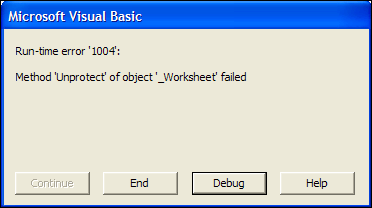
I commented out the macro’s error handling, to try and solve the problem, and this run-time error 1004 popped up:

Method ‘Unprotect’ of object ‘_Worksheet’ failed.

Excel error: Method 'Unprotect' of object '_Worksheet' failed
Excel error: Method ‘Unprotect’ of object ‘_Worksheet’ failed

Prevent the Macro Problem

After a bit of head scratching, I realized what the problem was – I had grouped some of the sheets, because they all needed a formatting change. Oops! Because the sheets were grouped, they couldn’t be unprotected.

I added a line of code to the macro, to ungroup the sheets, if necessary, and the problem is solved. You could do something fancier, like identifying the active sheet, and selecting it, instead of the first sheet.

Revised Excel VBA Code

Sub ProtectAllSheetsNoPwd()
Dim ws As Worksheet
On Error Resume Next
Sheets(1).Select '<====== selects first sheet in workbook
For Each ws In ActiveWorkbook.Worksheets
  ws.Protect DrawingObjects:=True, _
    Contents:=True, Password:=""
Next ws
End Sub

The same line was added to the Unprotect macro.

Sub UnProtectAllSheetsNoPwd()
Dim ws As Worksheet
On Error Resume Next
Sheets(1).Select '<====== selects first sheet in workbook
For Each ws In ActiveWorkbook.Worksheets
  ws.Unprotect
Next ws
End Sub

Watch the Protect Macro Fails Video

To see the problem that occurs when you try to protect or unprotect group sheets, and the code change that fixes it, you can watch this short Excel video tutorial.

___________

Get Good Dates With Excel Data Validation

imageThere’s a story making the rounds, about a guy who rated all his online dating prospects, by using an Excel worksheet.
While I’m sure we could all learn a thing or two from that guy’s file, this article is about a different kind of dates – calendar dates.

Calendar Dates in Excel

Calendar dates might not be as exciting, but unlike romantic dates, you can use data validation to help keep them under control in Excel.

Entering Period End Dates

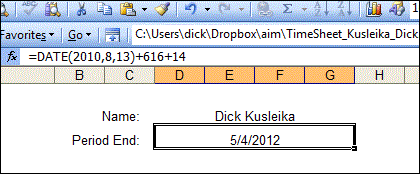
Last week in the Daily Dose of Excel blog, Dick Kusleika was looking for a more efficient way to enter a Period Ending date in his time sheet.

Every two weeks he sets up a new workbook, and has to add two weeks to the previous end date.

Sometimes it’s easy to do that kind of math in your head, but if you’re rolling into a new month, the calculation can be trickier.

So, Dick changed the date cell to a formula, and just added 14 to that calculation every two weeks.

image

There were a few suggestions for solving the problem, but Dick wanted something simple and static — the date cell couldn’t change, if you opened the file on a different date.

Create a Dynamic List of Dates

My suggestion was to create a drop down list of Period End dates, and select the next date from that list. With some formulas in the background, the list of valid dates would update automatically.

However, when you select one of those dates in the Period End cell, it’s a static entry in that cell.

Create List of Dates

The first step is to create the list of dates, based on Dick’s original Period End date – October 13, 2010.

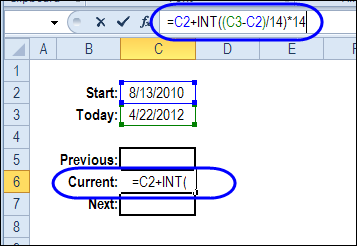
  • On Sheet2, put the starting date in cell C2: =DATE(2010,8,13)
  • In cell C3, enter a formula to calculate the current date: =TODAY()
  • In C6, enter this formula, to calculate the current pay period’s week end:
    =C2+INT((C3-C2)/14)*14

datavalidationdates16

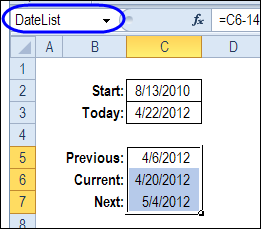
  • In C5, subtract 14 days, to calculate the previous period end date: =C6-14
  • In C7, add 14 days, to calculate the next period end date: =C6+14

Name the Date List

Next, you’ll name the date list, so you can use it in a data validation drop down.

  • Select cells C5:C7, and click in the Name Box, to the left of the Formula bar
  • Type a one-word name for the list – DateList – and press the Enter key.

datavalidationdates17

Create the Drop Down List of Dates

Back on the Time Sheet, you’ll add a data validation drop down list in the date cell.

  • On the Time Sheet, select the Period End date cell.
  • On the Excel Ribbon, click the Data tab, and click Data Validation.
  • From the Allow drop down, click on List
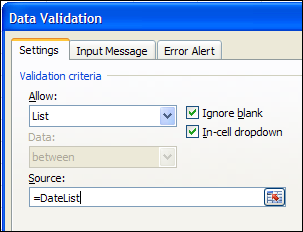
  • In the Source box, type an equal sign and the list’s name: =DateList
  • Click OK to close the data validation dialog box.

datavalidationdates13

Test the Drop Down List of Dates

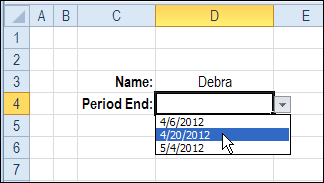
On the Time Sheet, the Period End date cell now has a drop down arrow.

  • Click the arrow, to see the current list of dates, and click on a date to select it.

datavalidationdates18

The selected date is entered in the cell, as a value, not a formula. Even when the list of dates changes, the selected date will not be affected.

More Examples

Please visit the Contextures website for more examples of Excel Data Validation for dates.

__________________

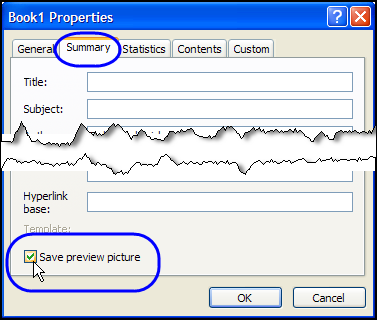
How to Show Excel Preview Picture When Opening Files

When you’re opening files in Excel, you can see the file Details, or the icons, or select another way to look at the list, such as Preview.

That Preview option sounds promising, but instead of a picture of the file’s contents, you usually see this message instead – Preview Not Available.

And that’s not much help. Here’s how to show Excel preview picture when opening files

Continue reading “How to Show Excel Preview Picture When Opening Files”

Change Pivot Table Filter All Sheets or Active Sheet

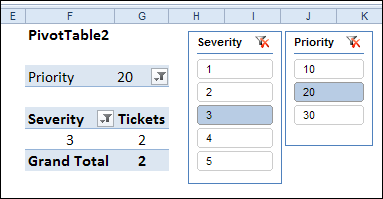
In Excel 2010, you can use Slicers to change the filters in several pivot tables, with a single click.

ExcelSlicerDetail01

If you don’t have Excel 2010, or don’t want to use Slicers, you can use programming to change multiple pivot table filters with a single click.

Yes, it’s more work than adding a Slicer, but better than manually changing all those pivot tables!

Change All Pivot Tables

Last December, I described how to add code to your workbook, so if you changed one pivot table filter, all the other pivot tables in the workbook would change too.

Click here to read that article, and the comments: Change All Pivot Tables With One Selection

In those comments, people asked how to modify the code, so only the pivot tables on the active sheet were affected, or only a specific field was changed.

In response to those comments, I’ve created a new version of the sample file.

Change All Pivot Tables or Active Sheet Only

The latest sample file for changing pivot table fields has 3 variations on the “Change All Page Fields” code.

It also changes the “Multiple Item Selection” settings to match changed page fields (Excel 2007 and Excel 2010 only).

The three variations are:

  1. Change any page field in a pivot table, and all matching page fields, on all sheets, are changed.
  2. Change any page field in a pivot table, and all matching page fields, on the active sheet only, are changed.
  3. Change a specific page field in a pivot table, and that page field, on the active sheet only, is changed.

Download the Sample File

To see the code, and try the variations, you can download the sample file from the Contextures website. The file will work in Excel 2007 or Excel 2010, if you enable macros.

PT0027 – Change All Page Fields – All Sheets or Active Sheet

You can also download the other sample files, showing how to change a specific field, or all fields, in the workbook’s pivot tables.

PT0008 – Change Multiple Page Fields

PT0015 – Change Multiple Different Page Fields

PT0016 – Change Page Fields With Cell Dropdown

PT0021 – Change All Page Fields

PT0025 – Change All Page Fields with Multiple Selection Settings

______________

Show Excel Chart or Data in Dashboard With No Macros

In this Excel dashboard example, you can select “Chart” or “Chart Data” from a drop down list. Magically, with no macros in the workbook, the selected item appears on the worksheet.

select "Chart" or "Chart Data" from a drop down list
select “Chart” or “Chart Data” from a drop down list

With this technique, you can store your data and chart on a hidden sheet in the workbook, where no one can mess with the numbers. (Not that anyone would!)

Continue reading “Show Excel Chart or Data in Dashboard With No Macros”

Copy PivotTable Style

Yesterday, i created a custom PivotTable Style for a customer, to make it easy to format multiple pivot tables, using their corporate colour scheme.

PivotTable Styles are available in Excel 2010 and Excel 2007, and if you don’t like the existing styles, you can create your own custom styles, and apply those to any pivot table.

Copy Custom PivotTable Styles

Unfortunately, there’s no built in way to copy a custom PivotTable style from one workbook to another.

A while ago, I made this video, to show you a workaround for copying your favourite styles to a different workbook.

Remove Existing Formatting

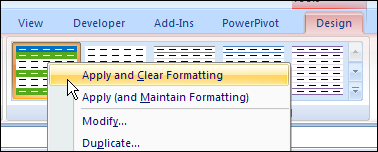
If you’re applying a built-in or a custom style to a pivot table, you might need to remove any manually applied formatting first.

  • Instead of clicking on the PivotTable Style icon, right-click on it.
  • Then, click Apply and Clear Formatting
Apply and Clear Formatting

You might need to tidy up the pivot table after you apply the new style, but with Custom Styles you can quickly format your pivot tables, so they have a consistent appearance.

______________________

Data Entry Shortcuts for Dates and Numbers

Are you working hard this week? Instead of doing all the work yourself, let Excel do some of the data entry for you. These quick tips show you how to enter a date or number series, with a minimum of effort.

Enter a Series of Numbers

With this shortcut, you can quickly create a series of numbers on an Excel worksheet, such as a series of even numbers or odd numbers.

  1. To start the series, type the first two numbers in adjacent cells.
  2. Then, drag the Fill Handle to continue the series on the worksheet, as far as you need it to go.

This Excel Quick Tips video shows you how to fill the series, and there are many more Excel Data Entry tips on the Contextures web site.

Enter a Series of Dates

With the next shortcut, you can create a series of dates on an Excel worksheet, incremented from your starting date.

  1. To start the series, type the first date in a cell.
  2. Then, drag the Fill Handle to continue the date series on the worksheet, as far as you need it to go.

This Excel Quick Tips video shows you how to fill the date series.

Create Excel List of Dates by Week

With the final shortcut, you can create a series of dates, by week, on an Excel worksheet, incremented from your starting date.

  1. To start the series, type the first date in a cell.
  2. Then, press the right mouse button while you drag the Fill Handle to continue the weekly date series on the worksheet, as far as you need it to go.
  3. Release the mouse button and click Series in the popup menu.
  4. Type a 7 as the Step value, and click OK.

This Excel Quick Tips video shows you how to fill the date series.

__________________