Create a Rolling Total in Excel

It’s easy to create a running total in Excel, and show the accumulated amount in each row. You can use the SUMIF function in a table, or show running totals in a pivot table.

But what if you want to show the total for a specific number of previous months – not all the previous months?

Continue reading “Create a Rolling Total in Excel”

Excel Subtotals With Duplicate Grand Totals

Do you use Excel’s Subtotal command to automatically create subtotals in a list? I prefer pivot tables, but still use Subtotals in a few macros for clients. Last week, one of them asked why there were duplicate Grand Totals after applying two levels of subtotals.

Continue reading “Excel Subtotals With Duplicate Grand Totals”

Count Items Based on Another Column

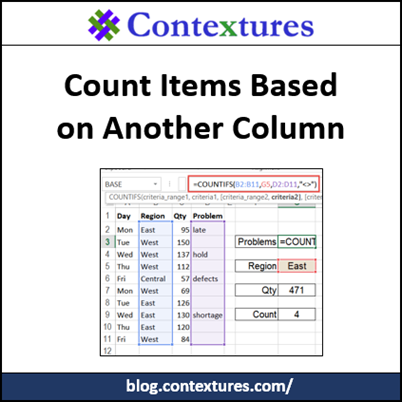
How can you count items in one column, based on criteria in a different column? We’ve shipped orders to the East region, and want to know how many of those East orders have a problem note in column D. Instead of the COUNTIF function (1 criterion) we’ll use the COUNTIFS function (multiple criteria).

Continue reading “Count Items Based on Another Column”

Option Button Scores With CHOOSE Function

You can use option buttons on a worksheet, to make it easy for people to pick just one item from several options. There’s no programming required – just set up a group box, add option buttons, and link the buttons to a cell. The video at the end of this post shows you those steps.

The option buttons send a value to their linked cell, and we’ll take a look at how you can use those numbers.

Continue reading “Option Button Scores With CHOOSE Function”

Beware the Nested IF Formula in Excel

Do you use the IF function in your workbooks?  It’s helpful if you want to check something, and then show a result based on the result of your test.

For example, in the screen shot below, the total won’t show if a quantity hasn’t been entered in cell D7.

Continue reading “Beware the Nested IF Formula in Excel”

Compare Excel Worksheet Values and Formulas

If Excel sheets are set up identically, you can create 3-D formulas, to sum a specific range, in a group of sheets. (You can use other functions in a 3-D formula too, such as Average, Count, Min or Max.)

For example, this workbook has sheets for the East, Central and West regions, and all three sheets are set up the same.

Continue reading “Compare Excel Worksheet Values and Formulas”

Counting in Excel

The most popular function in Excel is SUM, based on my experience. That’s probably the first function you learned how to use, and in the old days, it was the only function that you could insert with the appropriately named AutoSum button.

Sometimes we overlook how much counting we have to do every day too. Here are a few scenarios that you might encounter at work (or should I say “en-count-er”?):

  • Sales: number of orders for a specific product, from a list in a worksheet
  • Human Resources: count of employees with 10+ years employment
  • Shipping: number of shipments pending, that do not have a zip code

Fortunately, your favourite spreadsheet can help – there are many different ways to count things in Excel.

Continue reading “Counting in Excel”

Track Project Tasks in Excel

If you’re working on an Excel project with a client, or other employees in your company, how do you keep track of everything that needs to be done? If emails are flying back and forth, with questions, and comments, and specification changes, it’s easy for things to slip through the cracks. Then, 5 minutes before the deadline, someone realizes that a key piece is missing!

Nobody wants that to happen, so it helps to have a system for keeping track of everything that has to be done.

Task List in Excel

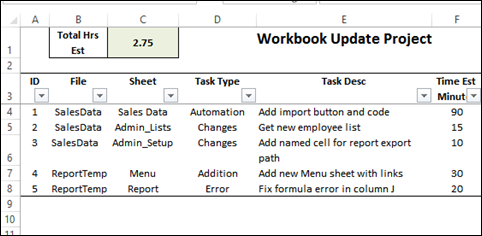
For projects that require more than a couple of simple changes, I usually create a task list in Excel. It’s nothing too fancy – just a list of what needs to be done, broken into steps.

For example,

  • if the project requires changes to several files, there are columns to record the file and sheet names.
  • task types can be entered, so the time estimates can be grouped by those categories
  • task description – as detailed as necessary – break large tasks into separate steps
  • time estimate, in minutes, to get a rough idea of how long the project will take
tasklistsummary02

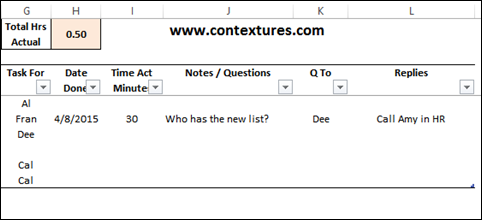
You can see a few more columns, in the next screen shot.

  • person the task is assigned to
  • date the task was completed
  • actual time to complete the task
  • notes or questions about the task
  • person who should answer the question
  • replies to the questions

tasklistsummary03

For other projects, you might need additional information, such as:

  • task due date
  • reference number
  • department

What else would you need to record for each task?

Drop Down Lists

To make it easier to enter the tasks, I use data validation to create drop down lists in some columns.
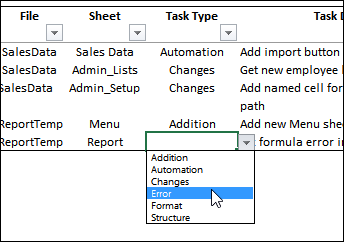
tasklistsummary06

The source lists are stored on a separate sheet, in named Excel Tables.
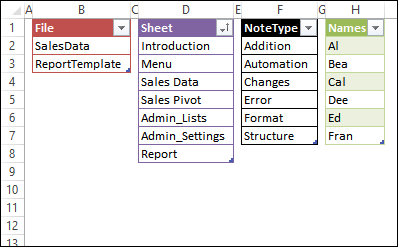
tasklistsummary07

Total the Task Times

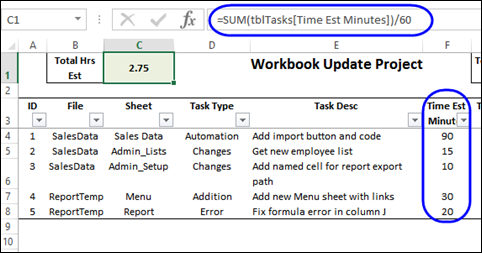
At the top of the task sheet, there are cells that summarize the estimated and actual task times. That gives you a quick overview, while you enter the tasks, or update them with actual times.

The times are entered as minutes, so the formula sums all the times, then divides by 60

=SUM(tblTasks[Time Est Minutes])/60
tasklistsummary04

Project Task Summaries

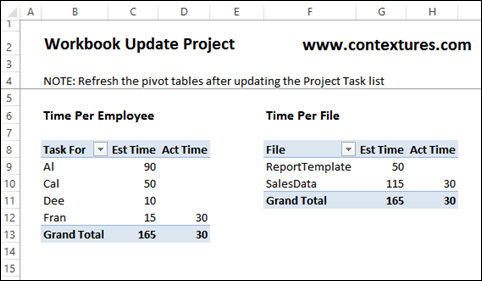
After the tasks are entered, you can create a pivot table or two, to show the estimated and actual times. The times can be summarized per person, or per task category, or any other grouping that you’d like.
tasklistsummary01

Share the Task List

I don’t like setting up shared Excel workbooks, but I’ve found that it works well to upload a file to Microsoft’s OneDrive site, and everyone can edit the task list there, using Excel Online. The only strange thing that I’ve noticed is that after you select from a drop down list, the cell below is selected, instead of staying in the same cell.

After you upload the file, use the Share options, to send a link to all the interested parties. I save the link as a bookmark in my browser, so it’s easy to get back to the file again.

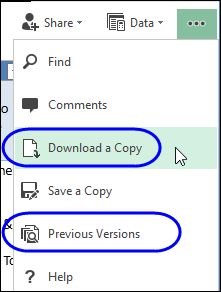
You can download a copy of your task file, after you make changes, to store as a local backup. Or, go back to look at previous versions of the file.
tasklistsummary05

Download the Project Task Tracker Sample

You can download a copy of my project task tracker file, from my Contextures website. On the Sample Files page, go to the Data Validation section, and look for DV0069 – Excel Project Task Tracker.

The zipped file is in xlsx format, and does not contain macros.

_________________
Track Project Tasks in Excel http://blog.contextures.com/