
What would you do with a dusty old Excel file, that’s still useful, but outdated? For some files, a quick fix is all you need. For other files, the best fix is to start over, in a brand new workbook!
This Old Spreadsheet
 This week’s old Excel file – Employee Hours – is the first pivot table sample file that I shared on my Contextures site, way back in late 2001 or 2002.
The file has a simple pivot table and pivot chart, based on a small data sample.
Two Main Sheets
There are two main sheets in the file:
1) Employee Hours
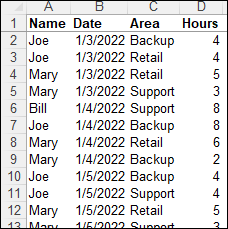
- This data entry sheet has employee hours data, in four columns:
- Name, Date, Area, Hours
- The sheet also has notes about using the workbook
2) Pivot Table and Chart
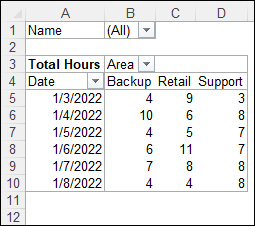
- Pivot table summarizes the employee hours, in the named range PTData
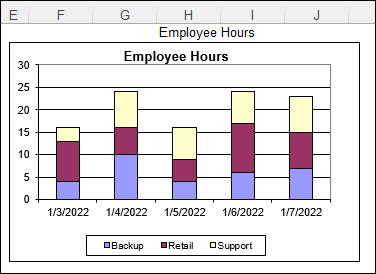
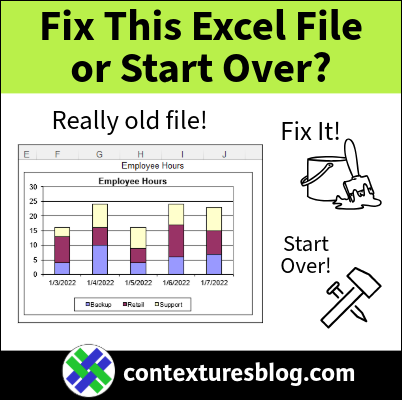
- Pivot chart, based on the pivot table, shows the area hours breakdown per day.
- The sheet also has a note about filtering the pivot chart.
If you’ve worked in Excel for a long time, you might remember those ugly old chart colours!
Fix or Start Over?
The Employee Hours file still works, but things look outdated, and there could be hidden problems.
The old file isn’t too complicated, so it might be easy to update, and fix things like the colour scheme.
But, it might be easier to copy the data into a new file, and start over.
In the following sections, I’ll show you:
- What I found in the file – good and bad
- My decision – fix or start over
- What I fixed or changed
If you’d like to investigate on your own, click here to download the old Excel file.
Also, the file is still on the Excel Sample Files page, on my Contextures site.
- In the Pivot Tables section, look for PT0001 – Employee Time Tracking
What I Checked
To decide whether to fix or rebuild, I checked a few key items:
- File age and format
- Data structure
- Named ranges/formulas
- Macros
- Pivot Tables / Pivot Charts
- Data Entry features
- Data Validation
- Conditional Formatting
- Hidden or Protected Sheets
Did I miss anything? What else would you check in an old file?
What I Found
Here’s what I found in the old file, while deciding whether to fix or start over.
- File age and format
- File was created on July 7, 2001, and saved in xls format
- Data structure
- Data is a worksheet list, not a named Excel table
- Named ranges/formulas
- There is a dynamic named range for the worksheet data
- Macros
- There are no macros stored in the file
- Pivot Tables / Pivot Charts
- A pivot table is built from the dynamic named range
- A pivot chart is based on the pivot table
- Data Entry features
- There are no data entry aids in the worksheet list
- Data Validation
- There is no data validation (lists or rules) in the file
- Conditional Formatting
- There is no conditional formatting in the file
- Hidden or Protected Sheets
- There are no hidden or protected sheets
- There are no hidden or protected sheets
Decision – Fix or Start Over?
After checking out the old file, I decided it was better to start a new file, and copy the employee hours data into that.
- The file’s purpose is to show a simple pivot table and pivot chart, with a small data sample.
- It no longer shows the best methods to do that!
Fix – Reason 1) Old File Format
When I built the file in July 2001, I was using Excel 97 or Excel 2000, and saved the file in Excel’s old xls format.
Moving forward, that old file format could cause problems.
- smaller worksheets – only 65536 rows and 256 columns.
- no new features and functions available
Fix – Reason 2) Old Style Pivot Table and Pivot Chart
The pivot table and pivot chart look outdated, and they don’t have newer features, like a PivotTable Field List, and field buttons.
Now that Excel has these helpful pivot features, it’s hard to work without them!
I’ll be able to create a modern pivot table and chart in my new xlsx format file.
What I Changed / Kept
My new Excel file shows the best current techniques for setting up a simple data sample, pivot table, and pivot chart.
-
- Click here to get the new Employee Hours file.
Here’s what I did in the new file:
- Created a new Excel file,saved in xlsx format
- Created 3 main sheets – EmpHrs, Pivot, Lists
- Copied the data from the old file, and pasted as values onto the EmpHrs sheet
- Moved the Date column to the left
- Formatted the data as a named table, tblEmpHrs
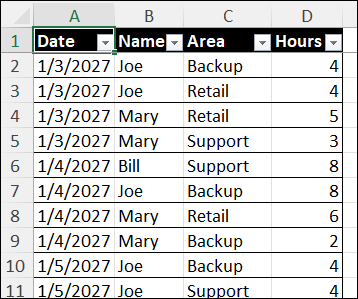
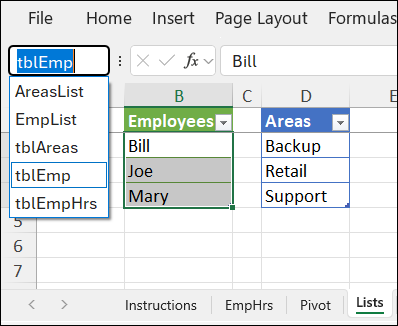
- On the Lists sheet, created 2 named tables, tblEmp and tblAreas, with employee and area names
- Created a named range for the data cells in each list – EmpList and AreaList
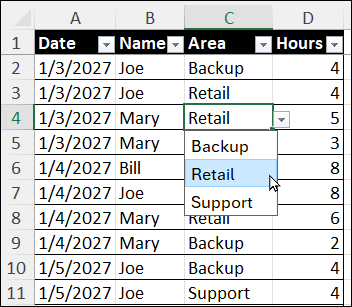
On the EmpHrs sheet, added data validation drop-down lists for the Name and Areas columns
-
- Created a pivot table and pivot chart on the Pivot sheet.
- Set pivot table options to Refresh data when opening the file.
- Added a Pivot Slicer for Name, to make filtering easier
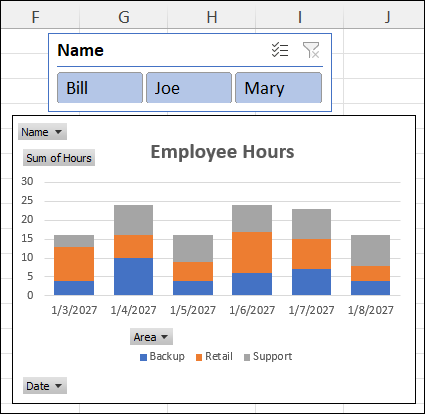
- On the Pivot sheet, in cell D1, added a formula to calculate a worksheet title
- =IF(B1=”(All)”,”Employee”,B1) & ” Hours”
- Linked the pivot chart title to cell D1, so the chart title automatically updates
- This formula was in the old file too, and was worth keeping
What Would You Do?
If you played along with the Fix or Start Over experiment, what did you do?
- Did you make changes in the old file, and keep it going?
- Or, did you make a brand new file? If so, what features and formatting did you use?
Get the Excel Files
To get the old Excel workbook, and my new version, go to the Pivot Chart page on my Contextures site.
- The old file is in xls format, and the new one is xlsx format.
- There are no macros in either file.
________________
Fix This Old Spreadsheet – Employee Hours
_______________