
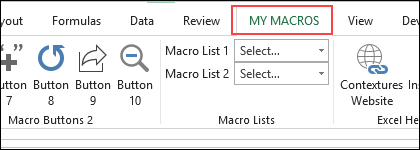
Quickly add your favourite macros to a custom tab on the Excel Ribbon. Then, use those macros in other Excel files, with just a couple of clicks.
Video: Custom Tab for Excel Macros – Demo
In the short video below, I show how the Excel Ribbon custom tab works, and the worksheet where you can make changes to the custom tab.
You don’t need to do any Ribbon programming!
- ✅ To follow along with the video, click here to get the Custom Tab Excel file
- Note: The full video transcript is near the end of this page.
Custom Tab Buttons
If you have Excel macros that make your workday easier, put them in this custom tab workbook. You’ll be able to use those macros in other Excel file, and keep those other files macro free.
There are 10 buttons set up on the custom tab. You can change the icons and text on those buttons, and set them to run your macros.
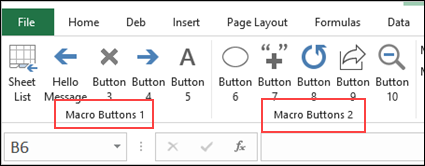
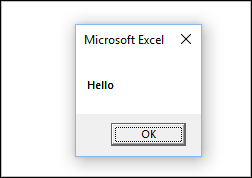
As a simple demo, the Hello Message button runs a macro that shows a message box, with the word, “Hello”.
You can edit that button, and all of the others, to run your macros.
Drop-Down Lists
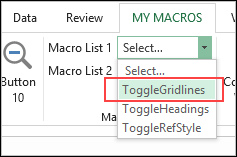
The Excel Ribbon custom tab also has two drop-down list, with more macros to run.
For example, the ToggleGridlines macro changes the gridlines setting on the active worksheet.
- If gridlines are off, it shows the gridlines.
- If gridlines are on, it hides the gridlines.
Admin Worksheet
To run your macros from the MY MACROS Ribbon tab, you’ll make changes on the sample file’s Admin worksheet.
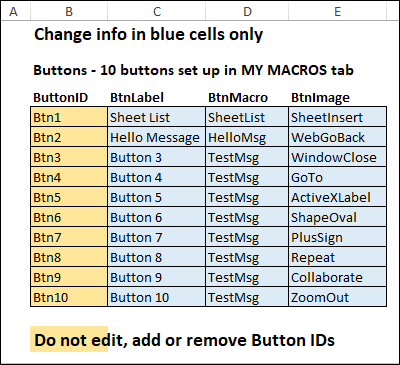
On the Admin sheet, the button settings are in a worksheet list, shown below.
- You can change each button’s label, macro and image
- You cannot add more buttons – just edit the existing buttons
Admin Sheet – Drop-Down Lists
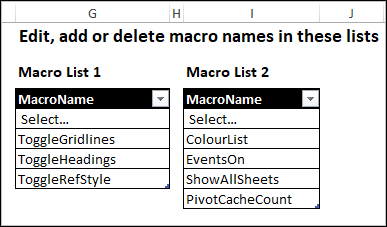
Also on the Admin sheet are two Excel tables, with macro names for each of the drop down lists.
- The drop down lists show all the items from the Macro List tables
- In the drop down tables, you can delete, add, or change the macro names.
Tip: Sort the macro list tables, so it’s easier to find the macro names in the Custom Tab drop-downs
Custom Tab for Macros – Step-by-Step
For details on using the Custom Tab for Macros, go to the Add Excel Macros to Ribbon Tab page on my Contextures site.
There are detailed written steps, and a 14-minute step-by-step video.
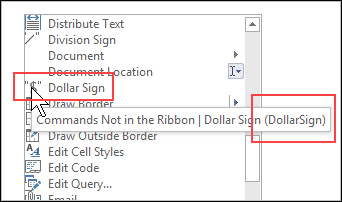
For example, I show how to find the official name for Excel Ribbon command icons, so you can use those images in your custom buttons.
Get the Excel File
For details on the Custom Tab for Macros, and to get the Excel file, go to the
- Add Excel Macros to Ribbon Tab page on my Contextures site.
That page also has a longer video, and written instructions, so you can get your custom Ribbon tab set up.
Or, if you want to create your own custom tabs from scratch, see these pages on my Contextures site:
Video Transcript
Here’s the video transcript, with a few sub-headings added.
__________
When I work in Excel, I like to have a Ribbon tab with some of my favourite macros on it, so it’s easy to use, no matter what workbook I have open.
If you’d like to do something similar, I’ve got a workbook you can download, and customize it with your favourite macros.
Custom Tab Commands
There are 10 buttons. You can change how they look, and what they say, and the macros they run.
And then there are two lists, with drop-downs that show macro names, and you can run those.
In the workbook, I have some sample macros and those are set up in these lists.
Use the Commands
So if I choose to toggle the gridlines, right now they’re on.
If I select that, they go off. And I can toggle them back on.
So anything that’s in a list, you can select, and it runs the macro.
Change the Commands
You can add more macro names to these lists, as many as you need.
You can change any of these buttons as well, by changing the information in these blue cells.
- For example, in this workbook, I changed button number six to Colour List.
- It’s got a nice colour block image here.
- It runs a macro called ColourList and the label says colour list.
So I just had to type here, and then I close and reopen this file, and it shows up on the Ribbon.
___________________
Get This Custom Tab for Excel Macros – Demo
_________________