
It looks like a simple task – filter a list, so you an see the items you’re interested in. Then, copy data from one column, and paste it into another. But you can have a serious problem pasting in Excel filtered list.
Problem Pasting in Excel Filtered List
Pasting data into a filtered list can quickly turn into a big mess, and you’ll end up overwriting some of your data.
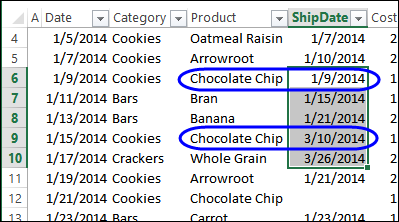
In the screen shot below, I selected 5 cells in column B, and pasted them into the same rows in column E. However, only 2 of the dates were pasted.

Find the Missing Data
What happened to the other 3 dates that I pasted? When I cleared the filter on the list, I could see that all 5 dates were there. They weren’t pasted into the visible rows though – they were pasted into a block of 5 cells, starting with cell E6, where I pasted the data.
In those 5 cells, only two were chocolate chip orders, so those are the only two that I saw, when the list was filtered.
Yikes! I hit the Undo button, immediately, to get the original data back.
Do you have the same problem pasting in Excel filtered lists?
Why does Excel copy the individual, visible cells in a filtered list, then crush our dreams, by pasting them into a contiguous block?
I’d like the option to paste into visible rows, or have that automatically happen, if the list is filtered. Please and thanks!
Workarounds for Pasting
Even though I’ve asked nicely, Microsoft probably won’t be able to fix this problem pasting in excel filtered list by tomorrow. Or ever.
So, to avoid overwriting your data, be sure that you’re not pasting anywhere that rows are hidden. Here are a couple of workarounds that I use:
- You could clear any filters, and sort by a column that will bring the rows of interest together. Then do the copying and pasting, while no rows are hidden.
- To copy the selected items into the same rows, in a nearby column, use the Fill Right or Fill Left shortcut. I’ve made a video that shows how this works. Thanks to Khushnood Viccaji for sharing that tip in the comments below.
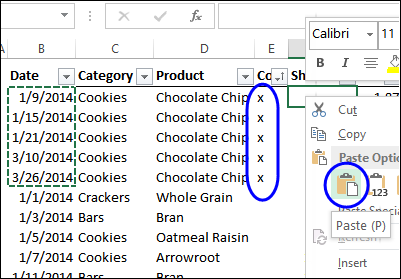
- For filters that are more complex, where you can’t do a simple filter to bring the rows together, you could insert a temporary column, and mark the rows, as shown in the screen shot below. Then, clear the filters, sort the temporary column, and copy and paste in the marked rows.
Video: Problem Pasting in Excel Filtered List
Watch this video to see why you have a problem pasting in Excel filtered list, and a couple of workarounds, to help you avoid the problem.
Download the Sample File
To download the sample file for this video, go to the Filtered List Pasting Problems page on my Contextures website.
The zipped sample file is in xlsx format, and does not contain any macros.
____________
Steps to easily paste on visible cells only in excel without any macro or additional software is as follows:
Suppose original data is:
A
E 200
G
N 400
K
You have hidden two rows for E and N, now the visible data is:
A
G
K
You want to paste 100 for A, 300 for G and 500 for K to get the following results:
A 100
E 200
G 300
N 400
K 500
The procedure to get this result easily is given below:
1. Copy the visible cells from the excel sheet
2. Paste the copied cells in a new excel sheet. You will get:
A
G
K
3. Paste the data you want to paste, in new excel sheet. You will get
A 100
G 300
K 500
4. Use VLOOKUP formula in your original excel file on visible cells, with reference to data in new excel file. Then remove the filter from original file to see all hidden cells. You will get the following result:
A 100
E 200
G 300
N 400
K 500
My suggestion:
Filter the range as required.
Select the first cell in the column and type the value required.
Select the remaining visible cells.
Press Ctrl + “, then Ctrl+Enter. Job done.
Ctrl+” means copy the cell above
Ctrl+Enter means do this for all selected cells.
The operation will work only on visible cells.
Hi – this also works if you land in the cell you want to copy, hover over the bottom right corner of the cell and the cursor will turn to a bold plus symbol, then left click and drag down. All visible cells (the same) get filled in and not into the hidden filtered cells behind I think that may be the same solution just what I’ve used….
Your workarounds are definitely good ideas I will use to copy and paste data in a file that has approx. 200’000 rows of data.
Thanks for sharing, very useful!
Wow that works
Thanks, Debra!
My 1 million row spreadsheet also thanks you.
Thank you! very helpful, but what if we are copying from one file to another?
It doesn’t work..can you pls help?