
Last week, I shared a couple of workarounds for pasting data into a filtered list. Today, see how to paste with shortcut in filtered Excel list.
Simple Paste in Filtered List
If you use a simple copy and paste, you could end up overwriting data in the hidden rows.
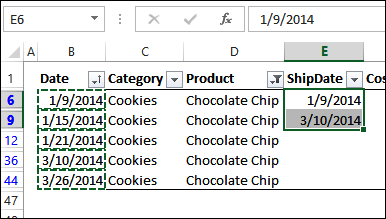
You can use those workarounds, if you are pasting into the filtered list, with data from another location. However, if you are copying and pasting data from one column to another, within the filtered list, there is a better solution.
Paste With a Shortcut
Instead of using one of the workarounds for copying and pasting, you can use a keyboard shortcut. It’s much quicker and easier!
This tip was shared by Khushnood Viccaji, in a comment on my previous post. Thanks for the tip – it’s a new one for me, and a real time-saver!
To copy data into the same rows in a filtered list:
- Select the cells that you want to copy
- Press Ctrl and select the cells where you want to paste (in the same rows)
- To select only the visible cells in the selection, press Alt + ; (the semi-colon)
- To copy to the right, press Ctrl + R
The data is magically copied to the visible cells on the right, even though the columns are not adjacent
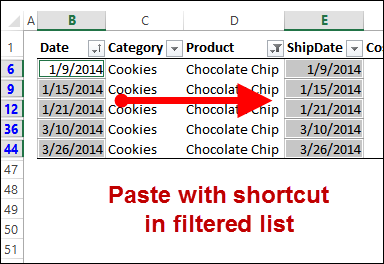
Video: Paste With Shortcut in Filtered Excel List
To see the steps for pasting into the same row in a filtered list, please watch this short video tutorial. You’ll also see how to fill data to the left in filtered rows.
The video transcript is further down on this page.
Get the Sample File
To download the sample file for this video, go to the Filtered List Pasting Problems page on my Contextures website.
For more time-saving tips, go to the Data Entry Tips page on my Contextures website. There are videos, screen shots and written instructions there, to help you get your Excel work done.
And for a full list of Excel keyboard short cuts, go to my interactive Shortcuts List.
Video Transcript
Here is the full transcript of the video, shown above.
Introduction
In my previous video, I showed you the problems you can run into when you try and copy and paste in a filtered list.
For example, if I filter this list to only show the chocolate chips, and then try to copy these dates, and paste them into this column, it doesn’t paste correctly.
So I’m going to do a copy (we can see they’re copied here) and then paste, and only two of them show up. The rest have been pasted in the background, in the hidden rows.
So I’m going to undo that, and I’m going to show you a tip that I learned from my friend, Khushnood Viccaji, and it makes copying and pasting much easier.
Select Visible Cells
First, I’m going to select the cells that I want to copy.
Then press Ctrl and select the cells where you want to paste the data.
To get this information from here to here, we’re going to make sure only the visible cells are selected.
So press the Alt key and semi-colon(;)
And now only the visible cells in our selection are selected, and you can see little lines to separate them.
Copy to the Right
Now to get from here to here, we’re going to fill, and we can fill to the right.
So I’m going to use the keyboard shortcut, which is Ctrl + R and it takes this data, and puts it in the cell to the right.
Even though it wasn’t to the immediate right, that shortcut works well for getting information to the next cell that’s selected on the right.
So none of the other data was overwritten. We can see that all the data went into the correct cells.
Now in this case, we were filling to the right, so we could use a keyboard shortcut.
Copy to the Left
But if these dates weren’t filled in and we wanted to copy from here to the left, there’s no shortcut for that.
So I’m going to select these cells first, and then the cells where I want to paste.
Again, to select just the visible cells (press) Alt + Semi-colon; go to the HOME tab, and here’s the fill.
If I click that I can fill left, and now the dates from this cell are filled into the selected cells at the left.
________________
This really helped me and I am going to save this link in my favourites. Cannot believe how frustrated I was so many times and laborious manual work I was doing so far. Thanks to helpful souls like you who record such useful information to help others!
Can you help. I have copied a filtered column over to WORD so I can clean the verbatim, and when I went back to paste into the filtered Excel it didn’t work as it went into the hidden cells as well. Can this be done from Word into the Excel?