
It looks like a simple task – filter a list, so you an see the items you’re interested in. Then, copy data from one column, and paste it into another. But you can have a serious problem pasting in Excel filtered list.
Problem Pasting in Excel Filtered List
Pasting data into a filtered list can quickly turn into a big mess, and you’ll end up overwriting some of your data.
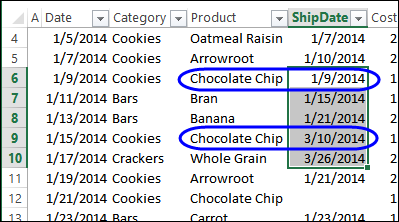
In the screen shot below, I selected 5 cells in column B, and pasted them into the same rows in column E. However, only 2 of the dates were pasted.

Find the Missing Data
What happened to the other 3 dates that I pasted? When I cleared the filter on the list, I could see that all 5 dates were there. They weren’t pasted into the visible rows though – they were pasted into a block of 5 cells, starting with cell E6, where I pasted the data.
In those 5 cells, only two were chocolate chip orders, so those are the only two that I saw, when the list was filtered.
Yikes! I hit the Undo button, immediately, to get the original data back.
Do you have the same problem pasting in Excel filtered lists?
Why does Excel copy the individual, visible cells in a filtered list, then crush our dreams, by pasting them into a contiguous block?
I’d like the option to paste into visible rows, or have that automatically happen, if the list is filtered. Please and thanks!
Workarounds for Pasting
Even though I’ve asked nicely, Microsoft probably won’t be able to fix this problem pasting in excel filtered list by tomorrow. Or ever.
So, to avoid overwriting your data, be sure that you’re not pasting anywhere that rows are hidden. Here are a couple of workarounds that I use:
- You could clear any filters, and sort by a column that will bring the rows of interest together. Then do the copying and pasting, while no rows are hidden.
- To copy the selected items into the same rows, in a nearby column, use the Fill Right or Fill Left shortcut. I’ve made a video that shows how this works. Thanks to Khushnood Viccaji for sharing that tip in the comments below.
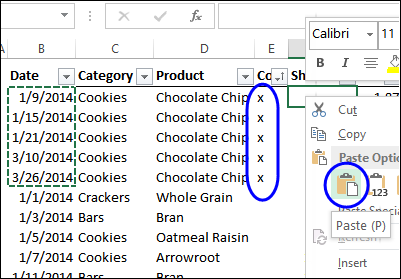
- For filters that are more complex, where you can’t do a simple filter to bring the rows together, you could insert a temporary column, and mark the rows, as shown in the screen shot below. Then, clear the filters, sort the temporary column, and copy and paste in the marked rows.
Video: Problem Pasting in Excel Filtered List
Watch this video to see why you have a problem pasting in Excel filtered list, and a couple of workarounds, to help you avoid the problem.
Download the Sample File
To download the sample file for this video, go to the Filtered List Pasting Problems page on my Contextures website.
The zipped sample file is in xlsx format, and does not contain any macros.
____________
dear debra
thank you for all the tips
but I think you should write a warning concerning the sort thing, because if the cells contain formulas, and we sort, we will be in much trouble,
one must pay attention to the sort,
thanks,
Nice, saved my time
hi to all
solution is here
copy filter field from your workbook of office 2007 or 2013
open new workbook in excel, 2003 of office 2003
right clicl – paste special – paste – XML spreadsheet –
U WILL FIND YOUR RESULT.
TEJAS SHAH
09712772601
Simplest way (IMO):
Filter the list you want to paste from. In the column you want to paste to click in the top cell and type the formula “=A2” (assuming the column you want to paste from is “A” and the first row (1) is a header). Right click in the cell where you just typed the formula and select “Copy”. Highlight the remaining cells in the column you want to paste to (the ones below). Paste the formula into those cells (he formula will only be pasted into visible cells). Now CLEAR the FILTER. You will see the contents of the cells match those from the source columns, however the cells contain formulas, not values. Depending on your purpose this may be sufficient. If, however, you need the cells to contain the actual values from the source column take this one last step. Highlight all the cells in the destination column (the one with the formulas you just created). Right click the top cell, select “paste special”, select “paste values”, and click “OK”.
Wonderful and simple! Thank you
Great solution Eddy, thanks!
Hi all – I have a question about copying and pasting filtered data. I have recorded a macro to filter a table with 7 columns (A7:G38) on Column B (which hides cells that do not have relevant content), then I sort on Column C (ordering figures from largest to smallest). NOTE: depending on content in other parts of the workbook, the rows between A7:G38 that have relevant content in this table are not always the same, sometimes for example row 77 may have irrelevant content and be hidden by the filter function, and sometimes it may have relevant content and appear as visible content after the filter. I then used the mouse to select and copy (as visible cells) the top 5 cells in each of Columns B, C and G, copying B and C first and pasting these into B7:B11 and C7:C11 on a different worksheet, copying G last, and pasting this into D7:D11 on the destination worksheet. I realised, however, that the recorded macro refers to the original row number of the data (e.g., B77:C77) when it copies. This means that if next time I run this macro the top 5 visible rows are instead made up of different original row numbers, the macro will still copy B77:C77 rather than the top 5 visible rows. I cant find a solution that I can understand and/or make work in all my research on this issue and wonder if someone could give me some help as to how I need to tell the macro to copy the first 5 visible rows, irrespective of the original row numbers attached to this data? I would really appreciate your help!
@Brenda, there is sample code on my Contextures site that you could modify:
http://www.contextures.com/excelautofilterlist.html#Copy
In the section with the Resize, set that to 5, instead of counting the rows:
rng.Offset(1, 0).Resize(rng.Rows.Count – 1) _
.SpecialCells(xlCellTypeVisible).Copy _
Destination:=ws.Range(“A1”)
CHANGE TO:
rng.Offset(1, 0).Resize(5) _
.SpecialCells(xlCellTypeVisible).Copy _
Destination:=ws.Range(“A1”)