
Excel doesn’t have a MAXIF function, but we’re able to create our own version, by combining the MAX and IF functions. But how about a bigger dream – MAX IF with multiple criteria? Could we create our own MAXIFS function too, with multiple IFs?
- [Update]: In Excel 2019, and Excel for Office 365, you can use the new MINIFS and MAXIFS functions. There is more information on the MIN and MAX page on my Contextures site.
Using MAX and IF
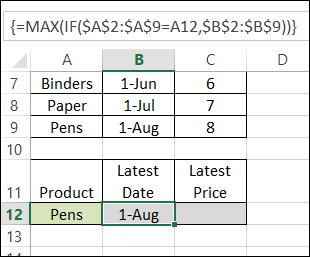
Last week, we used MAX and IF in an array-entered formula, to find the latest date that a product price was changed. Remember to press Ctrl + Shift + Enter after typing this formula, instead of just pressing Enter.
=MAX(IF($A$2:$A$9=A12,$B$2:$B$9))
Note: For more information on array formulas, I recommend Mike Girvin’s book, Ctrl+Shift+Enter: Mastering Excel Array Formulas.
Customers and Products
This week, our sample data has another column included – the customer name.
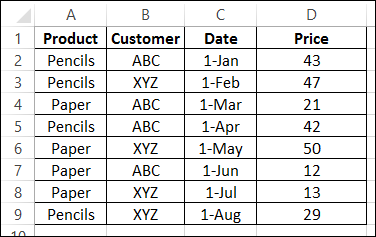
We’d like to revise that MAX and IF formula, to check for the latest date that a product price was changed, for a specific customer.
Select a Customer and Product
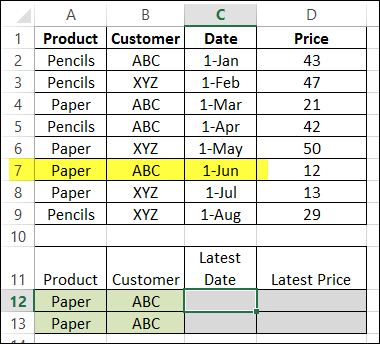
The product name, Paper, is entered in cell A12, and the customer name, ABC, is in B2. By manually checking the list, we can see that the latest price change was on June 1st.
Modify the MAX and IF formula
The original formula just checked the product name, and then returned the latest date, from column B.
=MAX(IF($A$2:$A$9=A12,$B$2:$B$9))
Now, we want the formula to check both the product name (column A), and the customer name (column B), and return the latest date (column C).
Entered in cell C12, the formula will start the same, by checking the product name:
=MAX(IF($A$2:$A$9=A12,
Then we’ll add a second IF function, to check the customer name:
=MAX(IF($A$2:$A$9=A12,IF($B$2:$B$9=B12,
Finally, we’ll get the date from column C:
=MAX(IF($A$2:$A$9=A12, IF($B$2:$B$9=B12,$C$2:$C$9)))
IMPORTANT: After typing the formula, array-enter it, by pressing Ctrl + Shift + Enter.
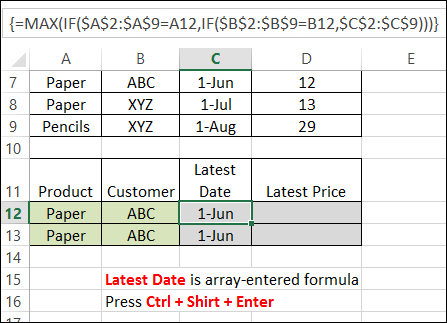
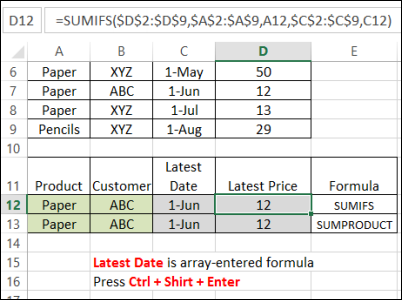
The formula is copied down to cell C13, and both cells show the correct result – June 1st.
Get the Latest Price
Finally, the Latest price is calculated using SUMIFS (Excel 2007 or later):
=SUMIFS($D$2:$D$9,$A$2:$A$9,A12,$C$2:$C$9,C12)
or SUMPRODUCT:
=SUMPRODUCT(($A$2:$A$9=A13)*($C$2:$C$9=C13)*($D$2:$D$9))
Download the Sample File
You can download the sample file from the MIN and MAX Functions page on my website.
- [Update]: In Excel 2019, and Excel for Office 365, you can use the new MINIFS and MAXIFS functions. There is more information on the MIN and MAX page on my Contextures site.
_____________________
Can any budy help me to resolve the below function..I am getting the error like #NUM! if I use this function
=IF($B$20=”Top”,IF($A$20=”Card1″,(LARGE(IF(MONTH(Date_P_B)=7,Card1_Utz),(IF(B20=”Top”,IF(A20=”Card2″,(LARGE(IF(MONTH(Date_P_B)=7,Card2_Utz),B21)))))))))
i need a solve for my problem .
i need to find the closest date for an item , my probelm is, all the date of my items are in the same row.
So , i need to find the closest date for each item, thanks in advance.
This is my scenarios (below). I need the excel formula. Thanks
Item Nos.
Tree Removal 2
Curb 4
Curb 10
Tree Removal 11
Tree Removal 6
Jersey 4
With a criteria of “Tree Removal” from column “Item”, I need to get the maximum figure in Column “Nos.” considering the criteria mentioned. The result should be “11”
I still can not solve my problem:
I have a list with some 7000 entries sorted by date and time descending. I would like to find the last entry in that list of a specific date in column O and get a corresponding value from column T
01/11/2014 00:03 466.00
01/11/2014 00:11 463.00
01/11/2014 00:11 466.28
01/11/2014 07:38 463.28
01/11/2014 07:59 468.86
02/11/2014 08:00 473.12
In this sample list I would like to know the last entry from 01/11/2014 and get 468.86 as a result.
Is that possible in a single formula?
Thanks for any advice.
Hi
I have noticed that when I use the max / IF functions together like this (using it to find a max date)
when I attempt to sort my data the reference cells don’t stay aligned…
IE =MAX(IF(‘Order Dates’!F:F=’Order Summary’!D7,’Order Dates’!P:P))
When I sort on the column this formula is in it loses the references (D7)
Any way around this problem?
Hi,
I am having a problem with my nested IF statement the Max functions seems to be completely ignoring it! I have only just returned to using Excel after 8 years absence and am a bit rusty.
My data includes 2 columns of text used in the IF statement and when both these criteria are met then I want the max from the corresponding values
e.g. Col 1 is Sex, M or F; Col 2 is Age, mature, fawn, and Col 3 is weight in Kg. So if it is a M and a fawn, I wish to find the max weight; if it is F and mature, I wish to find the max weight
I have tried representing the text as numerals and applying this to the calculation but am not having much luck.
Here’s an example of my current formula
=MAX(IF($C$4:$C$31=”F”,IF($D$4:$D$31=”mature”,$E$4:$E$31)))
Have tried several variations and alternative functions but am obviously just not quite getting it and my little brain is spinning.
Thanks in advance for any help you can give
Jaidria,
probably you forgot pressing CTRL+SHIFT+ENTER after typing.