
If you have a list on your Excel worksheet, and a date in each row, you can use a formula to count items in a date range. For example, how many Pencil shipments went out in September, based on the Ship Date column?
Count Items in a Date Range
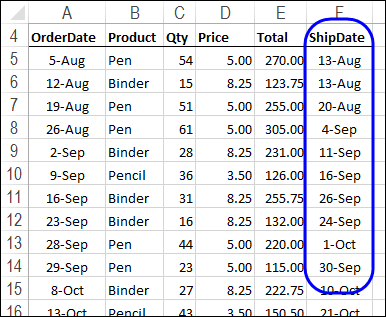
This screen shot shows a few rows of the list with the order details for this example. We’ll add a start and end date for a date range, and count items in that date range.
Use COUNTIFS and Cell References
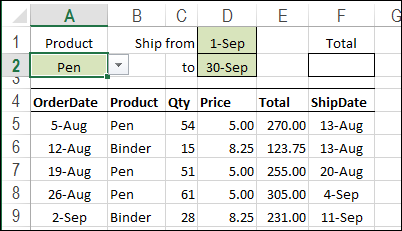
The easiest way to find the number of shipments is to use the COUNTIFS function (Excel 2007 and later) and enter the product name, and the start and end dates on the worksheet.
In this example, there is a drop down list of products in cell A2. The Start date is entered in cell D1, and the End date in cell D2.
Create the COUNTIFS Formula
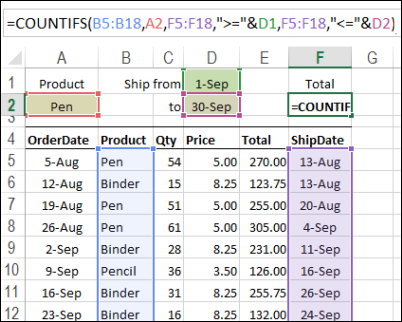
To calculate the number of Pen shipments in the date range, enter this formula in cell F2:
=COUNTIFS(B5:B18,A2,F5:F18,”>=”&D1,F5:F18,”<=”&D2)
- The first argument, B5:B18, is the first range to check for criteria.
- The 2nd argument, A2, is the range with the value for criteria 1 (Product)
- The 3rd argument, F5:F18, is the range to check for criteria 2.
- The 4th argument, “>=”&D1, is the cell with the value for criteria 2 (the Start date), and the operator to use with that value (greater than or equal to)
- The 5th argument, F5:F18, is the range to check for criteria 3.
- The 6th argument, “<=”&D2, is the range with the value for criteria 3 (the End date), and the operator to use with that value (less than or equal to)
The result will show a count of the number of times that all the criteria are met.
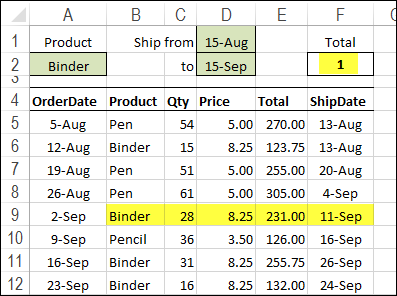
To get the total units for a different date range, change the product name or start and end dates in the heading section. In the next screen shot, the result shows that there was 1 Binder shipment between August 15th and September 15th.
Video: Sum in a Date Range
Using a different example, this video shows how to sum items that fall within a specified date range.
Video: Count Numbers in a Range – COUNTIFS
Using a different example, this video shows how to use the COUNTIFS function to count cells based on a range of numbers.
The minimum and maximum numbers are entered on the worksheet, so it’s easy to change the number range, when needed.
More Excel Date Tips
Fix Excel dates that won’t change Format
AutoFill Excel dates in series or same Date
How to prevent grouped dates in Excel
Excel filter for date range 2 Ways
________________
thanks a lot for help
i was trying to count how many dates are laying between today and the coming 7 days
i was using the function countifs(range,”>=today()”,range,”today()+7″)
it was not working until i notice you used in your example “>=”&D1 so i changed my formula to countifs(range,”>=”&today(),range,”<="&today()+7)and it worked.
@helmy You’re welcome, and glad the examples helped you fix your formula
Hi,
This is great for what im trying to do, how would I do this if I had the same table on different sheets. Using the example if I had more than one store where I was shipping pens and whatever from and had the information on different sheets. I want to be able to surmise this information in a separate summary sheet to keep things clear. I think it would involve putting something in the formula like Store1 before the cells but I don’t know.
Cheers,
Will
I am looking for a formula with great difficulty
So on Sheet 1 is the master data I have all names, managers, log in id, error code, error discription, start date.
on sheet 2 we resord the date error occurree, log in id and error number. Vlookup then gives us the rest of the data.
From sheet 2 I need to find out how many errors were made in a date period i.e 6th Dec to 12th Dec and to calculate the start date so how many errors were made by people who have been here 14days / 28 days / 42 days and 56+ days.
I am finding a formula sooooo hard to come by any help is much appreciated.
I am making inventory sheet and facing problem about calculation the Balance QTY. let me explain here; I have made total 6 columns;
Col A – 10 QTY. Received
Col B – 7 QTY. Issued
Col C – 4 QTY. Installed
Col D – 1 QTY. Returned
Col E – 1 QTY. DEAD
Col F – QTY. Balance
Hi ALL
I have purchased 10 items and issued 7, that means 3 items should be shown in balance, but my inventory record justifying total 6 items of column C,D and E. So it should show error in column F until I find 1 missing item? Because I have issued total 7 and if total items of C,D and E matches with column B then 3 items should show in column F Balance.
I will really appreciate if some body help me.
Thanks
Asad
Hi, I am looking to count the following
I have a start date and end date
I am looking to count the numbers in that range.
Any help.
Hi Debra,
Thanks a lot for this formula, it proved a great help, most of my reports are automated now. Perhaps can you also help me with Argument #2
“The 2nd argument, A2, is the range with the value for criteria 1 (Product)” here i want that it gives me count of everything except one product. example i want count of all products except PEN.
Rest all arguments are unchanged.
Thanks in advance.