
If you have a list on your Excel worksheet, and a date in each row, you can use a formula to count items in a date range. For example, how many Pencil shipments went out in September, based on the Ship Date column?
Count Items in a Date Range
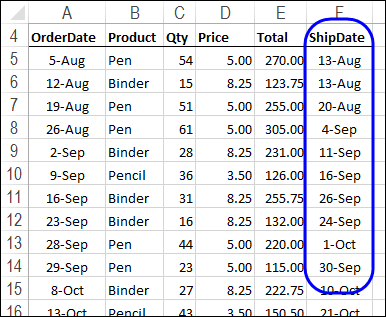
This screen shot shows a few rows of the list with the order details for this example. We’ll add a start and end date for a date range, and count items in that date range.
Use COUNTIFS and Cell References
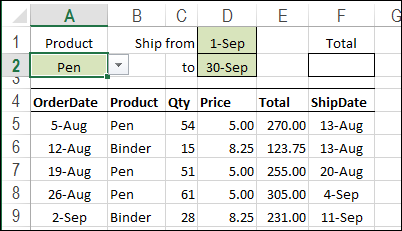
The easiest way to find the number of shipments is to use the COUNTIFS function (Excel 2007 and later) and enter the product name, and the start and end dates on the worksheet.
In this example, there is a drop down list of products in cell A2. The Start date is entered in cell D1, and the End date in cell D2.
Create the COUNTIFS Formula
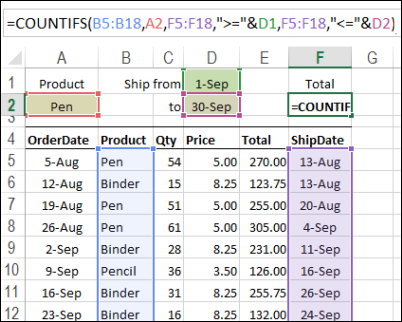
To calculate the number of Pen shipments in the date range, enter this formula in cell F2:
=COUNTIFS(B5:B18,A2,F5:F18,”>=”&D1,F5:F18,”<=”&D2)
- The first argument, B5:B18, is the first range to check for criteria.
- The 2nd argument, A2, is the range with the value for criteria 1 (Product)
- The 3rd argument, F5:F18, is the range to check for criteria 2.
- The 4th argument, “>=”&D1, is the cell with the value for criteria 2 (the Start date), and the operator to use with that value (greater than or equal to)
- The 5th argument, F5:F18, is the range to check for criteria 3.
- The 6th argument, “<=”&D2, is the range with the value for criteria 3 (the End date), and the operator to use with that value (less than or equal to)
The result will show a count of the number of times that all the criteria are met.
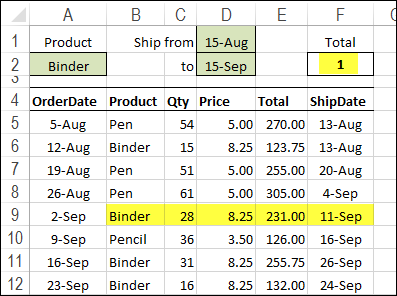
To get the total units for a different date range, change the product name or start and end dates in the heading section. In the next screen shot, the result shows that there was 1 Binder shipment between August 15th and September 15th.
Video: Sum in a Date Range
Using a different example, this video shows how to sum items that fall within a specified date range.
Video: Count Numbers in a Range – COUNTIFS
Using a different example, this video shows how to use the COUNTIFS function to count cells based on a range of numbers.
The minimum and maximum numbers are entered on the worksheet, so it’s easy to change the number range, when needed.
More Excel Date Tips
Fix Excel dates that won’t change Format
AutoFill Excel dates in series or same Date
How to prevent grouped dates in Excel
Excel filter for date range 2 Ways
________________
Please rely me
i wanna count how many dates are having in three column if there is any date then count 1 or no any date in three column then count 0
Center PM Plan Date Oct-14 2nd PM Plan Date 3rd PM Plan Date
Bannu-1 8-Oct-14 10-Oct-14 20-Oct-14
How can I count how many unique dates there are within the range specified by two input cells?
Ex: Teams are expected to complete a certain task every day. They can, however, complete the task multiple times in one day.
The formula Debra shared(=COUNTIFS(B5:B18,A2,F5:F18,”>=”&D1,F5:F18,”<="&D2)) works excellently to calculate how many times the team has completed the task within the specified time period. But how can I count how many unique days during that time period the team completed the task (or conversely, how many days did they skip the task?)?
I want something that looks like this:
Start date: 4/27/2015
End date: 5/1/2015
# of tasks completed: 9
# of days in compliance: 4
# of days out of compliance: 1
4/27/2015 – 5 tasks
4/28/2015 – 2 tasks
4/29/2015 – 1 task
4/30/2015 – 0 tasks
5/1/2015 – 1 task
Any advice is welcomed. Thank you!
Oops! I’m looking for a way to count UNIQUE days, so my data table probably should’ve looked like this, for a better example:
# of tasks completed: 7
# of days in compliance: 4
# of days out of compliance: 1
4/27/2015 – 1 task
4/27/2105 – 1 task
4/27/2015 – 1 task
4/28/2015 – 0 task
4/29/2015 – 1 task
4/29/2015 – 1 task
4/30/2015 – 1 task
5/1/2015 – 1 task
I tried the countifs formula but couldn’t get it to work to set up a simple table that tells me how often some material was counted within the month. Any help is greatly appreciated!!
=COUNTIFS(‘MI24′!A:D,’YTD MCBA’!$A4,’MI24′!D:D,”>=”&’YTD MCBA’!F1,’MI24′!D:D,”<="&'YTD MCBA'!F2)
The data is sorted as follows:
Material Pstng Date
10000005 1/7/2015
10000005 1/15/2015
10000005 1/21/2015
10000005 1/22/2015
10000005 1/28/2015
10000005 2/4/2015
10000005 2/5/2015
10000005 2/11/2015
10000005 2/18/2015
10000005 2/19/2015
10000005 2/20/2015
10000005 2/26/2015
10000005 3/5/2015
10000005 3/6/2015
10000005 3/13/2015
10000005 3/19/2015
10000005 3/27/2015
The table I am setting up… I get a #value error right now.
1/1/2015 2/1/2015
1/31/2015 2/28/2015
Material # of counts Jan Feb
10000005 32 #VALUE!
10000007 33
I want to count date to date in day like 12/05/2015 to 17/05/2015=6
but I can’nt count