
If you have a list on your Excel worksheet, and a date in each row, you can use a formula to count items in a date range. For example, how many Pencil shipments went out in September, based on the Ship Date column?
Count Items in a Date Range
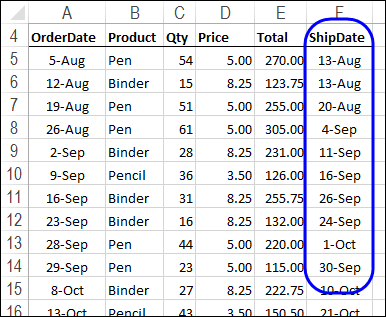
This screen shot shows a few rows of the list with the order details for this example. We’ll add a start and end date for a date range, and count items in that date range.
Use COUNTIFS and Cell References
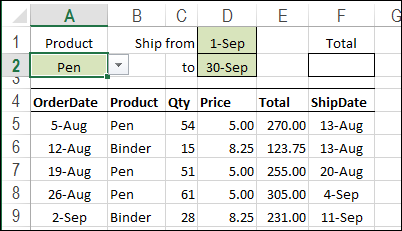
The easiest way to find the number of shipments is to use the COUNTIFS function (Excel 2007 and later) and enter the product name, and the start and end dates on the worksheet.
In this example, there is a drop down list of products in cell A2. The Start date is entered in cell D1, and the End date in cell D2.
Create the COUNTIFS Formula
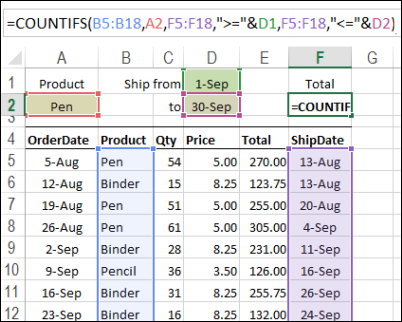
To calculate the number of Pen shipments in the date range, enter this formula in cell F2:
=COUNTIFS(B5:B18,A2,F5:F18,”>=”&D1,F5:F18,”<=”&D2)
- The first argument, B5:B18, is the first range to check for criteria.
- The 2nd argument, A2, is the range with the value for criteria 1 (Product)
- The 3rd argument, F5:F18, is the range to check for criteria 2.
- The 4th argument, “>=”&D1, is the cell with the value for criteria 2 (the Start date), and the operator to use with that value (greater than or equal to)
- The 5th argument, F5:F18, is the range to check for criteria 3.
- The 6th argument, “<=”&D2, is the range with the value for criteria 3 (the End date), and the operator to use with that value (less than or equal to)
The result will show a count of the number of times that all the criteria are met.
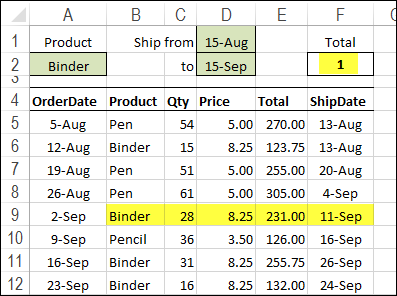
To get the total units for a different date range, change the product name or start and end dates in the heading section. In the next screen shot, the result shows that there was 1 Binder shipment between August 15th and September 15th.
Video: Sum in a Date Range
Using a different example, this video shows how to sum items that fall within a specified date range.
Video: Count Numbers in a Range – COUNTIFS
Using a different example, this video shows how to use the COUNTIFS function to count cells based on a range of numbers.
The minimum and maximum numbers are entered on the worksheet, so it’s easy to change the number range, when needed.
More Excel Date Tips
Fix Excel dates that won’t change Format
AutoFill Excel dates in series or same Date
How to prevent grouped dates in Excel
Excel filter for date range 2 Ways
________________
Is it just me or is it easier to read and write
=SUMPRODUCT((B5:B18=A2)*(F5:F18>=D1)*(F5:F18=”&D1,F5:F18,”<="&D2)
???
Last comment cobbled together everything. =SUMPRODUCT((B5:B18=A2)*(F5:F18>=D1)*(F5:F18<=D2))
Can this formula use to count for multiple sheet (all sheet)? how and what to add?
Why not have an Excel file for download?
Thank you.
Is it possible to create a cell that includes D1 & D2 in the same cell? I want a cell to say January by using quotation marks but the cell itself should be the date range between the first of January and the last day of January.
BILL DATE PAYMENT DATE DAY COUNT No. HOLIDAYS IN RANGE
01-07-14 05-07-14 4.00 Here count of holidays in between bill date and payment date.
08-07-14 15-07-14 7.00
01-07-14 15-07-14 14.00
08-07-14 13-07-14 5.00
20-07-14 25-07-14 5.00
HOLIDAY LIST
02-07-14
09-07-14
24-07-14