
Even if a worksheet is protected, you are able to scroll in any direction, and see what is on the sheet. To prevent scrolling on Excel worksheet, change the ScrollArea property for the worksheet, either manually or with a macro.
Not a Security Feature
Like other Excel protection settings, this is just a deterrent, or a navigation aid, rather than a security feature. Don’t depend on the ScrollArea setting to guard your worksheet!
NOTE: The Scroll Area has to be set each time the workbook opens. To automate this, use a macro that runs when the workbook opens. There is sample code below.
Set the Scroll Area Manually
To see how the Scroll Area setting works, you can enter the range address manually.
To manually set the Scroll Area:
- On the Ribbon, click the Developer tab, and click Properties
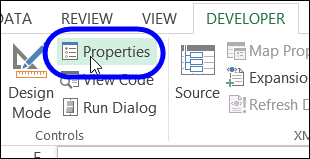
- In the Properties window, enter a range address in the ScrollArea property box
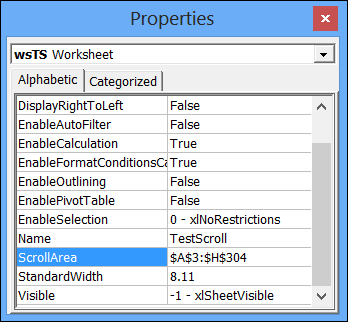
- Click on the worksheet, and you will be restricted to clicking and scrolling in the Scroll Area.
To manually clear the Scroll Area:
- On the Ribbon, click the Developer tab, and click Properties
- In the Properties window, delete the address in the ScrollArea property box
- Click on the worksheet, and you will be able to click and scroll freely (assuming that the sheet is not protected).
Set Scroll Areas With a Macro
The Scroll Area settings are cleared when you close the workbook, and you have to set them again, each time the file opens. You can use a macro to set them, as part of the Workbook_Open procedure.
Copy this macro to a regular module in your workbook. It will set the Scroll area for each worksheet in the file, based on the Used Range on that sheet.
Sub SetAllScrollAreas()
Dim ws As Worksheet
For Each ws In ActiveWorkbook.Worksheets
    ws.ScrollArea = ws.UsedRange.Address
Next ws
End Sub
Add the macro name to the Worksheet_Open procedure in the ThisWorkbook module.
Private Sub Workbook_Open()
    SetAllScrollAreas
End Sub
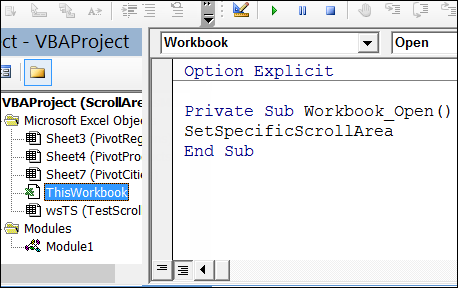
Now, the ScrollArea settings will be added each time the file opens, if you enable macros.
Download the Sample File
To see the code and test worksheets, you can download my sample file. Go to the Worksheet Tips page on my Contextures site, and look for the Download Sample Files section.
Watch the Video
To see the steps for manually or programmatically setting the Scroll Area, watch this short video.
____________________
Hi Rachel
Setting the range manually only ever persists for that session, and is always lost on closing Excel.
You would either need to set the range with the Worksheet Activate event, similar to what I posted earlier, or place some code in the ThisWorkbook module as a Workbook Open event setting
Sheets(yoursheetname).ScrollArea=your range
Substitute your values as appropriate
S
Thanks Roger.
The problem is that I do not see Workbook Open setting. Where can I find it?
@Rachel
Hi Rachel
When you go to the ThisWorkbook module in the VB Editor, at the top row of the Code window there are 2 dropdowns.
Select the left and choose Workbook, then in the right hand drop down you will get a list of all of the Workbook |Events.
Scroll down until you get to Open and select it and you will get
Private Sub Workbook_Open()
End Sub
then enter within the sub the required code e.g
Private Sub Workbook_Open()
Sheets(“Sheet1”).ScrollArea = “A1:M1000”
End Sub
Change the sheet name and the range to suit your requirement.
Hi,
That last script has worked perfectly for one of my worksheets, but how do I make it work when I have multiple sheets with different areas?
Thanks
Lissa
Hi Lissa
Take a look back at the very first comment where I show the use of the Worksheet Activate event to set the scroll area.
Then, you can make the area different for each sheet, and as you activate the sheet, the scroll area changes to whatever you have decided is appropriate.
If required on some sheets, you can set the scroll area to be null. “” to remove. The scroll area.
Hi, am trying to use the code Sheets(“Sheet1”).ScrollArea = “A1:U28” but it dsnt work.
Followed the instructions given by you but no luck..Please help
Hi
Where are you placing this code?
Is it somwhere where you know it definitely gets run?
If you are really stuck, send me a copy of your workbook
roger at technology4u dot co dot uk
Replace the at and dot to make a valid email address
Hi Roger,
Thank you so much for the prompt reply on your blog.
The code now works fine..I have multiple worksheets and I applied this code on the index sheet.
For other sheets also i need similar feature.. can you please help