
Even if a worksheet is protected, you are able to scroll in any direction, and see what is on the sheet. To prevent scrolling on Excel worksheet, change the ScrollArea property for the worksheet, either manually or with a macro.
Not a Security Feature
Like other Excel protection settings, this is just a deterrent, or a navigation aid, rather than a security feature. Don’t depend on the ScrollArea setting to guard your worksheet!
NOTE: The Scroll Area has to be set each time the workbook opens. To automate this, use a macro that runs when the workbook opens. There is sample code below.
Set the Scroll Area Manually
To see how the Scroll Area setting works, you can enter the range address manually.
To manually set the Scroll Area:
- On the Ribbon, click the Developer tab, and click Properties
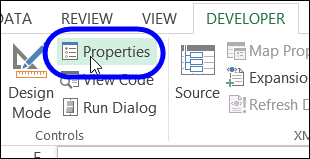
- In the Properties window, enter a range address in the ScrollArea property box
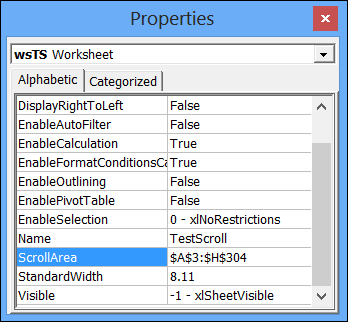
- Click on the worksheet, and you will be restricted to clicking and scrolling in the Scroll Area.
To manually clear the Scroll Area:
- On the Ribbon, click the Developer tab, and click Properties
- In the Properties window, delete the address in the ScrollArea property box
- Click on the worksheet, and you will be able to click and scroll freely (assuming that the sheet is not protected).
Set Scroll Areas With a Macro
The Scroll Area settings are cleared when you close the workbook, and you have to set them again, each time the file opens. You can use a macro to set them, as part of the Workbook_Open procedure.
Copy this macro to a regular module in your workbook. It will set the Scroll area for each worksheet in the file, based on the Used Range on that sheet.
Sub SetAllScrollAreas()
Dim ws As Worksheet
For Each ws In ActiveWorkbook.Worksheets
    ws.ScrollArea = ws.UsedRange.Address
Next ws
End Sub
Add the macro name to the Worksheet_Open procedure in the ThisWorkbook module.
Private Sub Workbook_Open()
    SetAllScrollAreas
End Sub
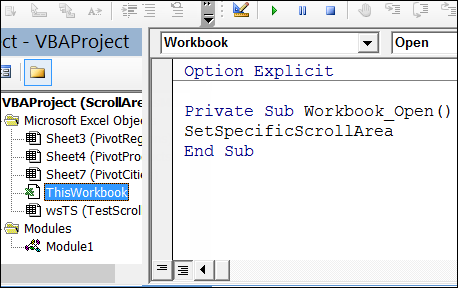
Now, the ScrollArea settings will be added each time the file opens, if you enable macros.
Download the Sample File
To see the code and test worksheets, you can download my sample file. Go to the Worksheet Tips page on my Contextures site, and look for the Download Sample Files section.
Watch the Video
To see the steps for manually or programmatically setting the Scroll Area, watch this short video.
____________________
Great tip Debra.
This is something I use all the time for any work done for clients.
However, I don’t use the Used Area as the range on any sheets involving Data Entry
As you say, it is not a security feature, but I like the fact that this option prevents the users from Inserting or Deleting any rows or columns, and thereby reduces the risk of such actions ruining any formulae that have been set.
The range that I use limits the the columns to the used columns range, but allows for additional rows to the used range to allow for further data entry.
As such, my event code is not set at the workbook level, but at the Sheet level on the Activate action.
Private Sub Worksheet_Activate()
Dim myRange As Range
Dim addRows As Long
addRows = 200
Set myRange = UsedRange.Resize(addRows)
Me.ScrollArea = myRange.Address
End Sub
I just change the value of addRows to whatever would be appropriate for the particular sheet
Thanks Roger, that’s a great technique for data entry sheet!
I guess your workbook Open code activates another sheet as a starting point, so you can ensure that the data entry sheet is activated by the user later.
Hi Deb
Yes, you are absolutely correct, and I should have mentioned that.
The Workbook Open event takes the user to a control sheet called Menu, which has buttons with macros attached to take them to other sheets.
Each individual sheet has a button called Menu, which takes them back to the Menu sheet.
Very often, the tabs themselves are hidden, so the user has to navigate under “my” control.
OUTSTANDING!
This will be immediately useful in a project I’m working on now, and in a lot of others. I built a lot of apps in Excel and it’ll be great to have Excel behave more like an app, and that means users can’t scroll around into blank space. Thanks for this.
thanks Debra! been trying to figure out how to do this, but I was making it way more complicated than it needed to be. cheers!
Thanks Debra
This is simple and great. I searched YouTube for this but ran into complicated formulas. This has helped me with test that I created using excel.
Thanks Louis!
I set the Scroll Area manually and it works until I close the file. Once I do that and open it again, the scroll area is going back to old times.
Why doesn’t the range I enter stick?