
It’s fairly easy to make one drop down list show items based on what was selected in another drop down. But what about making a third drop down list? And how can you work with spaces, or other characters that can’t be used in Excel names?
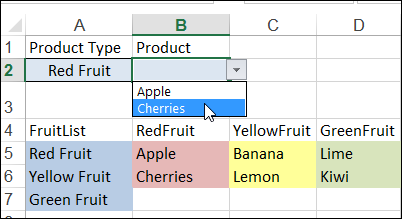
Here is a nice, simple conditional list – if you select Red Fruit in cell A2, you can see a list of red fruit in cell B2.
Video: Make a Basic Conditional Drop Down List
To see how to make a basic dependent drop down list in a cell, watch the steps in this short video, and the written instructions are on the Excel Dependent Drop Down List page on my Contextures site.
Using Named Ranges
Sometimes things aren’t quite as simple, as you can see in the next example.
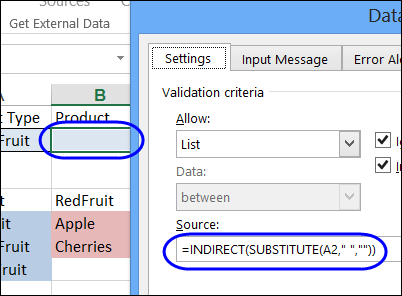
There is a named range on the worksheet – RedFruit – and the data validation formula uses the INDIRECT function to create a reference to that range. The formula also removes any spaces in the text, by using the SUBSTITUTE function, because the range names can’t use space characters.
=INDIRECT(SUBSTITUTE(A2,” “,””))
Lookup Tables for Complex Lists
It’s simple to use the SUBSTITUTE function to get rid of any spaces, but your list of items might contain other characters that can’t be used in range names, such as an ampersand (&) or asterisk (*).
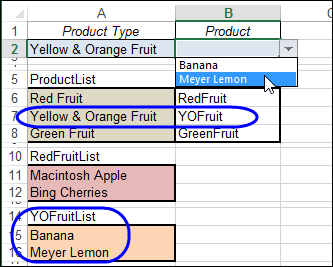
Instead of trying to substitute every illegal character, you can set up a lookup table. Put the list items in the first column, and a short code for each item in the second column. The range with items and codes is named ProductLookup.
The data validation formula will look in that list, to find the code, and show the items from a list with that name. In this example, all the list names end with “List”, so that is added in the formula.
=INDIRECT(VLOOKUP(A2,ProductLookup,2,0)&”List”)
Add a Third Dependent Drop Down
You could even add a third drop down list that is dependent on the selections in the first two.
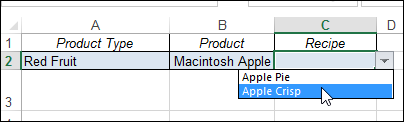
Just create a lookup table for each of the secondary lists, and an item list for each of those secondary codes.
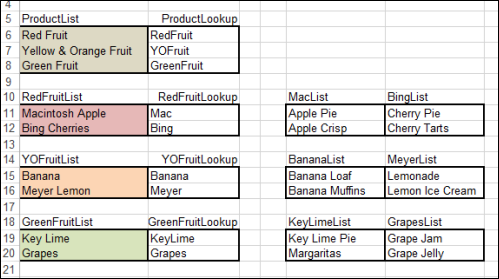
Here is the data validation formula in cell C2
=INDIRECT(VLOOKUP(B2,INDIRECT(VLOOKUP(A2,ProductLookup,2,0)&”Lookup”),2,0)&”List”)
It finds the product lookup table,
- VLOOKUP(A2,ProductLookup,2,0)&”Lookup”
the product code in that table,
- VLOOKUP(B2,INDIRECT(VLOOKUP(A2,ProductLookup,2,0)&”Lookup”),2,0)
and adds “List” to create a reference to the list name.
=INDIRECT(VLOOKUP(B2,INDIRECT(VLOOKUP(A2,ProductLookup,2,0)&”Lookup”),2,0)&”List”)
Download the Sample File
You can see the details on my Contextures website, Dependent Lists page, and download the sample file.
_________
I want to get away from using named ranges for cascading dropdowns, as they are finicky to maintain.
What I would rather do is fill the dropdown box from a sheet showing matches. Example.
Conifer | Pine | Lodgepole Pine

Conifer | Pine | Ponderosa Pine

Conifer | Pine | Scots Pine

Conifer | Fir  | Balsam Fir

Conifer | Fir  | Veitch Fir

Conifer | Fir  | Alpine Fir

Conifer | Spruce | Black Spruce

Conifer | Spruce | Colorado Spruce

Conifer | Spruce | Norway Spruce

Fruit   | Apple  | Battleford Apple

Fruit....
Then I can type C it fills in Conifer tab and shows a choice of Pine, Fir Spruce, I type P it matches Pine, and shows the three species of pine.
I want to do this without mousing about.
Is this possible?
(I am running Excel for Mac 2011)
Sherwood did you had any reply? im l;ooking for the same solution
Here’s a guest post I wrote some time back with an approach that doesn’t require you to set up individual Named Ranges:
http://chandoo.org/wp/2014/02/25/robust-dynamic-cascading-dropdowns-without-vba/
I’m also working on a nifty commercial add-in that lets you do a wildcard search of large data validation lists. Probably about a month away from finishing it, though.
Good evening,
Brilliant information above but I have one question how do you add a 4th dependant drop drown please?
Many tahnks
How do I included a blank line in a drop-down box for possible add-ins the the actual drop-down? example… My current drop-down includes | Travel, Meals, Parking, Flight, Lodging. We rarely have anything else. But today someone wanted to add Tolls and Tips, on the fly not added to the list just as a write-in. Please help
Thanks
When you’re setting the Data Validation for the dropdown, notice that there are 3 tabs in that window the last being “Error Alert”. This defaults to the Stop style but you can change it to Information and then the cell will accept any text not just the dropdown list.
Hi can you try to check my formula if it’s correct?
=if(r2=””,MarketGroup,indirect(“FakeRange”))
I am trying to block the first drop down when there’s already a value entered in the second drop down.