
Do you ever put a picture or clip art on a spreadsheet? I don’t use them very often, but occasionally I’ll add a small picture on an instruction worksheet, or insert a company logo on a printable form.
If you do add pictures, do you fuss with them, or just slap them on the sheet, and leave them as is? I usually adjust the picture’s size, so it fits in the spot where I want it, and maybe crop a little off the sides.
Remove Picture Background
A couple of weeks ago, I saw John Walkenbach on Google Plus, showing how to remove the background from a picture in Excel. It looked interesting, so I decided to test that feature on one of my own pictures.
NOTE: The Remove Background feature was introduced in Excel 2010, so you can use it in that version too.
- First, I inserted a picture onto the worksheet, and selected the picture.
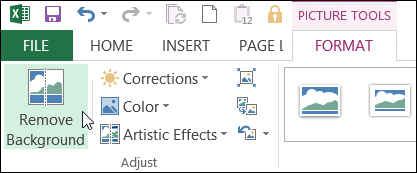
- On the Ribbon’s Format tab, I clicked the Remove Background command
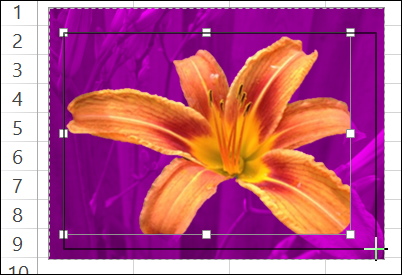
- The background changes to purple, and those are the sections that will be removed.
- There is a rectangular outline around the “Keep” section, and you can adjust that, to include or exclude more of the picture
Adjust the Sections
To adjust the sections that will be removed, you can use the tools on the Background Removal tab.
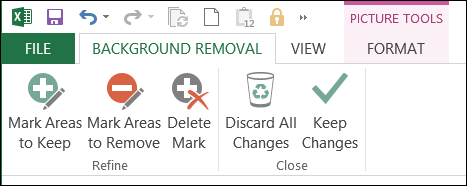
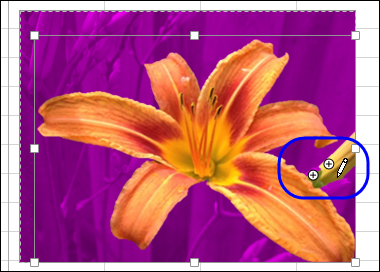
- For example, if a section is coloured pink, and you want to keep it, click the Mark Areas to Keep tool, then click on that part of the picture.
- If you change your mind, use the Delete Mark tool to remove the marks that you added.
Keep the Changes
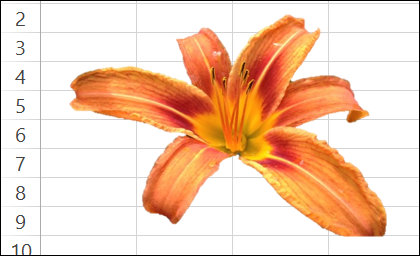
When you’re satisfied with the background markings, click the Keep Changes command, to see the result.
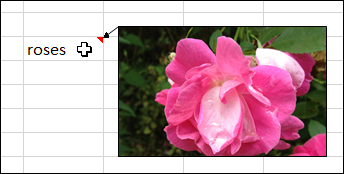
And remember, you can put pictures in cell comments too, where they only appear if you point to the cell.
Excel Book Giveaway
That’s just one of the 101 tips in John Walkenbach’s new book – 101 Excel 2013 Tips, Tricks & Timesavers.
You might already know a few of the tips, but there must be a few things that you don’t know – or you used to know, and forgot!
For example:
- Display a live calendar in a range
- Count non-duplicated entries in a range
- Use Flash Fill to extract data
- Perform inexact searches
Katie Mohr, at Wiley, has kindly provided a ebook copy John’s book for a giveaway. If you’d like to win a copy of the book, add a comment below.
- In your comment, share one Excel tip that you would include, if you were writing a book of 101 Excel tips.
- Include your email address, so Katie can contact you if you win. Your contact information won’t be publicly visible, and it won’t be used for any other mailings.
- The deadline is Wednesday, July 24, 2013, at 12 noon Eastern Daylight Time.
- One entry per person.
- The winner will be selected in a random draw, and announced here on Thursday, July 25th.
_______________
When doing calculations on multiple sheets we often refer back to a sheet again and again for checking a value in that sheet, the best way to same time is to use the Watch Window function in Formulas tab to monitor the value of a cell without going on to other tab.
Tip for Excel 2013:
I liked the Sheet & Sheets functions which are newly added in Excel 2013 by Microsoft. They both are information functions.
The Sheet function provides you the sheet number which is set accordingly on the sheet tab.
Example: =SHEET(“Rahim”) – Returns the sheet number of the worksheet named Rahim.
The Sheets function is applied when you want to know the number of sheets it contains.
EXAMPLE: =SHEETS() – We have three worksheets in a workbook and it will give us number 3 Because there is no Reference argument specified, the total number of sheets in the workbook is returned (3).
For selecting large chunks of data or simply navigating around massive data sheets just use CTRL, SHIFT + an Arrow Key; up, down, left or right and hit the arrow again to skip blanks or change direction until you get all the data you want to select or use a simple mouse click hundreds of cells from where you started to teleport onto the edges of your current data universe!
One technique that saves me a lot of time (and always seems to impress my colleagues!) is Ctrl+Enter to enter the same text/formula into a range of cells.
This is particularly useful when combined with Goto>Special>Blanks to populate several blank cells that are in the same column.
Congratulations Neil!
In conditional formatting, making a new formula rule that highlights an entire row based on one cells value. If A2 was “Yes”, the rule =$A2=”Yes” would then highlight row A — (highlight means to set it to the desired format). Remember to set the cell/array or table to which the rule should apply. Better yet, the rule setting cell (in this case “A2”) does not have to be in the pertaining array. This is especially useful if you give a cell a drop down list (through validation) to trigger the rule, then a nearby table will highlight certain rows based on the drop down.