
Do you ever put a picture or clip art on a spreadsheet? I don’t use them very often, but occasionally I’ll add a small picture on an instruction worksheet, or insert a company logo on a printable form.
If you do add pictures, do you fuss with them, or just slap them on the sheet, and leave them as is? I usually adjust the picture’s size, so it fits in the spot where I want it, and maybe crop a little off the sides.
Remove Picture Background
A couple of weeks ago, I saw John Walkenbach on Google Plus, showing how to remove the background from a picture in Excel. It looked interesting, so I decided to test that feature on one of my own pictures.
NOTE: The Remove Background feature was introduced in Excel 2010, so you can use it in that version too.
- First, I inserted a picture onto the worksheet, and selected the picture.
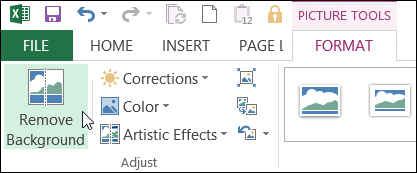
- On the Ribbon’s Format tab, I clicked the Remove Background command
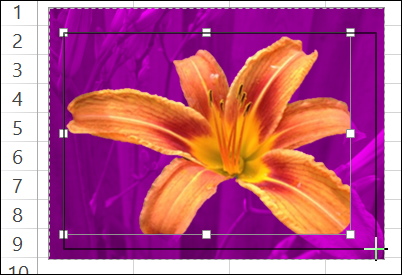
- The background changes to purple, and those are the sections that will be removed.
- There is a rectangular outline around the “Keep” section, and you can adjust that, to include or exclude more of the picture
Adjust the Sections
To adjust the sections that will be removed, you can use the tools on the Background Removal tab.
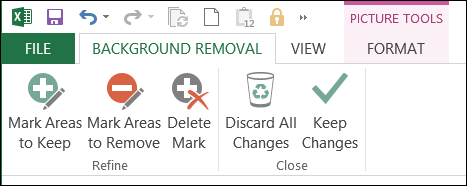
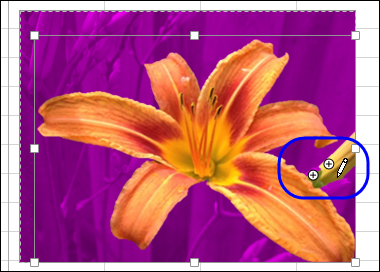
- For example, if a section is coloured pink, and you want to keep it, click the Mark Areas to Keep tool, then click on that part of the picture.
- If you change your mind, use the Delete Mark tool to remove the marks that you added.
Keep the Changes
When you’re satisfied with the background markings, click the Keep Changes command, to see the result.

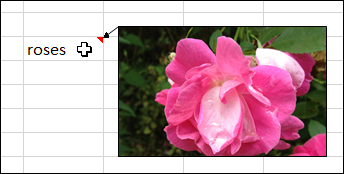
And remember, you can put pictures in cell comments too, where they only appear if you point to the cell.
Excel Book Giveaway
That’s just one of the 101 tips in John Walkenbach’s new book – 101 Excel 2013 Tips, Tricks & Timesavers.
You might already know a few of the tips, but there must be a few things that you don’t know – or you used to know, and forgot!
For example:
- Display a live calendar in a range
- Count non-duplicated entries in a range
- Use Flash Fill to extract data
- Perform inexact searches
Katie Mohr, at Wiley, has kindly provided a ebook copy John’s book for a giveaway. If you’d like to win a copy of the book, add a comment below.
- In your comment, share one Excel tip that you would include, if you were writing a book of 101 Excel tips.
- Include your email address, so Katie can contact you if you win. Your contact information won’t be publicly visible, and it won’t be used for any other mailings.
- The deadline is Wednesday, July 24, 2013, at 12 noon Eastern Daylight Time.
- One entry per person.
- The winner will be selected in a random draw, and announced here on Thursday, July 25th.
_______________
I love Ctrl-* to select the whole range and Shift-F9 to only calculate the sheet. This is very useful if you’ve turned manual calculations off and have already done your data crunching then when you are just playing with output you can quickly update that without having to recalculate the sheet.
My favorite tip is CTL+SHFT+L to turn filters off and on. I use it to quickly clear all filters.
My favourite tip is “Fill in the Empty Cells”
I get a report each month that has the salesman’s name directly above his sales figures. I want his name to appear at the left of his sales on a line by line basis.
To do this I move each salespersons name on cell to the left so I end up with a series of blank cells beneath salesman #1 and #2, etc. that I want filled.
I go to the bottom of the report and highlight the column and hit F5 and select special the click on blanks. I then go to the formula bar and key in the cell address of the first salesman’s name (usually A2) so +A2.
Then I key in Ctrl + Enter and presto! all the cells are labeled with the salespersons name. I the highlight the column and copy it to the same location and do a paste special as values so the data is hardened.
Ctr + alt + arrow key to select an entire row or column.
I always have students that love making charts easier to create. With that said, there is a great way to do this. With one button!
Step 1: Select the data for your chart.
Step 2: Hit the F11 key.
This will create the default chart type (usually a column chart) on a new worksheet.
Open Excel without also opening a blank worksheet by editing your desktop Excel shortcut’s target file to include a /E at the very end. Open Excel using this modified shortcut and you will no longer have a blank workbook automatically load.
“C:\Program Files (x86)\Microsoft Office\Office14\EXCEL.EXE” /E