
To make it easy for people to enter data on a worksheet, you can insert a check box control, using the Form Control tools on the Developer Tab. Then, use check box result in Excel formula solutions.
Form Controls on Developer Tab
If you don’t see a Developer tab, there are instructions here for showing it.
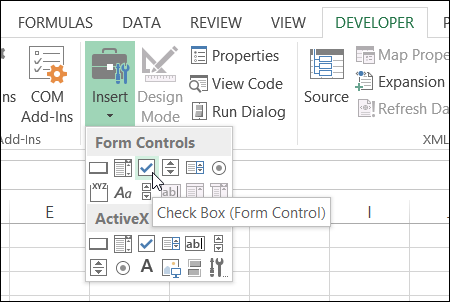
Adding these controls to a worksheet can make it easy for people to enter data – they just click to select the option that they want.
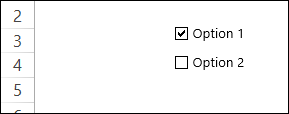
But, after they’ve checked that box, how do you capture that information, and use it in your formulas?
Link the Check Boxes to Cells
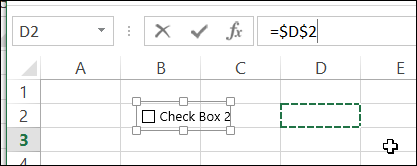
When you add a check box to the worksheet, it isn’t automatically linked to a cell. If you want to use the check box result in a formula, follow these steps to link it to a cell:
- To select a check box, press the Ctrl key, and click on the check box
- Click in the Formula Bar, and type an equal sign =
- Click on the cell that you want to link to, and press Enter
Check Box Result is TRUE or FALSE
If you have multiple check boxes, you can link each one to a separate cell on the worksheet.
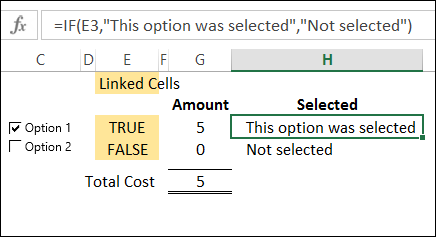
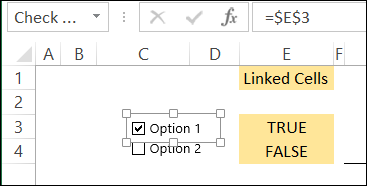
In the screen shot below, Option 1 check box is linked to cell E3, and Option 2 is linked to cell E4. When the box is checked, the linked cell shows TRUE, and if it is not checked, the linked cell shows FALSE.
Use the Check Box Result in a Formula
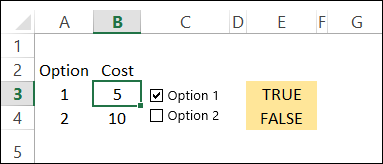
In this example, each option has a price, and I’ve entered the prices in column B.
In a worksheet formula, if you use TRUE or FALSE in a calculation:
- TRUE has a value of 1.
- FALSE has a value of 0.
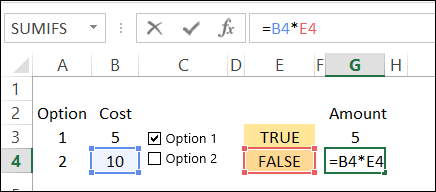
So, we can use the results in the linked cells, to calculate the cost for each option. We’ll multiply the cost in column B, by the check box result in column E.
- The formula in cell G3 is: =B3 * E3 and the result is 5, because 5 multiplied by 1 equals 5.
- In cell G4, the result is 0, because 10 multiplied by 0 equals 0.
Test the Result with IF
If your formula is fancier than a simple multiplication, you can use the IF function to test the result in the linked cell.
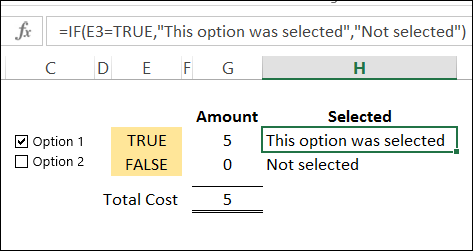
In cell H3, the following formula shows a text string if cell E3 is TRUE, and a different message if it is not TRUE.
=IF(E3,”This option was selected”,”Not selected”)
Another Check Box Formula Example
To see another example of using a check box result in a formula, take a look at Dave Peterson’s loan table formula on my Contextures website. There is a sample file that you can download.
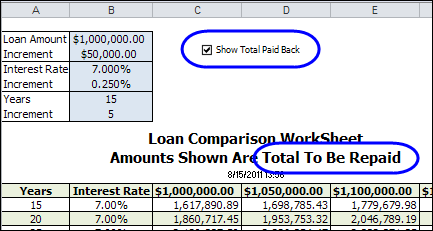
A check box at the top of the worksheet is linked to cell C1. Check that box if you want to see the total amount that will be paid back, instead of the monthly payment required.
If cell C1 is TRUE, then the monthly payment in the table is multiplied by the number of payments. If C1 is FALSE, the monthly payment is multiplied by 1.
This is the formula in cell C12:
=-PMT($B12/12,12*$A12,C$11)*IF($C$1,$A12*12,1)
_____________________
Hi Debra,
I’m using a check box for an NY sales tax issue. All my purchases are taxed. If a sale is taxable, I get to deduct the sales tax on my purchase, on the return. If the sale is not taxable, the sales tax becomes part of my COGS. I have a quote template setup so that if checked when the sale is taxable, it will deduct the sales tax from my cost & lower my selling price by that same amount. What I’m trying to do is, if my selling price is below $7,500.00, do not deduct the sales tax cost. This is my formula: =IF(G10,(D11-(E11*0.08625)),D11). So G10 is the linked cell to the check box. If checked (meaning the sale is taxable), it will take my selling price (D11) & subtract the sales tax I paid (E11)= my cost * tax rate & subtract it from D11. I want it to only to this if D11 is > than $7,500.00.
Hi Scott,
You could put the minimum price somewhere in the workbook, and name that cell MinPrice.
Then, compare the selling price to the min price in the formula:
=IF(G10,(D11-((D11>MinPrice)*E11*0.08625)),D11)
I just used 7500 instead of “MinPrice”, but it worked perfect! You are good!!!
I’m using options buttons to display rows where Column I contains either “Mandate” or “Flex” in the cells. All cells in column I contain either “Mandate”, “Flex” or “Mandate and Flex”. I want the option button if “Mandate” is selected then the row that corresponds to the cell containing “Mandate” or “Mandate and Flex” will be displayed. How do I write that code for the button?
Hi, I’m using a check box to control the display of a chart in a dashboard (on/off). I’ve set up a named range which uses the indirect function linked to the value displayed in the check box B2:
Getchart1 : =if(Data!$B$2,Indirect(chart_to_display!$D$2,NA())
When I try and assign the Getchart1 range to a random shape on the dashboard, so the indirect and the check box functions can work, I get the error message ‘Reference is not valid’.
Any ideas what is happening?
I am trying to make a budgeting tool where all the options would check boxes with a dollar value assigned to them and would total everything. something like below
Option 1-10 Qty Total
Add 1-10 * =
HI, I’d like to create spreadsheet of 10 questions, all with 3 possible answers, yes|no|don’t know. Basically I’d like to click the corresponding checkboxes for each question. But instead of using loads of rows, I have 1,000 questionnaires at the moment and more to come, is it possible to somehow have the questions once and once saved, the checkboxes clear and I can add in the more data. Kind of like a database? And in another tab have the results, which would be easy to read, i.e. question 1 – 1,000 people said yes, question 2 – 500 people said yes 300 said no and 200 said don’t know. Does that make any sense? It does in my head but I’m completely Excel basic so have no idea if this is even possible or how to start. Many thanks
@Becca, you could use code similar to what’s in this worksheet data entry form, to send the results to a different sheet.
http://www.contextures.com/xlForm02.html
How would I use a checkbox to copy a billing address to a shipping address? I have seen it done in the past, but I am not sure how. Thank you!