
To make data entry easier, you can create a drop down list in an Excel cell, using data validation.
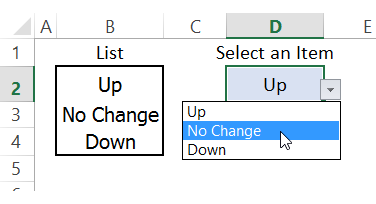
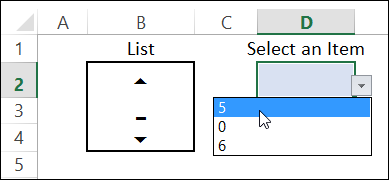
This works well with a list of words, but the list doesn’t show symbols if you create the list in a font such as Webdings. In the example below, I entered 5, 0, and 6 in cells B2:B4 and formatted the cells with Webdings.
The drop down list shows the number values, instead of the formatted symbols.
Use Built-In Symbols
You can’t create a drop down list of symbols based on formatted cells, but you can use some well-hidden symbols instead.
In the screen shot below, cells B2:B4 are formatted in Tahoma font, which is the same font used in the drop down list.
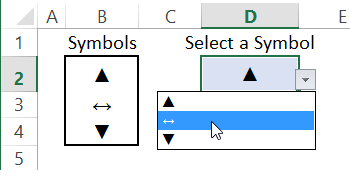
- To create the Up Arrow in B2, I pressed the Alt key, and typed 30 on the number keypad.
- NOTE: You have to use the number keypad – not the numbers at the top of the keyboard.
- Then, use the same technique in cells B3 and B4, with numbers 29 and 31.
Watch the Video
This video shows you the steps for creating a drop down list, to show a selection of symbols.
Download the Sample File
To download the sample file, visit my Contextures website: Data Validation Tips and Quirks.
______________
I can’t seem to figure out how to create a simple 5 star rating drop down list. I don’t want the cells in the list to associate with anything. I just want to be able to have 1 star, 2 stars, 3 stars, 4 stars, and 5 stars to choose from in a drop down list. I can’t believe how hard this seems to be and after 2 hours of searching on the internet, I haven’t found any help.