
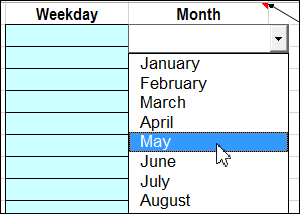
One of my Excel sample files lets you double-click on a cell that has a data validation list, and a combo box pops up. The combo box has advantages, because you can set the font size, and the number of rows in the drop down list, and the entry autocompletes as you type.
However, one of the disadvantages is that the combo box lets you type anything, even if it’s not a valid entry from the data validation list. In the combo box shown below, I was able to type “Cold” as a month name.
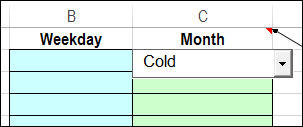
And even though there are several cold months in Canada, there isn’t one that’s officially named “Cold”.
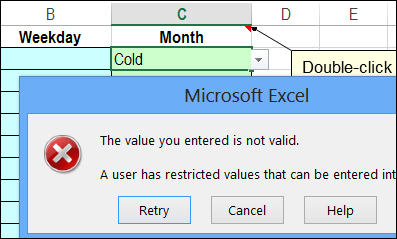
If I tried to enter “Cold” in the worksheet cell where the data validation list is, an error message would appear, and the entry wouldn’t be allowed.
Set the Combo Box Properties
In an ideal world, the combo box would prevent me from entering an invalid item. It has a Match Required property, and I have that set to True.
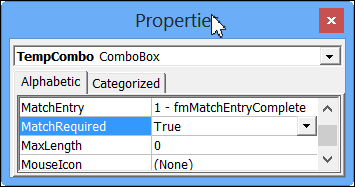
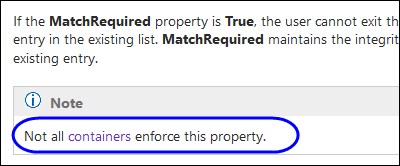
However, as the Excel Help so helpfully points out, “Not all containers enforce this property.” Unfortunately, the worksheet is one of those non-enforcing containers.
Change the Combo Box Style
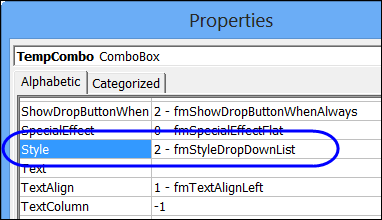
Because the MatchRequired property doesn’t work, you can change the Combo Box Style property, to prevent people from typing non-list entries. We’ll select List style, which doesn’t allow freeform typing.
In my sample file, the combo box is only visible when you double-click on a data validation cell. To make a change to the combo box properties, follow these steps:
- Double-click on a data validation cell, to show the combo box.
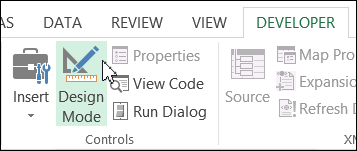
- On the Developer tab, click the Design Mode command.
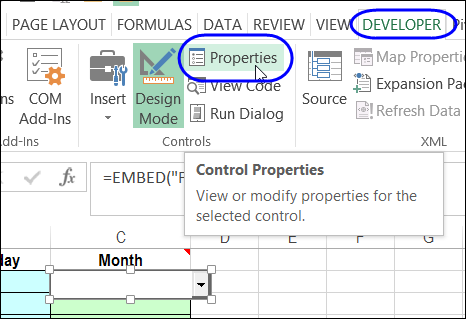
- Click on the combo box border, to select it, and click Properties, on the Developer tab.
- In the Properties window, scroll down to the Style property, and select 2- fmStyleDropDownList.
- Close the Properties window, and click the Design Mode command again, to turn that setting off.
Test the Combo Box
To test the revised combo box
- Double-click on a data validation cell.
- In the combo box, try to type an invalid entry, such as “Cold”
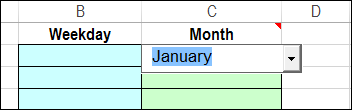
The entry doesn’t appear, because it’s not in the list. In the screen shot below, you can see the result when I tried typing Cold – it defaulted to January, the first item in the list.
Download the Sample File
To see the data validation combo box, and change its properties, download the sample file from my Contextures website – Data Validation Combo Box Named Ranges.
___________
I’m implementing a combo box with validation but have a layout problem. When I double click and the combo box appears, it is too narrow. You can see both the combo dropdown and, slightly to the right, the validation drop down. This behavior occurs even if I change the width of the combo box entries – the combo dropdown has the set width, but the top most cell of the combo box is still to narrow. Any ideas? I downloaded the sample but don’t see any differences between it and mine.
Found it. The code on http://www.contextures.com/xlDataVal11.html defines:
.Width = Target.Width + 5
But this is the code in you sample file:
.Width = Target.Width + 15
10 pts (or is it pixels?) is the difference.
Thanks Matt! I must have found that the extra width was necessary, while testing the file, and forgot to update the code on the website.
For other’s reference, here is the code I modified to use 3 different sized combo boxes (since the data in my dropdowns varied greatly in length). FYI I am a complete beginner when it comes to VBA.
1. Create 3 combo boxes & give them unique names
2. Initialize three temp variables:
Dim cboTemp1 As OLEObject
Dim cboTemp2 As OLEObject
Dim cboTemp3 As OLEObject
3. Copy and paste the “With cboTemp … End With” three times, modifying the cboTemp names and change combobox name
Set cboTemp2 = ws.OLEObjects(“ComboBox2”)
On Error Resume Next
With cboTemp2
‘clear and hide the combo box
.ListFillRange = “”
.LinkedCell = “”
.Visible = False
End With
4. The hard part – within the “If Target.Validation.Type = 3 Then” statement, replace the “With cboTemp1….Me.ComboBox.DropDown” section with If statements. So if you click in column Y, show comboBoxY
If Target.Column = 5 Or Target.Column = 16 Then
With cboTemp1
‘show the combobox with the list
.Visible = True
.Left = Target.Left
.Top = Target.Top
.Width = Target.Width + 0
.Height = Target.Height + 5
.ListFillRange = str
.LinkedCell = Target.Address
End With
cboTemp1.Activate
‘open the drop down list automatically
Me.ComboBox1.DropDown
ElseIf Target.Column = 8 Or Target.Column = 17 Then
With cboTemp2
‘show the combobox with the list
.Visible = True
.Left = Target.Left
.Top = Target.Top
.Width = Target.Width + 0
.Height = Target.Height + 5
.ListFillRange = str
.LinkedCell = Target.Address
End With
cboTemp2.Activate
‘open the drop down list automatically
Me.ComboBox2.DropDown
ElseIf Target.Column = 10 Or Target.Column = 19 Then
With cboTemp3
‘show the combobox with the list
.Visible = True
.Left = Target.Left
.Top = Target.Top
.Width = Target.Width + 0
.Height = Target.Height + 5
.ListFillRange = str
.LinkedCell = Target.Address
End With
cboTemp3.Activate
‘open the drop down list automatically
Me.ComboBox3.DropDown
I try to sort the array before it goes into the Combobox, but no luck, and no errors.
sortmyarray (str)
Function Sortmyarray(ByRef myarray)
Dim i, j, strHolder
For i = (UBound(myarray) – 1) To 0 Step -1
For j = 0 To i
If UCase(myarray(j)) > UCase(myarray(j + 1)) Then
strHolder = myarray(j + 1)
myarray(j + 1) = myarray(j)
myarray(j) = strHolder
End If
Next
Next
End Function